Window-side documentation writers
If you spend long sessions reading API references, writing explanations and reviewing code beside daylight, reflections and screen position are part of the monitor decision.


For API documentation beside a bright window, start with a matte or anti-glare screen you can position away from reflections; a 27-inch 4K display is a practical choice when you want a conventional desktop layout. Choose a taller 3:2 display if long documents and source files matter more than that layout, or assess colour coverage and calibration if you also prepare colour-sensitive assets. Brightness specifications do not replace control of direct window glare.
If you spend long sessions reading API references, writing explanations and reviewing code beside daylight, reflections and screen position are part of the monitor decision.
If you want fewer desk connections, check whether a monitor can carry video and peripheral data while supplying enough power for your laptop. Stand adjustment also matters when you need to change the screen angle.
If your documentation includes colour-sensitive screenshots, diagrams or interface assets, assess stated colour coverage and calibration alongside text layout and glare control.
For a window-side documentation desk, work out how you can avoid reflections before choosing between a conventional 4K layout, more vertical document space and laptop-docking features.
| Concern | What to check | Who this matters to |
|---|---|---|
| Reflections and readability | Check the screen finish and whether the stand or mount lets you turn the display away from a window. Compare typical brightness only for the exact models concerned. | When daylight reflects across my text, I need a screen and desk position that let me read without the window image getting in the way; around 42% of consumers put reflection control first. |
| Document workspace | Compare aspect ratio and vertical resolution, then check text scaling at your usual viewing distance. BenQ lists 3840 × 2560 for the 3:2 RD280U; Dell lists 3840 × 2160 for the 16:9 U2723QE. | If I keep an API reference open beside code, I want enough usable space without making the text uncomfortable to read; roughly 33% of consumers make document workspace their primary concern. |
| Laptop connections and visual work | Confirm your laptop’s video and charging requirements against the monitor’s USB-C capabilities. If you prepare colour-sensitive assets, check the stated gamut and calibration for your workflow. | I want to connect my laptop at the desk without repeatedly moving cables, and I may also need to prepare visual assets; about 25% of consumers put this connected workflow and visual work first. |
A bright screen can still show a direct reflection. The Health and Safety Executive advises arranging screens and lighting to avoid reflections and glare.
Look for a suitable screen finish and a position-adjustable setup, then consider desk orientation and daylight control rather than relying on a brightness figure alone.
BenQ specifies 3840 × 2560 and a 3:2 shape for the RD280U, while Dell specifies 3840 × 2160 for the 16:9 U2723QE. The taller format offers more vertical pixels, but usable text size still depends on scaling.
Choose the shape that suits your document and window layout, and check operating-system scaling at your normal viewing distance.
A monitor’s power-delivery rating does not establish that your laptop accepts video and charging through its particular USB-C port.
Check the laptop’s video-output mode and charging requirement, the monitor’s exact port specification and the cable you will use.
Similar monitor names need not identify the same screen size, stand, ports or supplied accessories.
Confirm the model suffix, dimensions, connections and included items on the product listing before ordering.
BenQ’s RD programming-monitor line is relevant when vertical space for documentation and source files is a priority.
Dell’s UltraSharp USB-C hub models are worth examining for a laptop-based desk with a conventional 16:9 layout.
LG’s 27-inch 4K USB-C displays provide another conventional-layout option for documentation and visual work.
ASUS ProArt models are relevant when documentation work includes colour-sensitive screenshots, diagrams or interface assets.
These monitors offer different approaches to a window-side documentation desk, from conventional 4K screens to a wide multitasking layout. Check screen finish, positioning and laptop connections for the exact model before choosing.
 No image available
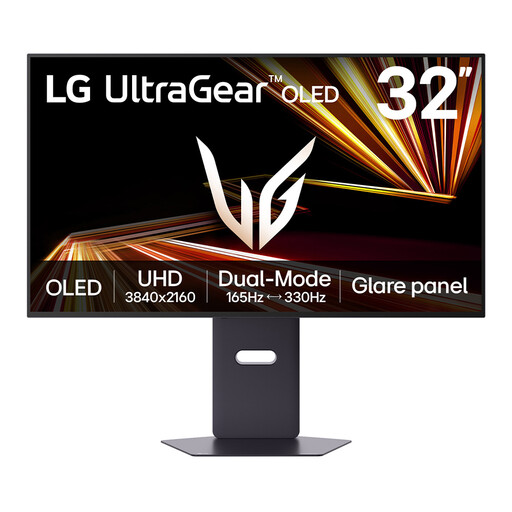
Consider this model if documentation work also involves visual assets. Its title identifies a 4K UHD OLED display; for a window-side laptop desk, confirm the screen finish and the exact USB-C video and charging capabilities before ordering.
 No image available
The 32-inch 4K format may appeal if you want a larger conventional screen for documentation windows. For long sessions with static text and interface elements, follow the listing’s OLED image-retention precautions; also check the connections if laptop charging through the display matters to you.
 No image available
Consider its 32:9 format if several side-by-side windows matter more to you than vertical document space. Check that a 49-inch curved display fits the desk and window position, and confirm the exact connections needed for your laptop.
 No image available
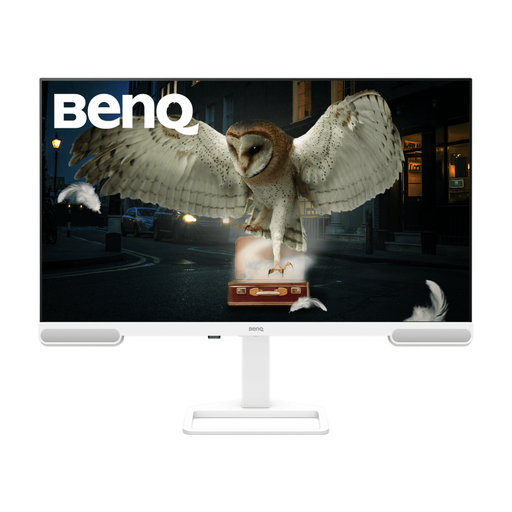
This 4K UHD model is an option to assess for a conventional documentation layout. Confirm the screen-size variant before checking desk fit, and verify stand adjustment and laptop charging against your setup.
 No image available
The 31.5-inch 4K IPS format is relevant if you want a larger documentation screen. For a bright-window desk, check the screen finish and positioning options; confirm USB-C charging requirements with your laptop before relying on one cable.
No: more screen brightness does not remove a reflected window image. The Health and Safety Executive advises arranging screens and lighting to avoid reflections and glare, so consider screen position and daylight control as well as an anti-glare finish.
Choose a conventional 27-inch 4K layout if it suits the way you arrange your windows; consider 3:2 when extra vertical space for long references and code matters more. BenQ specifies 3840 × 2560 for the RD280U, compared with Dell’s 3840 × 2160 specification for the U2723QE. Check your preferred text scaling with either shape.
No particular resolution, brightness or panel type is specified in the cited Health and Safety Executive guidance. Its display-screen-equipment guidance covers workers who use screens daily for continuous periods of an hour or more; assess the workstation and address glare rather than treating a monitor specification as a substitute for a suitable setup.
Confirm that your laptop’s USB-C port supports the required video-output mode and that the monitor’s power delivery meets the laptop’s charging requirement. Check the exact monitor port and cable specifications too; a USB-C socket alone does not establish video and charging compatibility.
Check the written warranty, any dead-pixel policy and the exact model variant before ordering. Keep the manufacturer’s warranty distinct from the retailer’s return policy, and check who handles each type of request.