Multi-window API writers
If you keep a draft, code samples and browser references visible together, a 27-inch QHD screen is a starting point when the desk has room for it. Dell lists 27-inch QHD office monitors with adjustable stands.


For a fixed desk where you regularly keep API references, code and a draft open together, start with an adjustable 27-inch QHD monitor if you have room for it. A 23.8–24-inch Full HD screen is a practical alternative when one writing window is your main focus; whichever size you choose, check screen positioning and computer connections before paying for hub or conferencing features you will not use.
If you keep a draft, code samples and browser references visible together, a 27-inch QHD screen is a starting point when the desk has room for it. Dell lists 27-inch QHD office monitors with adjustable stands.
If you mainly work in one editor or document window, a smaller adjustable screen may fit the desk more easily. BenQ lists its 23.8-inch Full HD GW2490T with height, pivot, swivel and tilt adjustment; the Health and Safety Executive also advises positioning the screen to suit the workstation.
If you want display output, charging and peripherals connected through the monitor, consider a USB-C hub model only after checking what your laptop supports. Dell lists these connections on its P2725DE.
Decide how much space your documents need on screen, then check whether the stand and connections work at your actual desk. Treat USB-C docking as a separate requirement: a compact screen or a QHD screen can also be part of a laptop-led setup.
| Concern | What to check | Who this matters to |
|---|---|---|
| Text workspace | Compare native resolution with screen size. Dell lists the 27-inch P2725D at 2560 × 1440; BenQ lists the 23.8-inch GW2490T at 1920 × 1080. | If I need my draft, an API reference and code visible together, I put room for multiple windows ahead of a smaller footprint; around 42% of consumers put text workspace first. |
| Screen positioning and glare | Check height adjustment and tilt, then assess reflections at the desk. The Health and Safety Executive advises placing the top of the screen near eye level and the screen about an arm's length away. | At a fixed study desk, I need to position the display without straining to see it or working around reflected light; around 33% of consumers prioritise positioning and glare control. |
| Computer connections | Match the monitor's video inputs to your computer. For USB-C docking, check laptop video support and whether the monitor's power delivery meets its charging requirement. | If I work from a laptop, I want fewer desk connections only if one cable can handle the functions I need; around 25% of consumers put connection compatibility first. |
A larger diagonal does not mean more pixels. LG lists its 27BA550-B at 1920 × 1080, while Dell lists the 27-inch P2725D at 2560 × 1440, giving the Dell model more desktop pixels for side-by-side material.
Check the native resolution as well as the diagonal size, then decide whether your writing workflow needs several windows visible at once.
Monitor modes cannot correct a screen that sits awkwardly or catches reflections. The Health and Safety Executive's guidance addresses screen position and glare as part of workstation setup.
Place the screen near an arm's length away with its top near eye level, and adjust the lighting and screen angle where reflections interfere with reading.
A USB-C socket alone does not establish that a laptop can send video to the monitor or use its charging function.
Check the laptop's specification for compatible USB-C video output and compare its charging needs with the monitor's stated power delivery.
If the connection does not provide the functions you need, a separate charger or dock may still have to remain on the desk.
An adjustable stand cannot, by itself, resolve an unsuitable desk height, chair position or lighting arrangement.
Try the monitor at the desk with your usual chair and keyboard. If you use display screen equipment for employed work, use your employer's workstation-assessment process where applicable.
Dell's P2725D and P2725DE illustrate two 27-inch QHD office-monitor configurations: a conventional display and a USB-C hub variant.
BenQ's GW2490T is a 23.8-inch Full HD example for a more compact writing setup.
LG's 27BA550-B is a 27-inch Full HD office-monitor example with an adjustable stand.
These choices span QHD screens for keeping writing and reference windows visible, a 24.1-inch WUXGA option for a smaller desk, and Full HD for a more single-window workflow. Check each model's dimensions, stand and laptop connections against your own setup.
 No image available
Consider this WQHD model if you want room for a draft and reference material on the same screen. If laptop charging through the monitor matters, confirm the exact USB-C capability and your laptop's compatibility.
 No image available
This QHD model is worth considering when desk space is limited but you still want room for document and reference windows. Check its physical dimensions and the exact USB-C configuration before relying on it for laptop docking.
 No image available
The 27-inch QHD format may suit a desk where you keep documentation and code visible together, provided the screen fits your viewing position. This model is presented as a gaming monitor; its listed 240Hz refresh rate and 0.03ms response time are not requirements for writing documentation.
 No image available
Consider this WUXGA model for document work at a smaller desk. If you plan to connect a laptop and peripherals through the monitor, confirm the exact port configuration, USB-C video compatibility and charging requirements.
 No image available
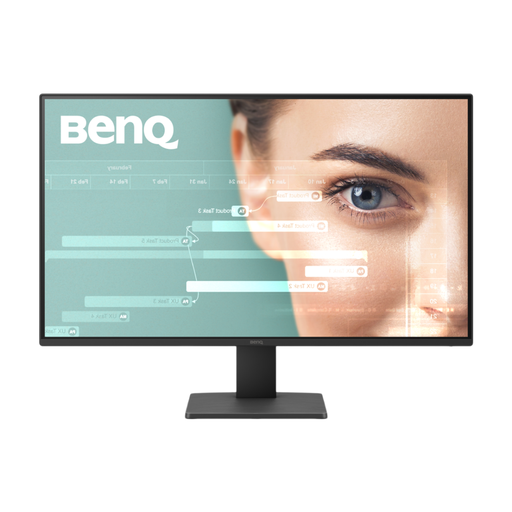
This Full HD model is an option if you mainly write in one window and want a 27-inch screen, rather than additional QHD desktop pixels. Check the stand's adjustment range if you need to set screen height without a separate arm or riser.
Choose 27-inch QHD when side-by-side drafts, code and browser references are central to your work and the desk has room. A 23.8–24-inch Full HD monitor suits a smaller desk or a workflow centred on one window. Dell lists the 27-inch P2725D at 2560 × 1440, while BenQ lists the 23.8-inch GW2490T at 1920 × 1080; compare the stand and connections as well as the panel.
Prioritise height adjustment unless a suitable monitor arm or riser already lets you position the screen. The Health and Safety Executive advises placing the top of the screen near eye level and the display about an arm's length away; your chair, desk and keyboard position still matter.
No monitor mode can replace appropriate screen placement and glare control. Treat reading and low-blue-light settings as optional adjustments, and change the desk or lighting arrangement if reflections or positioning make the screen difficult to use.
Consider a USB-C hub monitor when your laptop can send video through the connection and you want the monitor to handle charging or peripherals too. Check the laptop's video support and charging needs against the exact monitor: Dell lists up to 90 W power delivery for the P2725DE, which does not establish compatibility with every laptop.
Check the particular seller's warranty and return terms, including how it handles display faults or pixel issues and whether collection is offered. Keep those seller terms distinct from any applicable statutory remedies for faulty, damaged or misdescribed goods.