For a shared desk, start with a screen that each user can position comfortably, using an adjustable stand or a suitable monitor arm. Prioritise a higher-resolution display if keeping the original article, translation and notes visible together matters most; prioritise hub or KVM connections if changing computers and peripherals is the bigger interruption. Check the intended laptop and cable before relying on USB-C for video, data and charging, and assess the whole workstation—not just the monitor—for sustained work use.
Who is this for?
People switching laptops at a shared desk
If you take turns using the same screen and peripherals, focus on how quickly each laptop can reconnect. Check the video, charging and peripheral functions your particular laptop and cable can use, rather than assuming every USB-C connection works alike.
Readers working across several documents
If you annotate an original-language article alongside translations, references and notes, consider the screen space available at a text size you can read comfortably. Resolution, screen dimensions and your preferred scaling all affect that decision.
People resetting a hot-desk workstation
If different people use the desk during the week, check whether the screen, seating and lighting can be adjusted for each person. The Health and Safety Executive includes hot-desking in its display screen equipment guidance.
What should you prioritise?
Work out whether repositioning the shared screen, fitting documents on screen or changing computers causes the greatest difficulty. Then check the relevant monitor features against the desk and the computers that will actually use them.
| Concern |
What to check |
Who this matters to |
| Shared-desk positioning |
Check the stand’s height, tilt, swivel and pivot adjustments, or the mounting requirements for an arm. Make sure its base or clamp suits the desk. |
If different people need to reset the screen position, a fixed setup could leave me working around someone else’s arrangement. Around 36% of consumers would put shared-desk fit first. |
| Space for dense text |
Compare screen size and native resolution, then consider whether your preferred text scaling leaves room for the article, translation and notes. |
I want to read the source text while marking it up, without continually hiding my notes. For around 29% of consumers, document space is the primary concern. |
| Laptop and peripheral changeovers |
Match the monitor’s USB-C or Thunderbolt functions to each laptop and cable; check charging requirements and whether you need a USB hub, Ethernet or KVM switch. |
When computers change at the desk, I would rather reconnect predictably than move several peripherals each time. Quick changeovers come first for around 21% of consumers. |
| Reflections during reading |
Check screen finish, nearby lighting and whether you can reposition the display away from reflections. |
Long passages are harder to work through when light reflects across the screen, so I need a layout I can adjust. Around 14% of consumers would make glare management their first priority. |
What is easy to overlook?
-
Treating an eye-care label as a complete workstation solution
A listed display feature cannot correct screen placement, reflections, chair position or desk layout. A shared screen needs to work within the arrangement each person uses.
Check the screen position and lighting at the actual desk. The Health and Safety Executive says employers must assess the workstation when workers use display screen equipment daily as part of normal work, continuously for an hour or more.
-
Assuming any USB-C connection provides a one-cable desk
A monitor’s hub and charging features help only when the laptop and cable support the video, data and power functions you intend to use.
Compare the laptop’s video output and charging needs with the exact monitor’s upstream connection and the cable specification.
A separate charger, dock, Ethernet adapter or replacement cable may still be needed for the intended setup.
-
Choosing a stand from an older model’s feature list
An older model may illustrate useful adjustments without being a current purchase option. For example, LG marks its UK 27QN880 product page as discontinued.
Use the adjustment list to define what you need, then check the exact model you plan to order and whether its stand or required arm is included.
-
Leaving the old monitor out of the replacement plan
If you are replacing a display, you will also need a practical way to hand over the old electrical equipment.
Before ordering, ask the retailer how its same-type electrical-equipment take-back arrangement works for your purchase. GOV.UK’s retailer guidance addresses take-back when customers buy an item of the same type.
Brands and product lines to consider
Dell
Dell’s UltraSharp U2724DE is a 27-inch QHD example for desks where laptop and peripheral connections matter alongside screen adjustment.
- Dell and Joybuy list Thunderbolt 4 positioning, USB-C 90 W power delivery, RJ45 Ethernet and USB-hub connectivity for the U2724DE.
- Check each laptop and cable before expecting video, charging and peripherals to work through one connection.
BenQ
BenQ’s RD280U programming-monitor line is worth examining if dense text and switching keyboard and mouse control between computers are central to the task.
- BenQ lists a professional KVM switch and reflection-reduction features for the RD280U.
- Its text-focused positioning is a manufacturer claim, not a measure of annotation performance; check the exact model’s dimensions, ports and stand adjustment.
LG
LG’s UltraFine 27UP85ZK-W is a 27-inch UHD 4K IPS option to examine for a mainly single-computer document workflow.
- LG lists USB-C and a height-, pivot- and tilt-adjustable stand for the 27UP85ZK-W.
- Check the ports and charging requirements if the monitor also needs to serve as a desk hub. LG’s separate 27QN880 Ergo model is marked discontinued on its UK product page.
Joybuy monitors for these workflows
These monitors offer different ways to approach document space, desk positioning and computer connections. Compare the exact screen and connection requirements for your shared desk rather than treating every USB-C or 4K model as interchangeable.
 No image available
iiyama ProLite XUB2792UHSU-B6 27-inch 4K UHD monitor
Consider this model if you want a 27-inch 4K screen for arranging article text and notes at a shared desk. Check the stand’s adjustment range against each user’s position, and confirm USB-C video and charging functions with your intended laptop before planning a one-cable setup.
View on Joybuy
 No image available
BenQ MA320UP Nano Glossy 32-inch 4K USB-C Mac monitor
Its larger 4K screen may suit a desk where several document panes need to remain visible. The model is presented as Mac-oriented, so check the intended computer’s USB-C video, data and charging compatibility; consider how its glossy finish will work with the desk lighting.
View on Joybuy
 No image available
Dahua 32-inch 4K 165Hz curved OLED gaming monitor
This curved 4K OLED model is an option to assess if you also want the gaming specifications named in its title, rather than choosing on annotation needs alone. Its title lists 165Hz, Type-C 65W and a USB hub; confirm the exact screen dimensions, connection functions and stand adjustment before allocating space at a shared desk.
View on Joybuy
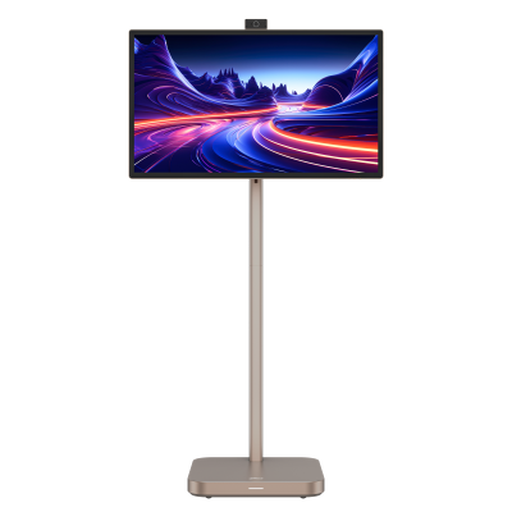 No image available
Dahua 31.5-inch 4K Explorer portable smart monitor
The 31.5-inch 4K format may appeal if you want room for several text panes and have space for a larger display. Its title also lists Android 11 and 8GB+128GB; if panel technology or computer connection matters to your work, confirm the exact IPS or VA variant and the Type-C functions before buying.
View on Joybuy
 No image available
ASUS ZenScreen MB249C IPS USB-C monitor
Consider this model if the desk layout changes and mounting flexibility matters more than keeping several document panes on a 4K screen. Check which mounting accessories come with the package, whether the desk can accommodate them and whether your laptop supports the USB-C functions you need. If you will move the monitor regularly, confirm its item weight.
View on Joybuy
Frequently asked questions
Does a shared desk need a different kind of monitor?
Not necessarily, but the screen should be straightforward for different users to reposition. Check stand or arm adjustment, desk space and lighting together; the Health and Safety Executive includes hot-desking in its display screen equipment guidance.
When must an employer assess a display screen workstation?
The Health and Safety Executive says employers must carry out a workstation assessment when workers use display screen equipment daily as part of normal work, continuously for an hour or more. That assessment concerns the workstation as a whole, not simply the monitor’s listed features.
Will USB-C always handle the display and laptop charging through one cable?
No: the monitor, laptop and cable must support the particular video and charging functions required. For example, Dell’s U2724DE listing specifies USB-C 90 W power delivery and hub functions, but you should still check the connected laptop’s display output and charging needs.
What should I arrange for an old monitor when buying a replacement?
Ask the retailer about its take-back route before the new monitor arrives. GOV.UK’s electrical-waste guidance says retailers must offer to take back waste of the same type as the item a customer buys; confirm how the arrangement works for your order and whether you can use the available handover method.


