Who each setup suits
Where you annotate, how much text you keep open and whether you write directly on the screen point towards different monitor arrangements.
Readers moving between workspaces
If you use libraries, shared desks or different rooms, a portable second screen may be easier to take along. Check whether it draws power from the laptop or needs its own supply before relying on it where sockets are scarce.
Readers working with several texts
If you regularly keep an article, translation or dictionary and annotation notes visible together, compare screen size and portrait positioning with portability. A larger adjustable desk monitor may suit work that stays in one place.
People marking up the screen directly
Touch or a compatible active stylus matters when your annotation software and preferred way of working call for highlighting, handwriting or comments on the display itself. It adds little to a workflow based on typing and a mouse.
What matters when choosing
Decide whether the monitor must travel with you or remain at a desk, then check how its video connection and power arrangement work with your laptop. For a long article, consider where the source text, translation and notes will sit on screen.
Laptop-powered portable monitor
Choose it when: you need a second screen away from your desk and a compatible laptop can carry its video and power over USB-C.
Allow for: the monitor drawing power from the laptop rather than keeping the laptop charged. ASUS specifies DisplayPort Alt Mode support for the ZenScreen MB166C’s one-cable setup.
Portable monitor with power pass-through
Choose it when: a charger at one socket must also supply the laptop through the monitor, or direct touch input is important.
Allow for: a compact display and a charging arrangement that must suit both laptop and charger. Lenovo specifies 65 W power pass-through and touch support for the 14-inch ThinkVision M14t Gen 2.
Fixed-desk USB-C monitor
Choose it when: most annotation happens at one desk and space for text and notes matters more than carrying the screen.
Allow for: a permanent position and power for the monitor. Dell specifies a 23.8-inch QHD panel and USB-C power delivery of up to 90 W for the P2425DE; the laptop’s requirements still need checking.
| Concern |
What to check |
Who this matters to |
| Sockets and cables |
Check the laptop’s USB-C video capability and whether the monitor draws power from it or passes charger power through to it. |
If I move between desks with few sockets, I want a second screen without arranging another monitor power lead. Around 33% of consumers put minimising sockets and cables first. |
| Room for text |
Compare panel size, resolution and the available portrait position for an article alongside translation or notes. |
When I compare long passages, I want enough room to see the source and my references without continually switching windows. Roughly 27% of consumers prioritise document workspace. |
| Direct markup |
Confirm that the exact monitor, stylus if needed, operating system and annotation app support your intended input. |
If I highlight or write on the display, touch must work with the actions I actually use. Around 20% of consumers place direct markup first. |
| Fixed-desk setup |
Look at stand adjustment and screen position, and make room for changes of activity or breaks during sustained work. |
For long sessions at one desk, I need to position the screen for reading rather than rely on an eye-care label alone. Roughly 20% of consumers prioritise an adjustable desk setup. |
Relevant brands to consider
These product lines illustrate different portable and desk-based arrangements. Check the exact model rather than assuming a feature applies across a brand.
Lenovo
The ThinkVision M14t Gen 2 is a portable option to examine if power pass-through or direct screen input matters.
- Lenovo specifies a 14-inch 2240 × 1400 touch display, two USB-C ports, 65 W power pass-through and support for a compatible active stylus.
- Its 14-inch panel offers less physical screen area than a 23.8-inch desk monitor; check whether that leaves enough room for the article and notes you want visible together.
ASUS
The ZenScreen MB166C is a portable display for readers considering a laptop-powered, one-cable connection.
- ASUS specifies a 15.6-inch Full HD anti-glare IPS panel and USB-C video and power from a compatible host.
- The host must support DisplayPort Alt Mode. ASUS states that automatic rotation through DisplayWidget works only with Windows.
Dell
The portable P1424H and fixed-desk P2425DE show two distinct approaches to adding a USB-C screen.
- Dell specifies two USB-C/DisplayPort Alt Mode ports for the 14-inch P1424H. The 23.8-inch QHD P2425DE offers stand adjustment and USB-C power delivery of up to 90 W.
- The larger P2425DE needs desk space and monitor power; check the exact charging and connection arrangement for either model against your laptop.
Joybuy monitors for this task
These choices span portable screens for reading or touch input, a larger screen with flexible placement, and a fixed-desk QHD monitor. Their power arrangements differ, so choose against the sockets and laptop connections you can actually use.
 No image available
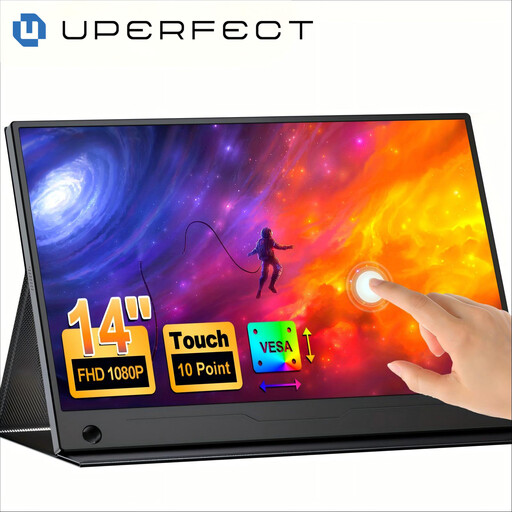
UPERFECT 14-inch 60 Hz touchscreen portable monitor
Consider this portable screen if you want to interact with an article on the display rather than only type notes beside it. The named variant has a 180° adjustable stand and VESA mounting provision. Check your device’s video and power arrangement before relying on one cable; confirm annotation-software and pen compatibility if those matter to your workflow.
View on Joybuy
 No image available
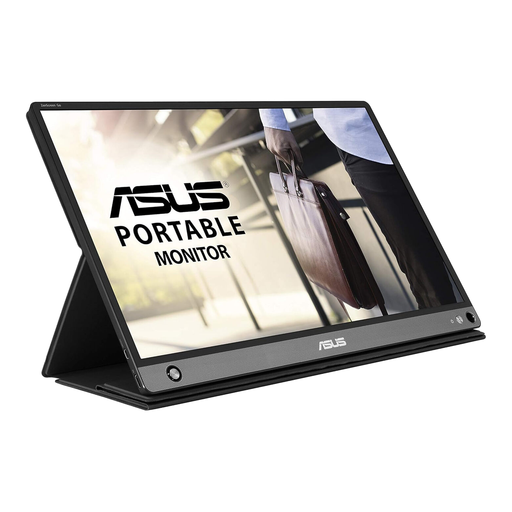
ASUS ZenScreen Go MB16AHP FHD
Its built-in battery may suit a reading session where a monitor socket is unavailable. The stated battery use is up to four hours, so check whether that covers your session and which USB-C or Micro-HDMI connection your laptop can provide.
View on Joybuy
 No image available
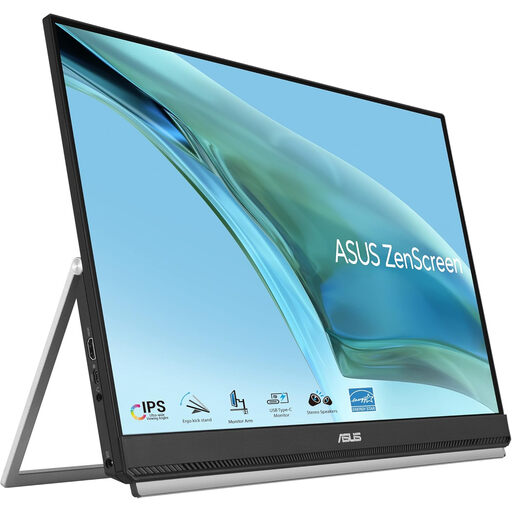
ASUS ZenScreen MB249C IPS USB-C
Consider this larger, flexibly positioned screen if you work at different desks but do not need a small monitor to carry. Before planning around limited sockets, confirm the power supply included with the exact unit and whether its USB-C charging arrangement meets your laptop’s needs.
View on Joybuy
 No image available
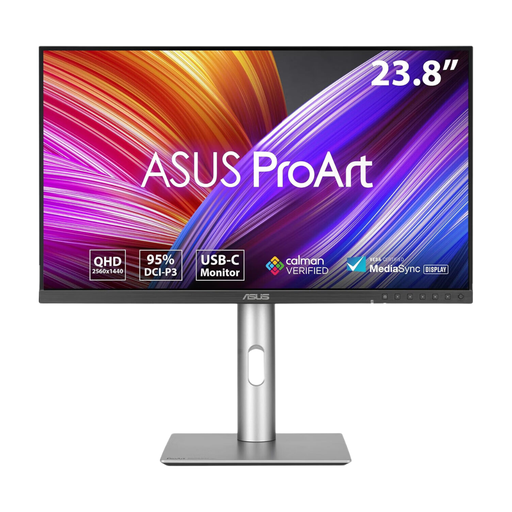
ASUS ProArt PA24ACRV IPS QHD
This fixed-desk option suits a setup where keeping an article and notes visible matters more than portability. Its named variant has an IPS QHD display. Allow desk space and power for the monitor, and check laptop video and charging compatibility before depending on its USB-C connection.
View on Joybuy
 No image available
ASUS ZenScreen MB166C 15.6-inch Full HD
This portable IPS monitor suits document reading when a compatible laptop can provide video and power over one USB-C cable. ASUS requires DisplayPort Alt Mode for that connection; its automatic portrait rotation through DisplayWidget works only with Windows. Check the laptop port and your preferred portrait workflow before choosing it.
View on Joybuy
Common questions
Will any USB-C laptop work with a one-cable portable monitor?
No. The laptop’s port must support the video connection required by the monitor; the connector shape alone is not enough. For the ASUS ZenScreen MB166C, ASUS specifies DisplayPort Alt Mode on the host device, so check your laptop’s port specification before buying.
Can a portable monitor keep my laptop charged from one socket?
Yes, if the exact monitor supports power pass-through in a setup compatible with your laptop and charger. Lenovo specifies 65 W power pass-through for the ThinkVision M14t Gen 2. A portable screen that instead draws power from the laptop does not, by that connection alone, keep the laptop charged.
Is touch worthwhile for annotating a foreign-language article?
Touch is worth considering if you will highlight, handwrite or navigate directly on the display and your annotation software supports the intended actions. If you mainly type comments or compare passages side by side, prioritise the screen space and positioning you need; check active-stylus compatibility separately if you plan to use a pen.
Does an eye-care monitor mean I can skip breaks?
No. The Health and Safety Executive advises attention to display-screen workstation setup and breaks from screen work. For sustained annotation, position the display for your work and take short, frequent breaks or change activity rather than relying on a monitor label.


