What matters when choosing
For account work beside a window, assess reflections and readable spreadsheet space before deciding which stand adjustments and laptop connections your desk needs.
| Concern |
What to check |
Who this matters to |
| Window glare |
Check for a documented matte or anti-glare surface and typical brightness; consider whether the stand lets you angle the screen away from reflections. |
If window reflections cross the figures I am checking, I need to change the screen position rather than rely on brightness alone. Around 36% of consumers put glare control first. |
| Spreadsheet workspace |
Check screen size and native resolution together, then try your preferred spreadsheet zoom and display scaling. |
When statements and account columns share my screen, I want space for both without making the text too small. For around 29% of consumers, usable detail and workspace come first. |
| Desk position and laptop connection |
Check stand height or mounting options, your laptop’s video output and the monitor’s USB-C power-delivery rating if charging matters. |
If I work from a laptop at a fixed desk, I need the display at a comfortable height and cables that suit my computer. Around 21% of consumers prioritise this desk-and-laptop fit. |
| Straightforward setup |
Decide which resolution, inputs and stand movements you will use; check what cables or positioning accessories the setup requires. |
If I mainly need a document screen, I would rather choose the connections and adjustments I will use than add features for another task. A simpler setup is the primary concern for around 14% of consumers. |
Relevant brands to consider
These models illustrate different specification choices for a bright-window desk; a brand’s inclusion does not establish availability or make its other monitors equivalent.
BenQ
The GW2790QT is a reference point for combining a matte QHD screen, stand adjustment and laptop connectivity.
- BenQ specifies a 27-inch QHD IPS panel, 350-nit typical brightness, 110 mm of height adjustment and USB-C power delivery up to 65 W.
- Its 75 Hz refresh rate is not a reason to choose it for high-refresh gaming; check your laptop’s USB-C video and charging requirements.
Dell
The S2725DS illustrates a QHD desk monitor for buyers who value an anti-glare surface and flexible stand positioning without USB-C charging.
- Dell specifies 350 cd/m² typical brightness, an anti-glare hard coating and height, swivel and pivot adjustment.
- Its documented connections are HDMI and DisplayPort rather than USB-C charging; check current availability before making it your choice.
LG
The 27U631A-B illustrates a 27-inch QHD IPS display with USB-C connectivity and reading-oriented settings.
- LG lists Reader Mode, Flicker Safe and a USB-C display connection for this model.
- USB-C power delivery is rated up to 15 W, and the stand offers tilt rather than height adjustment; assess charging and screen height separately.
Joybuy monitors for this setup
These monitors offer different display formats for checking household accounts at a home desk. Compare their stated resolution with the screen position, window reflections and laptop connection your setup requires.
 No image available
ASUS ProArt PA278CV IPS WQHD
Consider this WQHD model if fitting account columns on screen is a priority. Check that its stand can reach your preferred screen position and confirm the USB-C charging rating against your laptop before relying on one cable.
View on Joybuy
 No image available
ASUS ProArt PA328QV IPS WQHD
For account tables on a fixed desk, check whether WQHD text scaling suits your viewing distance. If you need USB-C, confirm its availability on the exact variant and check the charging wattage before choosing it for a laptop setup.
View on Joybuy
 No image available
ASUS ProArt PA278CFRV IPS QHD 100 Hz
Consider this QHD display if you want room for account columns, then assess its screen position and reflections at your desk. Its title specifies 100 Hz; if laptop charging matters more to you, confirm USB-C availability and power delivery for the exact variant.
View on Joybuy
 No image available
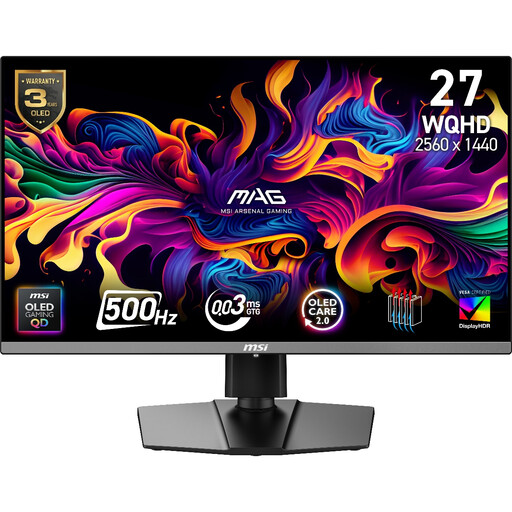
MAG 272QP QD-OLED X50 27-inch WQHD 500 Hz
Its 2560 × 1440 resolution provides a format to assess for account tables, while the stated 500 Hz refresh rate is a separate, gaming-oriented feature. For extended work with persistent spreadsheet elements, check how its OLED safeguards operate; its stated 15 W USB-C charging may not meet your laptop’s requirement.
View on Joybuy
 No image available
ASUS ProArt Display PA32UCG-K 32-inch 4K HDR IPS Mini LED
If you want to use its 4K resolution for account layouts, check text scaling at your normal viewing distance. Confirm the typical brightness for bright-window use and the USB-C power-delivery rating if the monitor also needs to charge your laptop.
View on Joybuy
Common questions
Is a 27-inch QHD monitor a sensible choice for household accounts?
Yes, if its size fits your desk and text remains comfortable at your preferred scaling. The QHD Dell S2725DS and BenQ GW2790QT provide more pixels than BenQ’s 27-inch Full HD GW2790, but resolution will not resolve window reflections on its own.
Will a higher brightness rating solve reflections from a window?
No: brightness is worth checking alongside screen coating and placement, not instead of them. Dell and BenQ specify around 350 nits of typical brightness for the S2725DS and GW2790QT respectively; the Health and Safety Executive also advises arranging the screen and lighting to avoid glare.
Can a USB-C monitor charge my laptop?
It can if the connection supports your laptop’s display output and the monitor supplies enough power for its charging needs. LG specifies up to 15 W for the 27U631A-B, compared with up to 65 W for the BenQ GW2790QT, so check your laptop and cable rather than treating the USB-C connector as a charging guarantee.
Where should I position the screen at my desk?
Place it directly in front of you, with its top at about eye level and the display about an arm’s length away, following Health and Safety Executive guidance. Then adjust the screen angle and lighting to keep window reflections out of your line of sight.


