Start with a non-glare or anti-glare screen, an adjustable stand and a desk position that keeps bright reflections off the display; the Health and Safety Executive advises arranging screens and lighting to avoid glare. If your journal includes carefully edited photographs, check the colour modes and calibration details of the exact model. For a laptop desk, confirm USB-C video support and charging power rather than relying on the connector alone.
Who this is for
Bright-window journal editors
If daylight reaches your desk, keeping text, maps and captions readable starts with managing reflections and finding a workable screen position. The Health and Safety Executive advises arranging the desk and screen to avoid glare.
Photo-led travel storytellers
If photographs are a substantial part of your journal, the display’s colour modes and calibration information matter alongside its treatment of reflections. Match the colour space to where the finished images will be used.
USB-C laptop desk users
If the monitor will also be your laptop’s main editing screen, check video input, charging power and cable requirements for both devices before planning a single-cable setup.
What matters when choosing
For a window-side desk, address reflections and screen position first. Then decide whether your photographs need managed colour and whether the monitor must also connect to and charge a laptop.
| Concern |
What to check |
Who this matters to |
| Daylight readability |
Check the exact screen’s non-glare or anti-glare treatment and typical brightness, not just HDR peak brightness. Plan a position that avoids bright reflections. |
I need to read captions and judge images while daylight reaches the desk, without a reflection obscuring the page; around 45% of consumers put glare control first. |
| Photo colour |
Check sRGB or Rec.709 modes for the intended output, and calibration information if your photo workflow requires it. |
My journal depends on edited photographs, so I need a colour mode suited to the finished images; roughly 36% of consumers make colour handling their primary concern. |
| Laptop desk setup |
Confirm stand adjustment and USB-C video support; compare the stated power delivery in watts with your laptop’s requirements. |
I want a screen I can position comfortably while writing and a connection that works with my laptop; about 19% of consumers prioritise that desk setup. |
Buying pitfalls
-
Treating brightness as the only answer to a bright window
Even an anti-glare surface cannot remove every direct reflection. Changing monitors without changing the screen angle may leave the interruption in place.
Position the screen to avoid bright reflections and use blinds or curtains where needed, as the Health and Safety Executive advises. Then compare surface treatment and typical brightness.
-
Comparing HDR peak figures with normal desktop brightness
These figures describe different conditions. ASUS lists 1,000 cd/m² HDR peak brightness but 250 cd/m² typical brightness for the ProArt PA279CDV; neither figure alone tells you how it will look beside your window.
For writing and ordinary photo editing, compare typical brightness and reflection treatment. A VESA DisplayHDR logo concerns HDR specifications, not the placement of your desk.
-
Assuming USB-C means one-cable laptop operation
A USB-C connection alone does not establish that the monitor accepts video or supplies enough charging power for your laptop.
Check the exact port’s video capability, power delivery in watts and required cable against your laptop before ordering.
If the intended connection does not meet your laptop’s requirements, you may need to keep using a separate charger or obtain a suitable cable or dock.
-
Choosing a wide-gamut screen without a matching colour mode
Coverage of Adobe RGB or DCI-P3 is relevant to particular image workflows; it does not mean every journal image should be edited in the widest available mode.
Choose a mode suited to your intended output, such as sRGB or Rec.709 where appropriate, and check the exact monitor’s calibration options if colour-managed work is a priority.
Brands to consider for these monitor types
BenQ
BenQ’s PhotoVue SW272U is a creator-oriented option for colour-managed image work, with a supplied shading hood and USB-C connectivity.
- BenQ lists a Nano Matte surface, 400-nit typical brightness, sRGB and Rec.709 coverage, and hardware calibration for the SW272U.
- Those are SW272U specifications, not features of every BenQ monitor; its colour tools may be unnecessary for a mainly text-based journal.
Dell
Dell’s UltraSharp U2725QE is a 27-inch 4K IPS Black desk monitor relevant to buyers considering an adjustable, hub-oriented laptop setup.
- Dell specifies an anti-glare and anti-reflective surface, height and pivot adjustment, and an ambient-light sensor for the U2725QE.
- Check the exact connection and charging configuration against your laptop rather than assuming every power-delivery option applies to it.
ASUS ProArt
The ProArt PA279CRV IPS and PA279CDV OLED give photo-led editors different screen specifications to weigh against window-side use.
- ASUS lists a non-glare surface, 350 cd/m² typical brightness and factory-calibrated colour specifications for the PA279CRV.
- ASUS lists anti-reflection treatment for the PA279CDV OLED, but its 250 cd/m² typical brightness is a different measure from its HDR peak figure. Compare normal desktop use and reflection handling for your desk.
Joybuy monitor choices
These monitors offer different starting points for journal editing: a WQHD IPS model, larger or colour-focused 4K models, and a 27-inch 4K option. For any of them, check reflection handling at your desk and the exact laptop connection before choosing.
 No image available
ASUS ProArt PA278CV IPS WQHD
Consider this for journal editing if a WQHD workspace meets your needs rather than requiring 4K. The model is listed as IPS and WQHD; check its screen surface and USB-C video and charging requirements for your desk and laptop.
View on Joybuy
 No image available
ASUS ProArt Display PA32UCG-K 32-inch 4K
Consider the larger screen if your desk has room for a 32-inch editing display. Its title identifies a 4K IPS Mini LED model with a 120 Hz refresh rate; compare typical desktop brightness rather than relying on the listed HDR or peak-brightness figures, and confirm laptop connection requirements.
View on Joybuy
 No image available
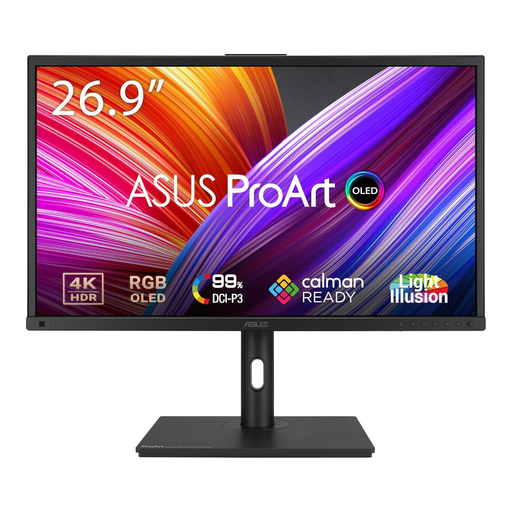
ASUS ProArt PA27DCE-K OLED 4K UHD
Consider this OLED model if 4K photo work is important and you can control light at the desk. Check typical desktop brightness and how its screen handles reflections in your intended position; also confirm USB-C video and charging compatibility before planning a laptop setup.
View on Joybuy
 No image available
iiyama ProLite XUB2792UHSU-B6 27-inch 4K UHD
Consider this 27-inch 4K display for a journal workspace when that screen size suits your desk. Matte Black describes its listed finish, not a confirmed anti-glare screen treatment: check the display surface for window-side use, along with USB-C video and charging compatibility if you use a laptop.
View on Joybuy
Common questions
Will an anti-glare monitor solve a bright-window setup on its own?
No. A treated surface is one useful attribute, but the Health and Safety Executive also advises arranging the desk and screen to avoid glare and bright reflections. Adjust the screen position and use blinds or curtains where needed.
Should HDR be the deciding feature for daylight journal editing?
No. HDR peak brightness is not the same specification as typical brightness for writing and ordinary photo editing. Compare typical brightness, screen treatment and desk position; a VESA DisplayHDR certification addresses HDR requirements rather than glare from your window.
What should I check before using one USB-C cable with my laptop?
Confirm video input support, the monitor’s stated power delivery in watts and the cable needed for the intended connection. BenQ lists up to 90 W for the SW272U and ASUS lists 96 W for the PA279CRV, but whether either arrangement suits you depends on your laptop and the exact connection.
Can I cancel an online monitor order in the UK?
For an ordinary online purchase covered by the Consumer Contracts Regulations 2013, regulation 30 generally sets a cancellation period ending 14 days after the day you receive the goods; applicable exceptions and return requirements still matter. This change-of-mind right is separate from remedies for faulty or misdescribed goods, which GOV.UK also describes. Check the seller’s return instructions without treating its voluntary policy as a replacement for statutory rights.


