Bright-window interface designers
If you inspect labels, field boundaries and error messages beside a window, screen reflections and the ability to reposition the panel can affect how clearly you see the layout.


Choose a screen you can angle away from the window, with a non-reflective finish and brightness and contrast controls you can adjust as daylight changes. For detailed contact-form layouts, a 27-inch 4K monitor offers more desktop pixels if its text scaling feels comfortable; a QHD screen can suit a simpler layout workflow. The UK Display Screen Equipment Regulations 1992 address adjustable brightness, contrast and reflective glare at covered workstations.
If you inspect labels, field boundaries and error messages beside a window, screen reflections and the ability to reposition the panel can affect how clearly you see the layout.
If a form includes approved brand colours, logos or imagery, consider the monitor’s declared colour capabilities alongside its stand adjustment. A colour specification alone will not remove a window reflection.
If you connect a laptop at your desk, a suitable USB-C monitor may combine display connection and charging. Check the laptop’s display-output support and charging requirement before relying on one cable.
Start with the reflection you see from your normal seat: a screen’s finish and positioning matter before extra resolution or laptop-hub features. Then choose the workspace and connections your form-design tools need.
| Concern | What to check when buying | Who this matters to |
|---|---|---|
| Window glare and legible text | Look for a matte or anti-glare finish, adjustable brightness and contrast, and enough stand or mounting movement to change the reflection angle. | If the window appears in my screen while I inspect labels and error states, controlling that reflection comes before extra pixels. Around 50% of consumers put glare control first. |
| Layout space and text size | Compare 27-inch 4K and QHD with your usual design tools at a comfortable operating-system and application scaling setting. | When I keep a canvas and design panels open together, I need room for detail without making controls too small to use. Around 30% of consumers prioritise workspace and comfortable text sizing. |
| Colour and laptop workflow | For colour-sensitive work, check the exact model’s declared colour space; for a laptop, check USB-C video support and power delivery against its requirements. | If I approve form colours or connect a laptop at this desk, those workflow needs can decide which monitor is practical. Roughly 20% of consumers put colour or laptop connectivity first. |
A brightness figure does not tell you whether a window will be reflected in the panel. Screen finish and the angle between your seat, screen and window matter too.
Check the finish and positioning options, then assess the intended desk position when the window is brightest. The UK Display Screen Equipment Regulations 1992 address reflective glare at covered workstations.
Stand movement differs by model. ASUS lists height, tilt, swivel and pivot adjustment for the ProArt PA279CV, while BenQ lists tilt adjustment for the EW2780Q.
Check the exact model’s stand and mounting options against the movement needed to clear the reflection.
If the supplied stand cannot reach a usable position, a compatible monitor arm or replacement stand may be needed.
USB-C power delivery varies between monitors, and the laptop must support display output through the intended connection.
Check the monitor’s video and power-delivery specifications against the laptop maker’s display and charging requirements.
A denser desktop can give form-design tools more room, but text and controls still need to be comfortable at your viewing distance.
Preview your usual applications at the intended resolution and scaling setting before choosing between 4K and QHD.
These model examples show different approaches to window-side form work; their specifications should not be assumed to apply across each brand’s range.
Dell’s UltraSharp range includes professional monitors with adjustable stands and laptop-hub features.
ASUS ProArt models address colour-sensitive design work, including interface and graphic layouts.
Selected BenQ home and office monitors offer matte screens and ambient-viewing features.
These monitors offer different screen sizes and resolutions for contact-form work at a window-side desk. Check each screen’s finish, positioning options and text scaling against the reflection and layout space you need; the choices below are not all the same type of monitor.
 No image available
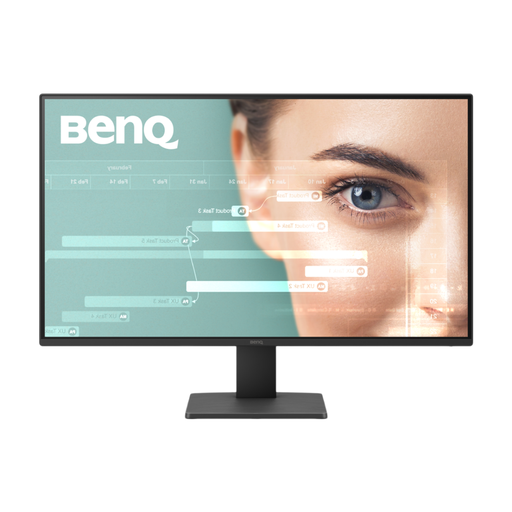
For a window-side layout desk, compare its listed matte screen and adjustable positioning with the reflection you see from your seat.
The WQHD resolution is worth checking in your usual design tools if you need several panels open at once. Confirm that the available brightness and contrast controls meet your needs.
 No image available
This is a Full HD option for a fixed desk where you can check the form layout at your preferred text size.
Its listed matte finish and brightness features are relevant beside a window, but the stand is described as tilt-only. Check whether tilting it clears the reflection or whether a suitable mount is needed.
 No image available
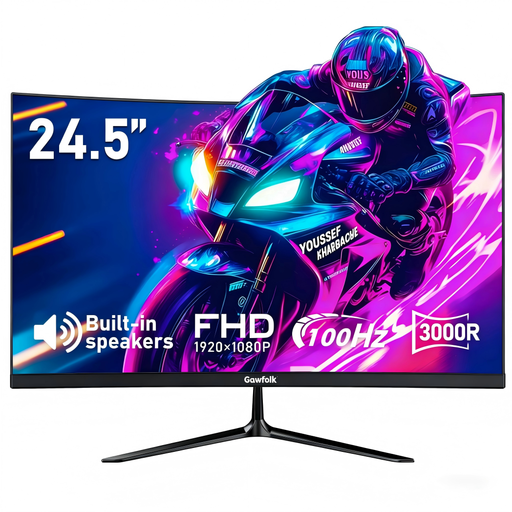
Consider the smaller curved screen if it fits your desk and the way you inspect form fields, rather than assuming it will feel like a flat 27-inch layout workspace.
The product name specifies VESA 75 × 75 mm mounting. Check whether the stated tilt and mounting options let you move its listed anti-glare screen out of the window reflection.
 No image available
The 4K resolution may suit a detailed form-design workspace if your preferred scaling keeps labels and controls comfortable.
Check the screen finish before choosing it for a bright-window desk. Its stated tilt adjustment also needs to provide enough movement for your particular window angle.
 No image available
If you want a larger 4K canvas, check whether this curved 32-inch screen fits your desk and normal viewing position.
Its listed height, tilt and swivel options may help with positioning, but check the screen’s reflection characteristics and available brightness and contrast controls before using it beside a bright window. Confirm that 65W power delivery suits your laptop.
Move or angle the screen so the window is not reflected from your normal seated position, then adjust brightness and contrast for the room. A new monitor will not necessarily resolve a reflection caused by the desk and window angle; the UK Display Screen Equipment Regulations 1992 address these workstation factors for covered work.
No: check that the laptop supports display output through the intended USB-C connection and that the monitor’s power delivery meets its charging requirement. The manufacturers list different figures for specific models: ASUS specifies 65W for the PA279CV, Dell lists up to 140W for the U2725QE, and LG lists up to 90W for the 27UP850K-W.
No particular monitor model is mandated for an individual consumer. The Health and Safety Executive explains that the UK Display Screen Equipment Regulations apply to workers who use display-screen equipment daily for continuous periods of an hour or more; employers have workstation assessment duties. If you are buying for yourself, use glare control and adjustability as practical selection criteria rather than treating a product as certified for your desk.
Check an appropriate electrical-waste collection or take-back route rather than placing it in ordinary waste. GOV.UK describes the UK waste electrical and electronic equipment framework as promoting recovery, reuse and recycling; ask your local authority or retailer which route accepts your monitor.