Daylight-exposed data checker
You review charts, figures and labels beside a window and need to manage reflections without losing a comfortable screen position.


For checking experiment results beside a bright window, start with a matte or anti-glare screen that you can position away from reflections; brightness alone will not solve a poorly placed screen. A 4K display is worth considering for dense charts and images, while a larger hub monitor suits a compatible laptop and several open windows. Treat high-refresh OLED models as a mixed-use choice, with their resolution and prolonged static-image use weighed against your work needs.
You review charts, figures and labels beside a window and need to manage reflections without losing a comfortable screen position.
You inspect dense results, detailed images or colour-coded outputs, so resolution and specifications relevant to your colour workflow matter.
You keep several results or applications visible and may want one connection for display, data and charging, provided your laptop supports it.
Settle the screen position and window-light problem first, then choose the workspace and connections your results actually require.
| Concern | What to check | Who this matters to |
|---|---|---|
| Glare and daylight readability | Check the exact screen finish and typical SDR brightness; make sure the stand or arm allows a workable angle away from the window. | If daylight falls across my screen, I need charts and figures to remain readable without fighting reflections. Around 40% of consumers put glare control first. |
| Fine detail and colour-coded results | Compare native resolution and size, then check the required colour space and any model-specific calibration features against your workflow. | When I inspect detailed images or colour-coded findings, I need enough screen detail and a suitable colour workflow to judge them. Fine-detail review comes first for roughly 30% of consumers. |
| Multi-window laptop work | Measure desk space and check laptop video output, USB-C or Thunderbolt support, and the monitor’s power-delivery rating if you want one cable. | I need room for several result windows and a connection that works with my laptop. Approximately 20% of consumers prioritise this workflow. |
| Work and high-refresh use | Check native resolution, typical SDR brightness and screen finish alongside the refresh rate your computer can use. | If the same screen is also for gaming, I may accept a different balance of desktop space and high-refresh features. Around 10% of consumers make mixed use their primary concern. |
Reflections depend on where the screen and light are positioned as well as on the display surface. A high brightness figure cannot by itself make a reflection disappear.
Plan a position that avoids direct reflections, use blinds or curtains where needed, and compare the exact model’s finish and typical SDR brightness.
HDR performance and typical SDR brightness can be stated under different conditions. An HDR figure therefore does not answer how a spreadsheet or chart will look in daylight.
Compare typical SDR brightness and reflection treatment when assessing a monitor for routine result checking.
A one-cable desk setup depends on the laptop’s port, the cable and the monitor’s power-delivery capability.
Check for the required DisplayPort Alt Mode or Thunderbolt support, then compare the laptop’s charging requirement with the monitor’s stated power delivery.
A compatible cable, separate charger or dock may be needed.
A larger display takes up more desk space, which may limit how far you can move or angle it away from the window.
Measure usable desk width and depth, including space for the stand or arm, before choosing a 31.5-inch screen.
The PD designer-monitor line is relevant if you want a matte 4K screen with adjustment and laptop connectivity for detailed review.
The UltraSharp U3225QE is a larger 4K hub-monitor option for a laptop-centred desk.
The UltraGear 27GS93QE-B is a mixed-use option when high-refresh gaming is important alongside result checking.
These monitors offer different ways to review detailed results, arrange a larger workspace or combine work with gaming. For a desk beside a bright window, check each model’s screen finish, typical SDR brightness and available adjustment before deciding.
 No image available
Consider this for detailed or colour-focused result review if its calibration options match your workflow. Confirm the exact panel specification and typical SDR brightness before relying on it beside a window.
 No image available
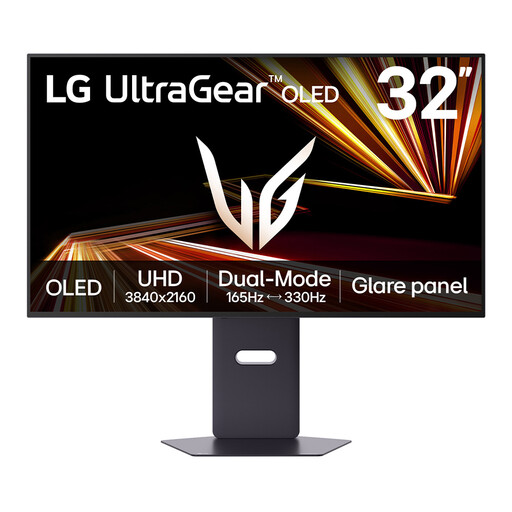
A 4K OLED option for detailed or colour-coded results if its colour features suit your work. Check typical SDR brightness for the room and take account of the listing’s advice to avoid prolonged static images.
 No image available
Consider this if a large results workspace and gaming share the same desk. Measure the space available, check typical SDR brightness for daylight use and follow the listing’s advice about prolonged static images.
 No image available
The 4K resolution makes this a candidate for detailed charts and numerical results. Before choosing it for a window-side desk, check the screen finish and typical SDR brightness, and whether its stated tilt adjustment gives you enough positioning freedom.
 No image available
The larger 4K screen is worth considering when several result windows need to stay visible. Check desk space, screen finish and typical SDR brightness, and confirm that the USB-C connection meets your computer’s video and charging needs.
No. For checking experiment results, compare typical SDR brightness and the exact model’s screen finish, but also position the screen and manage window light to avoid reflections.
Check that the laptop supports video over its USB-C port through DisplayPort Alt Mode or Thunderbolt, then compare its charging requirement with the monitor’s power-delivery rating and use a suitable cable. BenQ specifies up to 90 W for the PD2706UA and Dell up to 140 W for the U3225QE; neither figure establishes compatibility with every laptop.