For writing customer instructions beside a bright window, start with a matte or anti-glare screen, adjustable positioning and brightness controls—but arrange the desk and window light so reflections do not fall across the display. A QHD monitor with compatible USB-C connectivity suits a laptop-based writing desk; consider 4K when dense documents, screenshots or reference panes make extra native detail useful, while checking how text appears at your preferred scaling.
Who this setup suits
Daylight-affected documentation writers
If you write or edit customer instructions for long stretches near a bright window, controlling reflections and positioning the screen may matter more to you than adding resolution. The Health and Safety Executive advises arranging desks and screens to avoid glare and bright reflections.
Laptop-first support workers
If you connect a work laptop at the same desk each day, a compatible display connection, suitable charging power and an adjustable stand are useful checks before relying on a single cable.
Detail-first instruction editors
If your work involves dense text, screenshots, layouts or several document panes, a 27-inch 4K display may be worth considering. You will still need to manage window reflections and choose text scaling that works for you.
What matters when choosing
Check where the screen can sit relative to the window before comparing finishes and brightness controls. Then choose the resolution, adjustment range and laptop connection around the documents you use.
| Concern |
What to check |
Who this matters to |
| Daylight glare |
Look for a matte or anti-glare surface and usable brightness controls; check whether you can position the screen away from direct reflections. |
If window light crosses my screen, I need to keep instructions readable without leaning around reflections. Around 36% of consumers put glare control first. |
| Document detail |
Compare QHD and 4K at the screen size you want, using the text size and display scaling you would actually work with. |
When I edit small interface screenshots alongside written steps, I want enough detail at a comfortable text size; around 29% of consumers make document detail their primary concern. |
| Screen position |
Check height, tilt, swivel and pivot adjustment against your desk and viewing position; check mounting compatibility if you need an arm. |
For sustained writing, I need the display to fit my workstation rather than adjusting my posture to a fixed screen. Positioning comes first for around 21% of consumers. |
| Laptop connection |
Confirm USB-C video support, the monitor’s power-delivery rating and your laptop’s charging requirement. |
If I connect a work laptop daily, I want a simpler desk connection without assuming that any USB-C port will carry video and enough charging power. Around 14% of consumers prioritise that single-cable workflow. |
Buying pitfalls
-
Expecting the monitor to fix direct window reflections
An anti-glare surface does not replace controlling light that falls directly across the screen. The Health and Safety Executive advises arranging the desk and display to avoid glare and bright reflections.
Check whether you can move the display out of the window’s direct line and use blinds or curtains when needed.
-
Choosing USB-C without checking the laptop
A USB-C connection alone does not establish that the laptop, cable and monitor can provide the video connection and charging power you need.
Compare the laptop’s video and charging requirements with the exact monitor connection and check which cable is supplied.
If the monitor connection cannot meet the laptop’s charging needs, you may still need its charger or another suitable connection.
-
Assuming 4K solves a bright-window problem
4K provides more native pixels than QHD at the same screen size, but resolution does not control reflections. Display scaling also affects the usable size of text and windows.
Choose resolution for your documents and screenshots; assess the screen finish and window position separately.
-
Overlooking adjustment range
Screen size alone will not tell you whether the display can sit at a suitable height and angle. The Health and Safety Executive advises considering furniture and working conditions as well as equipment.
Check the stand’s adjustments against your desk setup, and confirm mounting compatibility if you plan to use an arm.
An alternative stand or monitor arm may be needed if the supplied stand cannot reach the position you need.
Brands to consider
Dell
Dell’s UltraSharp U2724DE and U2725QE are relevant examples of 27-inch work displays with anti-glare treatment, adjustable stands and laptop connectivity.
- Dell UK lists an anti-glare surface, ambient-light sensor, QHD resolution and up to 90 W power delivery for the U2724DE.
- The U2725QE offers a different 4K configuration; check which resolution and laptop connection the exact model provides rather than treating the UltraSharp range as one specification.
BenQ
The GW2790QT is a 27-inch QHD office-monitor option for a writing desk where a matte finish and USB-C laptop connection matter.
- BenQ UK lists 65 W USB-C power delivery for the GW2790QT; BenQ’s regional specification also lists a matte panel and an adjustable stand.
- Check the exact UK retail variant for the detailed screen and stand specifications, and compare its 65 W charging rating with your laptop’s requirement.
LG
The UltraFine 27UP85ZK-W is a 27-inch 4K option for document detail and a compatible USB-C laptop setup.
- LG UK lists 4K IPS, USB-C display and data connectivity, up to 90 W charging, and height, pivot and tilt adjustment for this model.
- If the screen will face troublesome daylight, check its finish and reflection behaviour separately rather than inferring them from the 4K specification.
Joybuy monitor choices
These monitors cover QHD, 4K and FHD options for a daylight-affected writing desk. Compare each model’s screen position and connections against your workstation; resolution alone does not settle the glare question.
 No image available
ASUS ProArt PA278CV IPS WQHD
Consider this QHD option if you mainly write instructions and want to assess a laptop connection alongside screen positioning. Its product name identifies an IPS WQHD display; confirm the exact USB-C video and charging capabilities for your laptop before relying on one cable.
View on Joybuy
 No image available
ASUS ProArt PA27DCE-K OLED 4K UHD
The OLED 4K UHD configuration is worth assessing if detailed instruction layouts are your priority. Check its screen finish in your intended window position and confirm USB-C video and charging compatibility before planning a single-cable setup.
View on Joybuy
 No image available
ASUS ProArt PA278CFRV IPS QHD 100 Hz
This QHD model is relevant if your instruction work does not call for 4K detail. Its product name identifies an IPS display and 100 Hz refresh rate; check the exact UK variant’s USB-C functions if laptop connectivity is part of your decision.
View on Joybuy
 No image available
MSI MD272UPSW Smart Monitor with Google TV, 27-inch 4K UHD
Consider its 4K IPS display if you work with detailed documents or reference panes. The product name specifies USB-C 65 W, Google TV and Dolby Audio; compare the charging rating with your laptop and check the screen finish for your window position.
View on Joybuy
 No image available
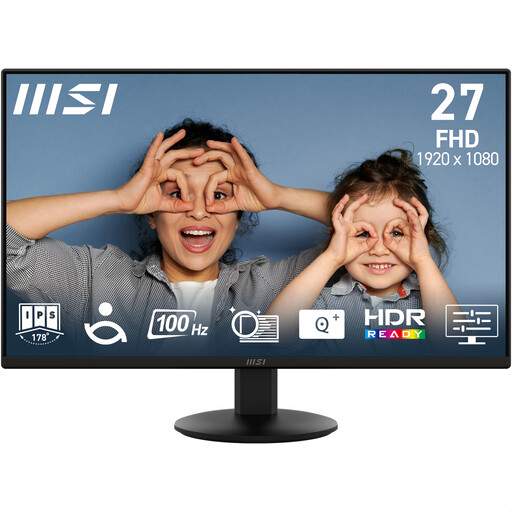
MSI PRO MP272L 27-inch FHD IPS 100 Hz
This FHD option is worth comparing if your documents do not require the native detail of QHD or 4K. Its product name also identifies HDMI, DisplayPort and Adaptive Sync; check whether its stand can reach the position your desk requires.
View on Joybuy
Common questions
Will an anti-glare monitor stop reflections from a bright window?
Not on its own. The Health and Safety Executive advises arranging the desk and screen to avoid glare and bright reflections; check whether you can reposition the display or control window light with blinds or curtains.
Can one USB-C cable display my work and charge my laptop?
Yes, if the laptop, monitor and cable support the required video connection and charging power. BenQ UK lists 65 W USB-C power delivery for the GW2790QT, while Dell UK lists up to 90 W for the U2724DE and LG UK lists up to 90 W for the 27UP85ZK-W; compare those ratings with your laptop’s requirements.
What else matters besides the monitor in a writing workstation?
The desk layout, furniture and working conditions matter too. The Health and Safety Executive advises considering the whole workstation, so assess where the screen can sit relative to the window and whether its stand can reach a suitable viewing position.


