Start with the desk position, not the monitor specification: the Health and Safety Executive advises arranging screens to avoid glare and bright reflections, often by keeping them from directly facing windows or bright lights and using blinds or curtains where needed. Then look for a stated anti-glare surface and enough adjustment for your desk; consider a higher-resolution screen for working across several lesson resources, or USB-C docking if its video connection and charging output suit your laptop.
Who needs which setup?
Lesson planners dealing with reflections
If daylight falls across the screen, work out whether you can turn the display away from the window or control the light with blinds or curtains. The Health and Safety Executive recommends addressing the desk layout; a stated anti-glare or anti-reflective surface is a further feature to compare.
Lesson planners using several documents
If a lesson plan stays open beside slides, browser research or a school platform, compare the workspace offered by different screen sizes and resolutions. Check your preferred text scaling and viewing distance rather than assuming a larger display will suit your desk.
People who dock a work laptop
If you move a laptop between rooms and connect it at a desk, check that the monitor and laptop support the required USB-C video connection. Compare the monitor’s charging output with the laptop’s needs, and check stand adjustment separately: a USB-C socket tells you neither of those things.
What should you check first?
For a bright-window desk, settle the screen position and light control before comparing display features. Then decide whether document space, flexible placement or laptop docking is your next priority.
| Concern |
What to check |
Who this matters to |
| Window glare |
Check the exact model’s screen finish and whether the desk and blinds let you control direct or reflected light. |
If daylight obscures my lesson plan, I need a screen position that avoids the reflection before extra display features matter. Around 33% of consumers put glare control first. |
| Document space |
Compare screen size and native resolution; check your computer’s output and the text scaling you would use. |
Keeping a plan beside slides and browser materials makes usable space my main concern, but the text still has to be comfortable to read. For around 27% of consumers, document space comes first. |
| Screen placement |
Verify height, tilt, swivel and pivot options on the exact model; if using an arm, check mounting and desk compatibility. |
When my desk restricts where the screen can sit, I need room to turn or raise it without upsetting the rest of the workspace. Around 20% of consumers prioritise flexible placement. |
| Laptop docking |
Confirm USB-C video compatibility, power-delivery wattage and whether the necessary cable is included. |
If I connect a work laptop each day, I want a connection that carries the display signal and meets its charging needs. Quick, compatible docking is the primary concern for around 20% of consumers. |
Mistakes to avoid
-
Relying on an anti-glare label while the screen faces the window
Screen finish is only part of the decision. The Health and Safety Executive advises arranging the desk and display to avoid glare or bright reflections.
Try the intended screen position and control intrusive daylight with blinds or curtains where possible. Then compare the exact model’s stated surface treatment.
-
Assuming any USB-C monitor will charge a work laptop
USB-C charging output differs by model. LG states up to 15W for the 27U631A-B, while Dell states up to 90W for the P2425HE and ASUS states up to 96W for the BE27ACGN.
Check the laptop’s charging requirement and video connection against the monitor’s specification, and confirm what cable comes with it.
If the output is insufficient, you may still need the laptop charger; LG also states that a USB-C cable is not included with the 27U631A-B.
-
Choosing 4K without trying your usual text size
More pixels do not resolve a reflection from the window, and comfortable document viewing also depends on scaling and desk distance.
Compare QHD and 4K using the sort of documents you prepare, and check that your computer connection supports the resolution you intend to use.
-
Treating eye-care features as a glare solution
Automatic brightness and other manufacturer-described comfort features do not move a window reflection off the screen.
Check the screen surface and practical placement first. Consider the exact model’s additional display features only after the light source is under control.
Brands to consider
These model examples show which specifications are worth comparing; a feature on one model should not be assumed to apply across its brand’s range.
Dell
Dell’s P2425HE and U2725QE illustrate different approaches to an adjustable work desk and a document-focused display.
- Dell specifies an anti-glare surface, height, pivot, swivel and tilt adjustment, and up to 90W USB-C power delivery for the P2425HE.
- Dell describes the U2725QE as a 27-inch 4K model with an anti-glare, anti-reflective panel and an ambient-light sensor. Check whether its resolution and connection features address your needs; neither model specification establishes how your particular window reflection will appear.
BenQ
BenQ is relevant when you want to compare monitors with an explicitly stated automatic-brightness feature.
- BenQ says the GW2480’s Brightness Intelligence sensor detects ambient light and adjusts screen brightness.
- Check the exact model’s screen finish and stand adjustment. Automatic brightness does not remove direct or reflected light from a window.
LG
LG’s 27U631A-B is an example to examine when comparing a 27-inch QHD IPS screen with USB-C display connectivity.
- LG specifies USB-C display connectivity and up to 15W power delivery for the 27U631A-B.
- That charging output needs checking against your laptop’s requirements, and LG states that the USB-C cable is not included. Check stand adjustment on the model you select.
ASUS
ASUS’s BE27ACGN illustrates a 27-inch QHD docking monitor with several stated stand adjustments.
- ASUS specifies USB-C docking with up to 96W power delivery, plus height, pivot, swivel and tilt adjustment for the BE27ACGN.
- Confirm your laptop’s video and charging compatibility rather than relying on the docking description alone. The stand specifications belong to this model, not every ASUS monitor.
Joybuy monitor choices
These monitors offer different stated resolutions and connection options for a lesson-planning desk. Match the screen size to your space, and check each model’s surface, adjustment and laptop compatibility against your window position and equipment.
 No image available
ASUS ProArt PA278CV IPS WQHD monitor
Consider this WQHD option if lesson plans regularly sit beside other documents. Confirm the screen finish, stand movements and desk fit for your window position.
The product name states an IPS display and WQHD resolution. If you intend to dock a laptop, check its USB-C video and charging requirements against the exact monitor specification.
View on Joybuy
 No image available
ASUS ProArt PA328QV IPS WQHD monitor
This WQHD model is worth considering when keeping lesson materials visible together matters more than a compact screen. Check its dimensions and your viewing distance before committing desk space.
The product name states an IPS display and WQHD resolution. Confirm the exact model’s surface and stand adjustment if moving the screen away from reflections is important.
View on Joybuy
 No image available
AOC Q32V4 31.5-inch 2K IPS monitor
Consider the stated 31.5-inch size if you want room for several lesson resources and have space to position a larger screen away from the window.
The product name also states 2K resolution and an IPS panel. Check the exact native resolution, screen finish and stand adjustment before deciding whether it fits your desk.
View on Joybuy
 No image available
ASUS ZenScreen MB249C IPS USB-C monitor
This USB-C model is relevant if a laptop connection is part of your lesson-planning setup. Check where and how it can be positioned before relying on it for a bright-window desk.
The product name states an IPS display and USB-C. Confirm video compatibility, charging output and the workspace available at its native resolution for your usual documents.
View on Joybuy
 No image available
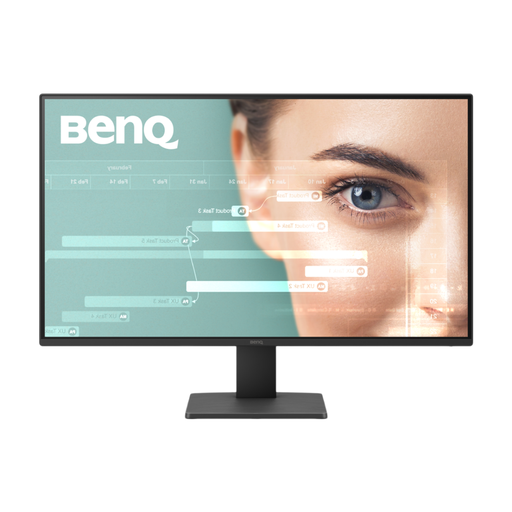
BenQ GW2791 27-inch Full HD IPS monitor
Consider this 27-inch option if Full HD provides enough room for the way you arrange your lesson documents. Compare your preferred text size with the workspace you need.
The product name states a Full HD IPS display and 100Hz refresh rate. Check the exact screen finish and available stand movements for your desk; the model name alone cannot settle the reflection problem.
View on Joybuy
Common questions
Will an anti-glare monitor solve reflections from a bright window?
Not on its own. The Health and Safety Executive advises arranging the desk and screen to avoid glare or bright reflections, often by keeping the screen from directly facing a window or bright light and adjusting blinds or curtains. Compare anti-glare surfaces after working out where the screen can sit.
Do I need USB-C charging for lesson planning?
Only if you use a compatible laptop and want the monitor connection to charge it as well as carry video. Check both video support and charging output: LG states up to 15W for the 27U631A-B, Dell up to 90W for the P2425HE and ASUS up to 96W for the BE27ACGN. LG also states that its USB-C cable is not included.
What should I do with an old monitor in the UK?
Check your local authority’s electrical-waste arrangements or the retailer’s take-back options rather than putting it in general household waste. GOV.UK describes the UK waste electrical and electronic equipment framework as a way to reduce electrical waste sent to landfill or incineration.
What should I keep after buying a monitor?
Keep the order confirmation, product description and stated specifications so you can identify what was supplied. Section 9 of the Consumer Rights Act 2015 requires goods supplied under a contract to be of satisfactory quality; a question about a fault or a mismatch with the description is distinct from simply changing your mind.


