For preparing reading exercises beside a bright window, deal with reflected daylight at the desk before choosing a monitor: the Health and Safety Executive advises positioning screens away from directly facing windows or bright lights. Then choose a matte or anti-glare display whose resolution, stand adjustment and connections suit your work. An ambient-light feature may help with brightness adjustments, but it cannot replace sensible screen placement and shading.
Who this is for
Bright-window worksheet preparers
If daylight reflects in the screen while you create or check exercises, start with the desk’s position relative to the window. The Health and Safety Executive advises arranging the workstation to avoid glare and bright reflections.
Text-heavy, multi-document users
If you keep worksheets, reading material and editing tools open together, compare screen size and resolution alongside the text scaling you find comfortable.
Laptop-based home-study users
If your laptop drives the display, check whether the monitor’s connection supports the video output and charging you need. Stand adjustment also matters when the window limits where the screen can sit.
What to check when choosing
Start with the position of the window and screen, then decide which display or connection requirement would matter most to your reading-exercise setup.
| Concern |
What to check |
Who this matters to |
| Daylight reflections |
Check whether the screen can sit away from direct window reflections, whether you can control daylight with blinds or curtains, and whether the display has a matte or anti-glare surface. |
When daylight catches my screen, I need to control the reflection before comparing display features. Around 36% of consumers would put glare control first. |
| Reading workspace |
Compare size and resolution, then check your computer’s output and text-scaling options for the display you choose. |
If I work across exercises and reference material, I want enough usable screen space without making text uncomfortable to read. Around 29% of consumers would make that workspace their primary concern. |
| Screen position |
Check the exact stand’s height, tilt, swivel and pivot options; if considering an arm, check the monitor mount and desk as well. |
At a fixed desk, I need to place the screen at a comfortable height and angle while keeping it out of the window’s reflection path. For around 21% of consumers, physical adjustment would take priority. |
| Laptop connection |
Check the laptop’s USB-C video capability, the monitor’s stated charging output and the cable needed for the intended resolution. |
When I prepare exercises on a laptop, I want a straightforward display and charging connection that works with that computer. Around 14% of consumers would put laptop integration first. |
Buying pitfalls
-
Choosing the monitor before checking the window
A new display cannot guarantee comfortable viewing if bright reflections fall across it. The Health and Safety Executive advises arranging the desk and screen to avoid glare, often by keeping the screen from directly facing a window or bright light.
Try a laptop or temporary screen in the proposed position at different times of day. Check whether a side-on position and controllable shading are possible before relying on a screen finish.
-
Treating eye-comfort features as glare control
Flicker-free settings and ambient-light adjustment describe different display features; neither removes a reflection caused by the screen’s position relative to a window.
Address placement and shading first, then assess those features against the way you use the monitor.
-
Assuming a 27-inch screen has the adjustment you need
Stand movement varies by model. BenQ specifies 110 mm of height adjustment and pivot for the GW2790QT, but screen size alone tells you nothing about the movement available on another model.
Check the exact stand specifications and mounting pattern against your desk, chair and intended screen position.
If the supplied stand cannot reach that position, a separate compatible arm or stand may be needed.
-
Assuming every USB-C connection handles video and charging
Monitor connections differ. BenQ specifies DisplayPort Alt Mode and 65 W Power Delivery for the GW2790QT, while LG specifies USB-C display connectivity and 90 W Power Delivery for the 27U730A-B.
Match the exact monitor connection to your laptop’s video output, charging requirement and cable before ordering.
Depending on that combination, you may need a compatible cable, separate charger or dock.
Brands to consider
These model-specific examples show different features to compare after you have assessed the desk and window; they do not establish how any screen will perform in your particular room.
Dell
The Dell U2725QE is a 27-inch 4K option for a laptop desk where screen adjustment and an ambient-light sensor are useful.
- Dell lists an anti-glare and anti-reflective IPS Black display, height and pivot adjustment, and an ambient-light sensor for this model.
- Check the power-delivery configuration against your laptop, and do not rely on the display features to overcome direct window reflections.
BenQ
The BenQ GW2790QT is a 27-inch QHD option for document work where a matte screen, adjustable stand and laptop connection are priorities.
- BenQ specifies a matte display, 110 mm of height adjustment, pivot and USB-C with 65 W Power Delivery for this model.
- Confirm that the laptop supports the intended USB-C video and charging connection; the screen’s brightness features do not replace window shading.
LG
The LG 27U730A-B is a 27-inch 4K option to consider when an anti-glare display and USB-C laptop connection matter.
- LG lists a 3840 × 2160 IPS panel with anti-glare treatment and USB-C with 90 W Power Delivery.
- Check the stand’s movement against the position your desk requires; anti-glare treatment does not eliminate the need to manage direct reflections.
Joybuy monitor choices
These monitors offer different screen sizes and resolutions for desk-based document preparation. For a position beside a bright window, check where reflections fall before deciding which display finish, screen size and connections suit you.
 Image unavailable
ASUS ProArt PA278CV IPS WQHD
For a desk used to prepare reading exercises, consider whether this display can sit clear of direct window reflections.
IPS WQHD display. If laptop charging through the monitor matters, check the exact USB-C power output against your laptop.
View on Joybuy
 Image unavailable
ASUS ProArt PA328QV IPS WQHD
If you want room for documents on a desk-based display, check its physical size against your available space and viewing distance.
IPS WQHD display. If USB-C is important, confirm the ports on the exact unit offered.
View on Joybuy
 Image unavailable
ASUS ProArt Display PA32UCG-K 32-inch 4K HDR IPS Mini LED
For working across detailed exercises and source material, consider whether a 32-inch 4K screen suits your desk and preferred text scaling.
32-inch 4K HDR IPS Mini LED display. Check the exact brightness specification and the computer connection you intend to use rather than relying on the brightness figure in the title.
View on Joybuy
 Image unavailable
Samsung Odyssey G6 S27DG612 27-inch QHD OLED
If a 27-inch QHD display fits your document setup, assess its appearance in your usual room lighting rather than assuming any screen feature will resolve direct reflections.
27-inch QHD OLED display.
View on Joybuy
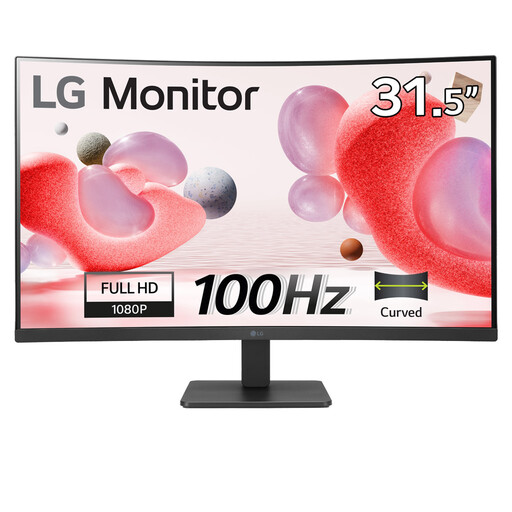 Image unavailable
LG Electronics 32MR50C-B 32-inch curved Full HD monitor
If you prefer a larger curved screen for worksheets, check whether Full HD at 32 inches suits your reading distance and workspace.
VA panel with anti-glare treatment and HDMI. Confirm the stand’s height adjustment if you need to raise or lower the screen.
View on Joybuy
Frequently asked questions
Should a monitor face the bright window?
Position it to avoid direct glare and bright reflections where the room allows. The Health and Safety Executive says this is often easiest when the screen does not directly face a window or bright light; curtains or blinds can help control intrusive daylight.
Will a brighter monitor or ambient-light sensor solve window glare?
Neither is a substitute for controlling reflections at the desk. An ambient-light feature may make brightness adjustment more convenient, but screen position and shading remain important beside a bright window.
What should I check before connecting a laptop by USB-C?
Match the monitor’s video connection and charging output to your laptop and the cable you plan to use. BenQ specifies DisplayPort Alt Mode and 65 W Power Delivery for the GW2790QT; LG specifies USB-C display connectivity and 90 W Power Delivery for the 27U730A-B.
What can I do with an old monitor?
Check an electrical recycling or reuse route rather than putting the monitor in ordinary household rubbish. Material Focus’s Recycle Your Electricals provides a locator for items with a plug, battery or cable; confirm the options available near you.


