What to check before choosing
Set the screen position first, then choose the physical drawing area and connections that suit your work. A design-focused mode is worth considering only if it serves a task beyond reading plans.
| Concern | What to check | Who this matters to |
|---|
| Plan detail and drawing area |
Compare native resolution and screen size; check that the desk allows a suitable viewing distance. |
If I inspect small annotations or keep several drawings open, I need enough visible area without crowding my desk; around 29% of consumers put plan detail and drawing area first. |
| Standing-desk positioning |
Check the stand’s height range, screen adjustments and mounting compatibility at your actual desk heights. |
When I change from sitting to standing, I need the screen to reach an appropriate position in both; for around 29% of consumers, positioning is the primary concern. |
| Laptop connection |
Match the laptop’s video output and charging requirement to the monitor’s ports and stated power delivery. |
If I regularly reconnect a work laptop, I want the display and charging arrangement to suit that device; around 24% of consumers place laptop connection first. |
| Design workflow |
Check whether your work calls for CAD/CAM mode, colour specifications, KVM or viewing two sources at once. |
When plan review also involves design files or more than one computer, I need features that fit that workflow; it is the leading concern for around 18% of consumers. |
Joybuy monitors for plan review
These 27-inch and 31.5/32-inch 4K monitors offer different amounts of physical drawing space and stand adjustment for a plan-review desk. Check each model’s footprint and connections against your workstation and laptop.
 No image available
BenQ MA320UP Nano Glossy 32-inch 4K Mac Monitor
Consider this for plan review on a larger screen if its footprint suits your standing desk.
The listing describes a 31.5-inch 3840 × 2160 display and a stand with height, swivel, tilt and pivot adjustment. It lists USB-C video, data and 90 W power delivery; check compatibility and charging needs for your particular work laptop.
View on Joybuy
 No image available
ASUS ProArt Display PA32UCG-K 32-inch 4K HDR Mini LED Monitor
Consider this larger display if plan review overlaps with a design workflow and you can position a 32-inch screen comfortably.
The listing describes 3840 × 2160 resolution and height, tilt, swivel and pivot adjustment. Check its exact USB-C or Thunderbolt functions, any power delivery and your laptop’s compatibility before relying on a single-cable setup.
View on Joybuy
 No image available
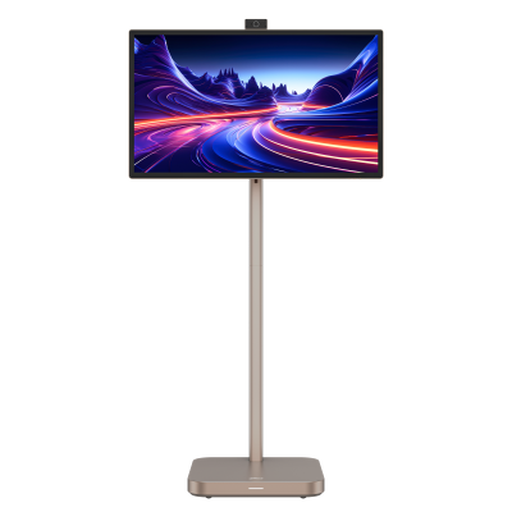
Dahua Explorer 31.5-inch 4K Portable Smart Monitor
This portable smart-monitor format may suit a desk that also serves other display tasks, provided its dimensions work for plan review.
The listing specifies 3840 × 2160 resolution, 200 mm height adjustment, tilt, swivel and pivot, plus Android 11 and 8GB+128GB. Its stated 65 W Type-C power delivery does not establish whether your laptop supports the required video connection or receives enough charging power.
View on Joybuy
 No image available
Lenovo L32p-30 31.5-inch 4K UHD Monitor
Consider this model if you want the physical area of a 31.5-inch display and need to adjust its position at a standing desk.
The listing describes a 3840 × 2160 IPS display, a height-adjustable stand and USB-C connectivity. Check the stand’s adjustment range at your standing height and the USB-C connection and charging requirements of your laptop.
View on Joybuy
 No image available
iiyama ProLite XUB2792UHSU-B6 27-inch 4K UHD Monitor
This 27-inch option suits plan review where a smaller physical screen fits the available desk space, provided the drawing area meets your needs.
The listing specifies 3840 × 2160 resolution, 150 mm height adjustment, tilt, swivel and pivot. It also lists USB-C; check the laptop’s video connection and charging needs before planning around that port.
View on Joybuy
Frequently asked questions
How should I position a monitor at a standing desk?
Place the top of the screen near eye level and the display about an arm’s length away, following Health and Safety Executive guidance. Check that the stand or a compatible arm can achieve that position at your actual standing height.
Is an external monitor the only change needed for prolonged laptop-based plan review?
No. The Health and Safety Executive advises using a separate keyboard and mouse for prolonged laptop use so the screen can be positioned appropriately. Arrange the external display as part of the whole workstation rather than treating its size alone as the solution.
When should a UK employer assess a plan-review workstation?
The Health and Safety Executive says display-screen-equipment requirements apply to workers who use a screen daily for continuous periods of an hour or more. Where those requirements apply, the assessment considers the whole workstation, including equipment, furniture and working conditions; a change in setup is a reason to revisit how it works for the user.
Does a monitor’s CAD/CAM mode confirm that a building plan is accurate?
No. A CAD/CAM mode is a display feature, not a check of drawing dimensions, source files or construction requirements. Choose it for a relevant viewing workflow, but assess the plan itself through the appropriate review process.


