A 27-inch 4K IPS monitor with a matte or non-glare surface is a starting point, but place the screen to avoid direct window reflections rather than relying on its finish alone. For calendars containing branded or print-bound artwork, compare colour specifications and calibration claims; for a laptop-led desk, check video and charging compatibility before planning around one cable.
Who this choice affects
Bright-window calendar designers
If daylight reflects across small dates, grid lines or colour blocks, assess where the screen can sit as well as its surface finish and brightness controls. The Health and Safety Executive advises arranging a desk and screen to avoid glare and bright reflections.
Brand-sensitive event planners
Calendars containing logos, campaign colours or artwork call for colour-space specifications that match the intended output. BenQ UK and ASUS United Kingdom publish coverage and calibration claims for particular creator monitors; those claims do not, by themselves, establish a print match.
Laptop-first desk organisers
If a laptop shares the desk with planning material, monitor connections and stand adjustment may matter alongside screen detail. Check the laptop’s video and charging requirements before depending on USB-C or Thunderbolt for a one-cable setup.
What to check when buying
For a screen beside a bright window, tackle reflected light at the workstation before deciding how much emphasis to put on colour specifications and laptop connections.
| Concern |
What to check |
Who this matters to |
| Reflections and readability |
Check the stated panel finish and whether the screen can be positioned away from window reflections. The Health and Safety Executive also advises arranging the desk and screen to avoid glare. |
If daylight crosses small date cells and grid lines, I need to see the layout without continually shifting position. Around 42% of consumers put reflection control first. |
| Colour-sensitive artwork |
Compare the exact model’s stated colour-space coverage and calibration claim with the intended digital or print workflow; do not treat 4K resolution as a colour specification. |
When a calendar carries brand colours or artwork for hand-off, I need to know which colour space the monitor claims to cover. Colour requirements come first for around 33% of consumers. |
| Laptop and desk setup |
Check video support and charging wattage against the laptop, plus the stand’s stated adjustment range if you need to change screen orientation. |
If I connect a laptop each day or review tall calendar layouts, compatible connections and useful adjustment take priority. Around 25% of consumers put desk integration first. |
Mistakes to avoid
-
Expecting a screen finish to solve direct glare
A matte or anti-reflective surface does not replace control of light falling on the screen. The Health and Safety Executive advises arranging the desk and display to avoid glare and bright reflections.
Check where the monitor could sit and whether curtains or blinds can control intrusive light before choosing its finish.
-
Using 4K as a substitute for colour specifications
Resolution describes screen detail, not the colour-space coverage or calibration claim needed for a particular design workflow.
For branded or print-linked calendars, compare the exact model’s stated colour spaces and calibration information with the intended output.
-
Assuming a USB-C socket guarantees a one-cable desk
A connector alone does not establish that the laptop can send video through it or receive the charging power it needs.
Check the laptop’s video standard and charging requirement against the monitor’s port and power-delivery specification, and confirm the cable supplied.
-
Considering the monitor apart from the workstation
Screen height, viewing position and room lighting affect how a display can be used. For qualifying regular work use, the Health and Safety Executive says employers must assess the workstation.
Set the monitor up with the desk and lighting in mind; where an employer’s display-screen equipment assessment applies, follow that process.
Relevant brands for reference
Dell
Dell’s UltraSharp U2725QE is a 27-inch 4K hub-monitor option for a desk where laptop connectivity matters.
- Dell UK specifies an anti-glare, anti-reflective surface and IPS Black technology for the U2725QE.
- Its stated features do not establish how it will perform against direct window reflections or match a colour-managed print workflow.
BenQ
BenQ’s PD2706UA is a 27-inch 4K creator-monitor option for calendar artwork and an adjustable desk.
- BenQ UK lists a matte surface, 100% sRGB, 100% Rec.709, 95% P3 and 90 W USB-C power delivery for this model.
- Its listed 350-nit typical brightness and matte finish do not remove the need to position the screen away from direct reflections.
ASUS
ASUS’s ProArt PA279CRV is a 27-inch 4K creator-monitor option with stated wide-gamut coverage and desk adjustment.
- ASUS United Kingdom lists a non-glare surface, 99% DCI-P3 and 99% Adobe RGB coverage, a factory-calibration claim of Delta E < 2 and 96 W USB-C power delivery for the PA279CRV.
- These are manufacturer specifications and claims for that model, not a guarantee of print matching or freedom from window reflections.
Joybuy monitor choices
These monitors offer different starting points for detailed calendar layouts. Check each model’s screen finish, colour requirements and connection needs against your bright-window workstation; a 4K panel alone does not settle those choices.
 No image available
ASUS PROART PA27DCE-K OLED 4K UHD monitor
For detailed calendar artwork, consider whether this model’s display and your colour workflow meet the same requirements.
Its name specifies an OLED panel and 4K UHD resolution. Check typical brightness and the laptop’s video and charging requirements before relying on it at a bright-window desk.
View on Joybuy
 No image available
iiyama ProLite XUB2792UHSU-B6 27-inch 4K UHD monitor
For calendar layouts that need 4K detail, check whether this model can be positioned and connected as your desk requires.
The product name specifies a 27-inch 4K UHD monitor. Its Matte Black colour description does not establish a matte screen coating; confirm the panel finish for bright-window use and check USB-C video and charging requirements separately.
View on Joybuy
 No image available
ASUS PROART PA278CV IPS WQHD monitor
For calendar work where WQHD detail is sufficient, consider this model alongside the 4K options rather than treating their resolutions as interchangeable.
Its name specifies an IPS WQHD display, not 4K. Check the screen position against window reflections and confirm the laptop’s video and charging compatibility if using USB-C.
View on Joybuy
 No image available
LG UltraGear G8 27G850A 27-inch 4K Nano IPS Dual-Mode monitor
For detailed calendar layouts, weigh this gaming-oriented monitor against the screen finish and connections your design desk needs.
Its name specifies a 27-inch 4K UHD Nano IPS display and Dual-Mode 240Hz/480Hz operation. Confirm the panel coating and typical brightness for bright-window use rather than inferring them from its resolution.
View on Joybuy
 No image available
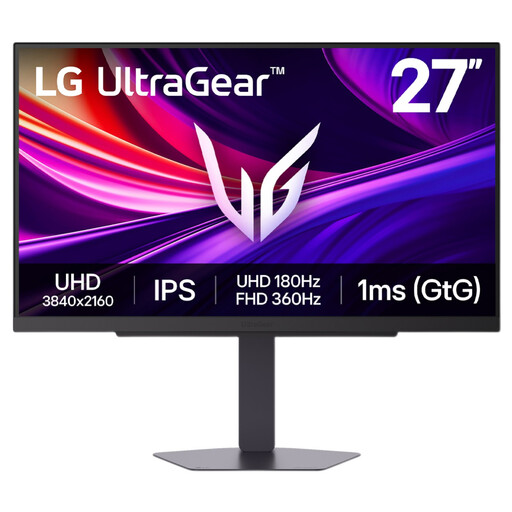
LG UltraGear 27G810A-B 27-inch IPS 4K Dual Mode monitor
For a detailed calendar layout, consider this model only after checking how it will sit beside the window and whether its stand suits your viewing position.
Its name specifies a 27-inch IPS 4K UHD display and Dual Mode operation. Confirm the panel finish, typical brightness and pivot adjustment before depending on them.
View on Joybuy
Common questions
Should a calendar-design monitor face the bright window?
Position it to avoid glare and bright reflections rather than assuming that facing the window will work. The Health and Safety Executive advises arranging the desk and screen accordingly; curtains or blinds can also help control intrusive light.
Is a matte or anti-glare screen enough beside a bright window?
No: the screen surface is only one part of managing reflections. Follow the Health and Safety Executive’s advice to arrange the desk and display to avoid glare, using screen repositioning or shading where needed.
Does regular work use change how I should set up the monitor?
It can bring the whole workstation into an employer’s display-screen equipment assessment. The Health and Safety Executive says employers must assess workstations for workers who use display-screen equipment daily as a significant part of normal work, including continuous periods of an hour or more; check how that process applies to your working arrangement.
How should I dispose of an old monitor?
Check your council’s electrical recycling options or an available retailer take-back route. GOV.UK describes electrical and electronic equipment as regulated under the Waste Electrical and Electronic Equipment framework to reduce electrical waste; collection arrangements should be confirmed locally.


