Choose a QHD monitor if you regularly need maps, source scans, lesson notes and slides visible together; a compact Full HD screen may be sufficient when desk space matters more than room for several windows. At a shared workstation, check that each user can position the screen comfortably, and match any USB-C video and charging features to the laptops that will actually be connected.
Who needs which setup?
The useful distinction is not simply screen size: it is whether planning involves several visual sources at once, frequent changes of user and laptop, or a desk with little room to spare.
Source-heavy lesson planners
If you compare archival scans, maps, timelines, webpages and slides while drafting, consider the room available for those windows. BenQ UK and LG UK Business list 27-inch, 2560 × 1440 QHD examples; measure the desk before choosing that format.
Hot-desk lesson planners
When different people use the workstation, screen positioning and laptop connections become part of the buying decision. The Health and Safety Executive includes hot-desking in its display screen equipment guidance; check both the stand adjustments and each laptop’s connection requirements.
Compact-desk document planners
If you mainly work in a document, browser or slide deck and need room for papers or a laptop, a smaller screen is worth considering. Dell UK lists a 23.8-inch Full HD P2425HE with height, swivel, pivot and tilt adjustment, showing that compactness need not mean a fixed screen position.
What matters when choosing?
Start with the space your planning materials need on screen and the space the monitor can occupy on the desk. Then check how users will adjust and connect it.
| Concern |
What to check |
Who this matters to |
| Room for visual sources |
Compare native resolution and screen size, then check that the screen fits the desk. Do not assume every 27-inch model is QHD. |
When I compare a map or scanned source with lesson notes, I want both to remain visible without constant window switching. Roughly 42% of consumers would put that source-comparison space first. |
| Resetting a shared workstation |
Check height, tilt, swivel and pivot adjustment. Match the monitor’s USB-C video mode and power delivery to each intended laptop. |
If colleagues take turns at the desk, I need to reposition the display and reconnect my laptop without assuming their setup suits me. For around 33% of consumers, adapting the workstation would be the primary concern. |
| Keeping the desk usable |
Measure the available width, depth and stand footprint, allowing room for a laptop and paper resources. |
I usually plan in a document or browser and need the remaining desk area for my materials. A compact, workable layout would come first for roughly 25% of consumers. |
A 23.8-inch Full HD example from Dell UK has a native resolution of 1920 × 1080; the 27-inch QHD examples listed by BenQ UK and HP use 2560 × 1440. The extra pixels can accommodate more on-screen material, but resolution alone does not establish legibility at your preferred viewing distance or whether a larger monitor will fit the workstation.
Mistakes to avoid
-
Assuming every USB-C port replaces a dock and charger
USB-C connections have different roles. BenQ UK specifies DisplayPort Alt Mode and 65W power delivery for the GW2790QT, while Dell UK lists up to 90W for the P2425HE; a downstream port should not be mistaken for the main laptop-charging connection.
Check the exact monitor port, the laptop’s video mode and charging requirement, and the cable you plan to use before relying on a single-cable setup.
-
Choosing a stand that only suits one user
A comfortable screen position can change with the person, chair and task. The Health and Safety Executive identifies hot-desking as a display screen equipment situation; an eye-comfort label is no substitute for setting up the workstation for its user.
Prioritise height adjustment, then assess tilt, swivel and pivot where seating positions or tasks change.
-
Picking a screen size before measuring the desk
A 27-inch QHD screen offers more pixels than a 23.8-inch Full HD example, but it also needs more physical room alongside papers, a keyboard or a laptop.
Check desk width and depth, stand footprint and viewing position. If considering a clamp mount, confirm that the desk edge or grommet can accommodate it.
-
Treating a similar model name as the same specification
The Dell P2425H and P2425HE are different model identifiers; do not assume they have the same USB-C arrangement. LG UK also marks its 27QN880 consumer listing as discontinued, so that model illustrates a mounting approach rather than assured current availability.
Compare the complete model identifier, connections, stand or mount, and applicable warranty terms on the product you intend to order.
Relevant brands for reference
These model examples illustrate different specifications for lesson planning at a shared desk; a feature listed for one model should not be assumed across its brand’s range.
BenQ
The GW2790QT illustrates a 27-inch QHD route with USB-C connectivity and an adjustable stand.
- BenQ UK specifies 2560 × 1440 resolution, USB-C DisplayPort Alt Mode, 65W power delivery, and height, tilt, swivel and pivot adjustment for this model.
- Check that the intended laptop supports the required USB-C video mode and can use the stated charging power.
Dell
The P2425HE illustrates a compact Full HD USB-C hub-monitor option.
- Dell UK lists a 23.8-inch, 1920 × 1080 panel, stand adjustment and up to 90W power delivery for the P2425HE.
- Its native resolution provides fewer pixels than the cited QHD models. Distinguish the main laptop-charging connection from any lower-power downstream port.
HP
The Series 5 Pro 527pu illustrates a 27-inch QHD USB-C office-monitor option.
- HP lists 2560 × 1440 resolution, four-way adjustment and stated 100W single-cable power delivery for this model.
- Confirm the video connection and charging requirements of each laptop; the model’s specification does not establish compatibility with every device.
LG
The 27QN880 illustrates a QHD monitor designed around a clamp or grommet-mounted ergonomic stand.
- LG UK Business specifies a C-clamp stand with extend-and-retract, height, tilt, swivel and pivot movement.
- LG UK marks the consumer listing for this exact model as discontinued. Check current availability and desk-mount compatibility if pursuing this type of setup.
Joybuy monitor choices
These choices cover QHD monitors for working with detailed lesson materials and a USB-C ZenScreen option for a different desk arrangement. Compare each model’s actual connections, adjustment options and physical fit with the shared workstation before deciding.
 No image available
ASUS ProArt PA24ACRV IPS QHD
Consider this model if you want a QHD screen for comparing source material while planning at a shared desk.
Its product title identifies an IPS QHD display. For a laptop setup, confirm the required USB-C display mode and charging power; measure the stand’s footprint before ordering.
View on Joybuy
 No image available
MAG 274QP QD-OLED X24 27-inch QHD
This is a QHD option to consider when several planning references need to remain visible and the desk has room for a larger screen.
The product title specifies a 2560 × 1440 QD-OLED display, 240Hz and Adaptive-Sync. Check the desk footprint and the connections needed for your laptop rather than assuming a one-cable USB-C setup.
View on Joybuy
 No image available
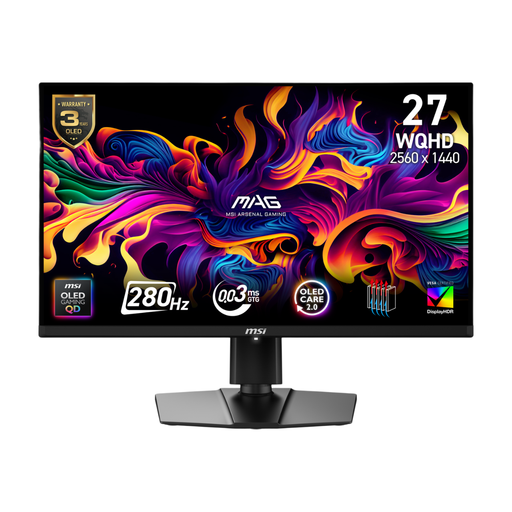
MSI MAG 271QP QD-OLED X28 27-inch QHD
Consider its QHD format if maps, source documents and lesson notes regularly compete for screen space.
The product title identifies a QD-OLED display and 280Hz refresh rate. If you intend to connect a shared laptop by USB-C, confirm video support and whether the stated 15W power delivery meets that laptop’s needs; also check desk fit.
View on Joybuy
 No image available
ASUS ProArt PA278CFRV IPS QHD 100Hz
This QHD option is relevant when the planning task calls for room to arrange detailed sources and working documents.
The product title specifies an IPS display and 100Hz refresh rate. Check the exact model’s regional USB-C video and charging features if those matter to your laptop setup, as well as its physical desk footprint.
View on Joybuy
 No image available
ASUS ZenScreen MB249C IPS USB-C
Consider this model when the workstation needs a flexible screen placement rather than simply a larger QHD canvas.
The product title identifies an IPS display and USB-C connection. Before relying on laptop video or charging, check compatibility and power requirements; confirm that your intended stand or mount fits the shared desk.
View on Joybuy
Common questions
Does UK display screen equipment guidance apply at a shared desk?
It can apply when staff are display screen equipment users: the Health and Safety Executive expressly includes hot-desking in its guidance. Workstation assessment and a setup appropriate to the person using the desk matter alongside the monitor’s own adjustment features.
What should different users adjust when sharing a monitor?
Each user should be able to position the screen for their own seating and work. Check height and tilt adjustment, with swivel or pivot where useful, and consider screen placement and lighting to limit glare, as described in Health and Safety Executive display screen equipment guidance.
Will one USB-C cable always carry video and charge a laptop?
No: the connector alone does not establish either capability for a particular laptop. Check the monitor’s video mode and power-delivery rating against the laptop and cable; BenQ UK, for example, specifies DisplayPort Alt Mode and 65W power delivery for the GW2790QT, while HP states 100W single-cable power delivery for the 527pu.
How should an old monitor be dealt with in the UK?
Check an appropriate electrical-equipment collection or take-back route rather than putting the monitor in ordinary residual waste. UK government guidance describes the waste electrical and electronic equipment framework as supporting recovery, reuse and recycling; ask the retailer or local authority which route is available for your monitor.


