What should you check?
Set the catalogue’s colour-review requirements before choosing connection features; then check the monitor against every laptop and the shared workstation. The four priorities below describe consumers preparing an exhibition catalogue in a shared office, grouped by their primary need.
| Concern |
What to check |
Who this matters to |
| Colour workflow |
Match documented sRGB, Rec.709, Adobe RGB or DCI-P3 coverage to the files and output process; check the calibration claim and print-proofing plan separately. |
If I approve catalogue images on screen, I need to know that the stated colour mode fits our workflow before trusting the review. Around 36% of consumers put colour workflow first. |
| Shared-desk connections |
Check USB-C video support and charging wattage for each laptop; decide whether a USB hub, wired network or KVM is needed. |
When colleagues take turns at one desk, I want the next laptop and its peripherals to connect without an awkward changeover. Roughly 29% of consumers prioritise shared-desk connectivity. |
| Screen position and glare |
Check the adjustments needed at the desk and assess screen position and lighting as part of the workstation setup. |
If different people use the screen through the day, I need to reposition it and avoid distracting reflections. Around 21% of consumers place workstation fit first. |
| Straightforward 4K setup |
Confirm the required panel, ports and colour-space claim before choosing a less specialised configuration. |
If most of my work is layout rather than final colour approval, I want a clear 4K workspace without features our team will not use. Approximately 14% of consumers make a straightforward setup their primary concern. |
For qualifying UK display-screen-equipment users, the Health and Safety Executive says employers must assess the workstation when workers use a screen daily as part of normal work for continuous periods of an hour or more. Monitor adjustment is one part of that assessment.
Joybuy monitor options
These monitors offer different starting points for catalogue layout and shared-desk use: Mac-focused USB-C displays, a wide-gamut OLED model, an sRGB-oriented screen and a display with HDMI and DisplayPort connections. Choose against the actual colour workflow and laptop setup rather than treating the products as interchangeable.
 No image available
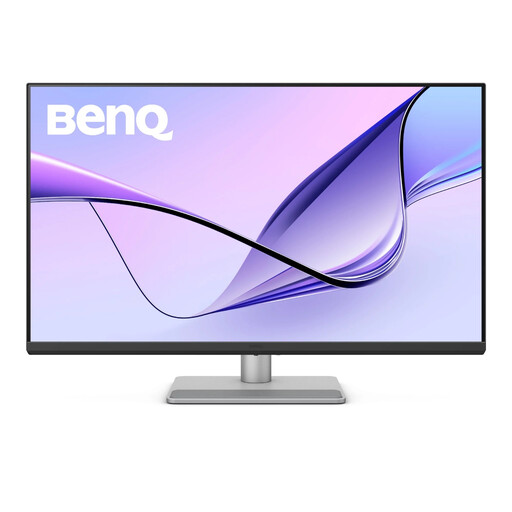
BenQ MA320UP Nano Glossy 32-inch 4K IPS USB-C monitor
Consider this larger screen for a shared desk using Mac laptops, provided its Mac-focused features work with the team’s devices.
The product name identifies a 32-inch 4K IPS display with USB-C and a height-adjustable stand. Check USB-C video, laptop charging needs and calibration documentation before using it for catalogue colour approval.
View on Joybuy
 No image available
BenQ MA270UP Nano Glossy 27-inch 4K IPS USB-C monitor
This 27-inch option may suit a shared Mac-laptop desk where screen positioning and colour review both matter.
Its product name specifies a 4K IPS display, USB-C and a height-adjustable stand. Confirm the required laptop features, USB-C video connection and calibration documentation for the catalogue workflow.
View on Joybuy
 No image available
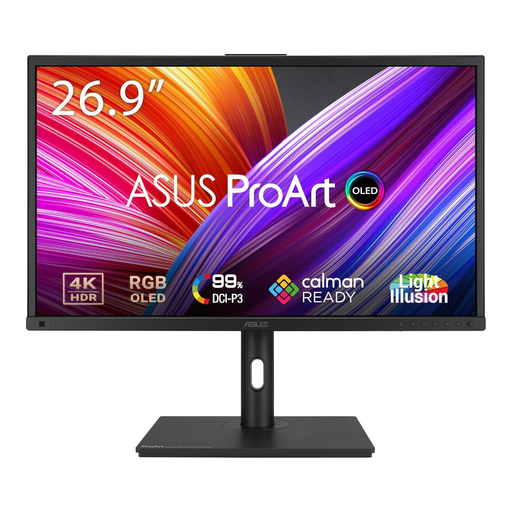
ASUS ProArt PA27DCE-K 4K OLED monitor
Consider this model where the team uses a colour-managed creative workflow and can check the exact display settings needed for catalogue review.
The product name specifies a 4K OLED display. Confirm its calibration documentation and any required USB-C charging capability; prolonged static layouts at high brightness also need consideration because of OLED burn-in risk.
View on Joybuy
 No image available
iiyama ProLite XUB2792UHSU-B6 27-inch 4K monitor
This model is worth considering for screen-first catalogue layout and a shared workstation with peripheral connections.
Its product name identifies a 27-inch 4K display. Check the colour-review documentation and whether its USB-C video and charging capabilities meet the shared laptops’ requirements before planning a single-cable setup.
View on Joybuy
 No image available
LG 27UP650K 27-inch 4K IPS monitor
Consider this screen for detailed layout work where an HDMI or DisplayPort connection suits the shared desk.
The product name specifies 95% DCI-P3 coverage, HDMI and DisplayPort. Plan laptop charging separately if needed, and check calibration and print-proofing requirements before relying on it for final colour approval.
View on Joybuy
Frequently asked questions
Does a shared UK office need a monitor with a particular resolution or colour score?
The Health and Safety Executive’s display-screen-equipment guidance does not set a monitor resolution, gamut percentage or Delta E threshold. Where workers use a screen daily as part of normal work for continuous periods of an hour or more, employers must assess the whole workstation and the work carried out there.
When should a shared monitor workstation be reassessed?
The Health and Safety Executive says to reassess when a workstation is newly set up, a new user starts, its use changes, or a user reports pain or discomfort. Moving a monitor or changing the desk arrangement can therefore call for another look at the complete setup.
Can a USB-C monitor replace every laptop charger and dock?
No: check each laptop’s USB-C video support and charging requirement against the exact monitor, then check which peripheral and network connections the desk needs. BenQ specifies 65 W power delivery for the PD2705U, while Dell specifies 90 W for the U2723QE and ASUS specifies up to 96 W for the PA279CRV; those figures do not establish compatibility with every laptop.
Will a wide-gamut monitor make the printed catalogue match the screen?
A wide-gamut specification cannot guarantee a print match. Use a colour mode appropriate to the files and applications, then check the calibration, printer, paper, colour-profile settings and proofing process for the actual catalogue.


