Who needs which setup?
The useful screen features depend on whether your main task is comparing records, connecting a laptop or switching between computers.
Receipt and spreadsheet reconcilers
If you regularly compare transaction exports, receipt images and accounting records, prioritise readable text, room for your working windows and a screen you can position comfortably. A larger display can help you review records, but it cannot determine whether an expense is valid.
Laptop-first home-office volunteers
If your laptop stays at a home desk, an external display can give you a separate screen position from the keyboard. For a one-cable connection, check both USB-C video support and charging requirements. The Health and Safety Executive also advises considering screen height, distance and input-device placement.
Shared-device charity administrators
If you move between a charity laptop and another computer, compare the available inputs and consider whether keyboard-and-mouse switching or a hub would simplify your desk. Those features matter less if you use only one computer.
What matters when choosing?
Start with the records you view most often, then check the connection and screen position your home desk needs. Treat docking features as a separate decision from resolution.
| Concern |
What to check |
Who this matters to |
| Detailed records |
Compare 27-inch QHD at 2560 × 1440 with 4K at 3840 × 2160, and check comfortable text scaling. |
If I often compare dense transaction exports with receipt scans, I want the detail to remain readable while I work. Around 36% of consumers put detailed record review first. |
| Laptop connection |
Confirm USB-C video output on the laptop and compare its charging requirement with the monitor’s stated power delivery. |
For a laptop that moves on and off my desk, I want a straightforward connection without depending on an unsuitable charger. Roughly 29% of consumers prioritise a simpler laptop connection. |
| Screen position |
Check stand adjustment or compatible mounting, and allow space for separate input devices when needed. |
When I spend long sessions entering expenses, I need to place the display at a workable height and distance. Around 21% of consumers make screen positioning their primary concern. |
| Multiple computers |
Check inputs and whether you need keyboard-and-mouse switching, wired networking or compatible display expansion. |
If I alternate between a charity laptop and another computer, I want to switch devices without repeatedly rearranging my desk. About 14% of consumers put multi-device administration first. |
Relevant brands to consider
These model examples illustrate different specifications to check; a feature listed for one model should not be assumed to apply across a brand’s range.
Dell
Dell’s UltraSharp range includes QHD and 4K options relevant to document-based office work.
- Dell UK lists the U2724D as a 27-inch, 2560 × 1440 monitor with a 120Hz refresh rate and an adjustable stand.
- Check the precise UltraSharp variant and its connections rather than assuming that every model has the same hub or laptop-charging features.
LG
LG’s 27UP850K-W is a 4K option for readers considering detailed document review and a compatible USB-C laptop connection.
- LG UK specifies 3840 × 2160 resolution, an adjustable stand and USB-C display, data and charging functions up to 90W for this model.
- Check your preferred text scaling and laptop compatibility before choosing its higher-resolution, single-cable setup.
BenQ
The BenQ GW2790QT is a QHD example for a home desk where stand adjustment and a USB-C hub matter.
- BenQ specifies 65W USB-C laptop charging, hub functionality and height, tilt, pivot and swivel adjustment for the GW2790QT.
- Its stated charging output must be checked against the laptop; daisy chaining also depends on compatible equipment.
Samsung
Samsung’s ViewFinity S60UD is relevant when two-device switching and desk connections matter alongside QHD resolution.
- Samsung lists 27-inch QHD, 90W USB-C charging, LAN, daisy-chain support and a built-in KVM switch for LS27D600UAUXXU.
- Check which of those functions your devices can use; they may add little to a single-computer expense-tracking desk.
Joybuy monitor choices
These monitors cover QHD choices for routine spreadsheet work and 4K choices for more detailed document review. Check each exact model’s connections and desk fit before relying on a particular laptop setup.
 No image available
ASUS ProArt PA278CV IPS WQHD
Consider this QHD model for regular spreadsheet and browser work. If a single laptop cable matters, confirm USB-C video compatibility and the charging output of the exact unit against your laptop’s needs.
Joybuy
 No image available
ASUS ProArt PA278CFRV IPS QHD 100Hz
This QHD model is another option for routine expense entry and spreadsheet review. USB-C capability can depend on the regional version, so confirm the exact unit’s connections, video mode and charging capability before planning a one-cable desk.
Joybuy
 No image available
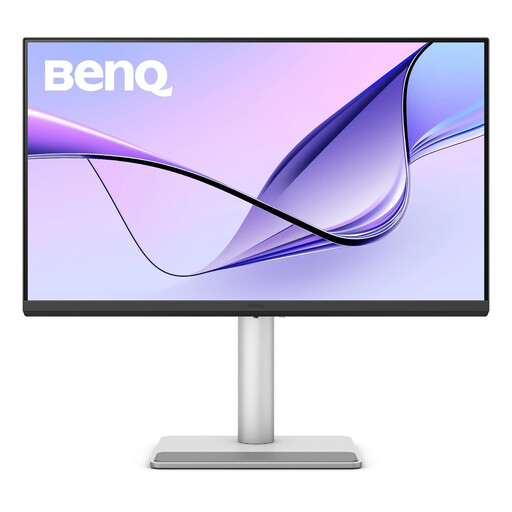
BenQ MA270UP 27-inch 4K USB-C monitor
Consider its 4K IPS display if detailed receipts and several documents are a regular part of your work. The model name also specifies a height-adjustable stand and Nano Glossy finish; consider reflections at your desk, and check USB-C video and charging compatibility with your laptop.
Joybuy
 No image available
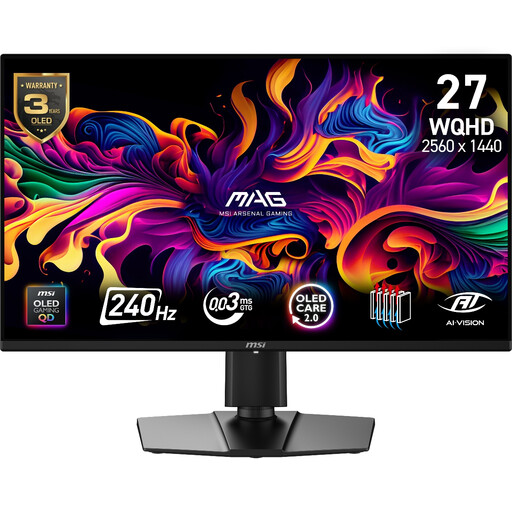
MAG 274QP QD-OLED X24 QHD 240Hz monitor
Its stated 2560 × 1440 resolution can be considered for a QHD desk setup, though the gaming-focused 240Hz specification is not a reason by itself to choose it for expense records. The product title says 27 inches while the technical details give a 26.5-inch panel; confirm the size and required laptop connections before buying.
Joybuy
 No image available
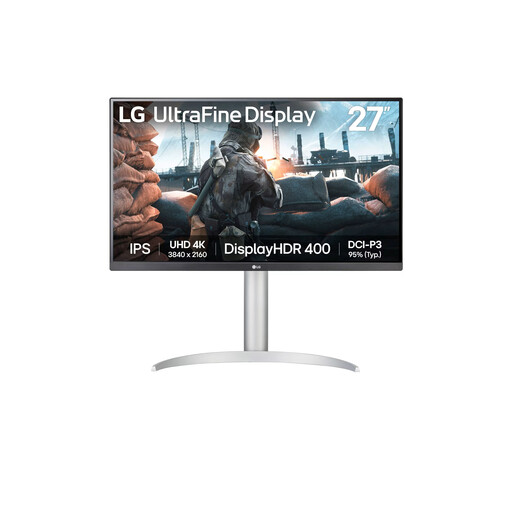
LG 27UP650K 27-inch 4K IPS 60Hz monitor
Its 4K resolution is worth considering if you frequently review detailed receipts or dense records. The product name specifies HDMI and DisplayPort; check text scaling and the exact connections if you also want a single-cable laptop setup.
Joybuy
Common questions
Will a 4K monitor make charity expense records compliant?
No. A clearer view of records does not establish whether the underlying accounting is adequate. The Charities Act 2011 requires charity trustees to keep accounting records sufficient to show and explain the charity’s transactions; the bookkeeping process matters alongside the display.
Should I choose 65W or 90W USB-C charging?
Choose by checking your laptop’s charging requirement and whether its USB-C port supports video, not by wattage alone. BenQ states up to 65W for the GW2790QT, while LG states up to 90W for the 27UP850K-W; neither figure establishes compatibility with every laptop.
Is a height-adjustable monitor enough for a comfortable home desk?
No. The Health and Safety Executive advises positioning the top of the screen around eye level and the display about an arm’s length away, alongside a suitable desk arrangement. For prolonged laptop work, separate input devices can let you raise the screen without raising the keyboard.
Can a trustee claim a home-office monitor as a charity expense?
A claim depends on the charity’s circumstances rather than the type of product alone. Charity Commission guidance for England and Wales addresses reasonable costs properly incurred in the trustee role; check the charity’s governing document, expenses policy, ownership arrangements and approval process before purchase. Do not apply that guidance automatically to a charity governed elsewhere.


