Start with the window, not the monitor specification: position the screen to avoid reflections, use blinds or curtains where needed, and then look for a matte or anti-glare surface and adjustable brightness. A height-adjustable Full HD screen can suit routine expense entry; consider QHD when spreadsheets and receipts regularly compete for screen space, or a USB-C hub monitor when a compatible laptop needs a simpler desk connection. Neither resolution nor hub features will resolve glare caused by direct daylight.
Who this choice affects
People working beside a bright window
If daylight reflects in your screen, decide where the desk and monitor can sit before comparing display features. The Health and Safety Executive advises arranging the workstation to avoid glare, including avoiding a screen directly facing a window or bright light.
Charity administrators working with spreadsheets
If you regularly compare expense lines with receipts and browser-based records, consider how much material needs to remain visible at once. Screen resolution and a stand that lets you position the display may matter more than extra connections.
Laptop-based charity workers
If the same desk is used for expense tracking and calls, a compatible USB-C monitor may reduce separate laptop connections. Check which display, charging and meeting functions you would actually use.
What to prioritise
Resolve reflections through desk placement and light control first. Then choose screen space or laptop connectivity according to the task that most often interrupts your work.
| Concern |
What to check |
Who this matters to |
| Window glare and screen position |
Check the screen surface, brightness control and stand adjustment. Make sure the desk position and blinds or curtains let you manage daylight. |
If reflections obscure figures, I need to move the screen or control the light before relying on a coating. Roughly 42% of consumers might put glare and positioning first. |
| Space for financial records |
Compare screen size and native resolution; with QHD, also check computer support and a comfortable text size. |
When receipts and a wide expense sheet need to stay open together, I want enough room to read both. For around 33% of consumers, workspace might be the primary concern. |
| Laptop docking |
Check USB-C video and charging compatibility, the laptop's power requirement and whether the required cable is included. |
If I reconnect a laptop at this desk, fewer separate connections would make setup simpler. Laptop docking might come first for about 25% of consumers. |
Buying pitfalls
-
Expecting brightness or anti-glare treatment to fix the room
Direct daylight and reflections can remain troublesome regardless of a monitor's coating. The Health and Safety Executive advises arranging the screen to avoid glare and using curtains or blinds to control intrusive light.
Work out where the screen can face before buying, then check its surface, brightness control and stand adjustment.
-
Treating Full HD and QHD as the same workspace
At the same screen size, QHD provides more pixels than Full HD, but the resulting text size may call for display scaling.
Choose around the work you do: routine entry may not need the extra space, while frequent side-by-side review makes it worth checking QHD and your preferred scaling.
-
Assuming every USB-C laptop can use every hub function
A monitor's USB-C power-delivery rating does not establish that a particular laptop can receive video, data and charging through the intended connection.
Check the laptop's display-output and charging capabilities, required wattage and cable requirements before choosing a hub monitor.
-
Confusing a monitor purchase with a workstation assessment
The Health and Safety Executive says employers must assess a workstation when a worker uses display screen equipment daily as part of normal work, continuously for an hour or more. Choosing a monitor is only one part of considering the workstation.
Review the screen position, lighting and wider desk arrangement alongside the purchase where that guidance applies.
Relevant brands to consider
These model examples illustrate different specifications to compare; a brand name alone does not establish that a particular monitor will suit a bright-window desk.
BenQ
BenQ's GW2490T is a compact Full HD option for a desk where screen position matters.
- BenQ UK specifies a 23.8-inch matte screen, 250-nit typical brightness and 110 mm of height adjustment for the GW2490T.
- Its Full HD resolution provides fewer pixels than QHD, and the brightness specification cannot establish how it will handle direct window light.
Dell
Dell's P2425HE illustrates the Full HD USB-C hub route for a laptop-based desk.
- Dell UK lists anti-glare treatment, height, pivot, swivel and tilt adjustment, and up to 90 W USB-C power delivery for the P2425HE.
- Check laptop compatibility before relying on its charging and hub functions; this Full HD model does not gain QHD workspace from its connections.
LG
LG's 24BA850 is another laptop-centred Full HD option when desk connections and calls matter.
- LG UK specifies a 23.8-inch IPS display, up to 90 W USB-C power delivery, RJ45, a webcam, microphone, speakers and stand adjustment for the 24BA850.
- Its integrated connections do not add display pixels; compare resolution separately if fitting more financial records on screen is the priority.
Joybuy monitor choices
These monitors offer different screen sizes, resolutions and connections for an expense-tracking desk. Check each model's screen surface, brightness control and positioning options against the light in your room rather than assuming the same bright-window suitability across the range.
 No image available
LG UltraWide 29U511A 29-inch IPS monitor
Consider the wider format if you frequently place an expense sheet beside another window. The listed configuration includes UWFHD 1080p resolution, a 100 Hz refresh rate, DisplayPort and HDMI; check its stand positioning and brightness controls for your desk.
View on Joybuy
 No image available
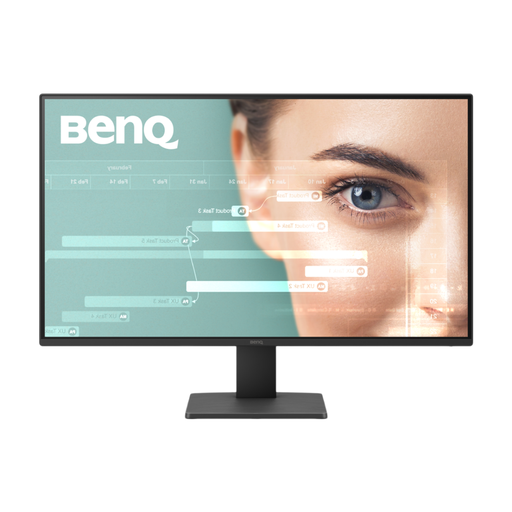
BenQ GW2791 27-inch Full HD IPS monitor
This is a larger-screen Full HD option for routine expense entry. Its name specifies a 100 Hz refresh rate; check whether its stand adjustment and screen surface suit the window-side position before deciding.
View on Joybuy
 No image available
AOC Q32V4 31.5-inch IPS monitor
Consider this larger display if desk space permits a 31.5-inch monitor for reviewing records. The product name lists built-in speakers and Adaptive Sync; confirm the exact native resolution, stand adjustments and viewing distance that work for your setup.
View on Joybuy
 No image available
ASUS ProArt PA24ACRV QHD IPS monitor
The QHD format is worth considering if crowded spreadsheets are your main difficulty. If you also want to connect a laptop through USB-C, confirm its video, charging and cable requirements; check the screen surface and brightness controls for the window-side desk.
View on Joybuy
 No image available
iiyama ProLite XB2492HSU 24-inch Full HD monitor
This Full HD model fits the straightforward expense-entry route if extra QHD workspace is not your priority. Its name specifies a 16:9 format; check the stand's adjustment range, screen coating and brightness controls against your intended desk position. Matte Black describes its finish, not necessarily its screen surface.
View on Joybuy
Frequently asked questions
Will an anti-glare monitor solve reflections from a bright window?
Not on its own. The Health and Safety Executive advises positioning the desk and screen to avoid bright reflections and adjusting curtains or blinds where needed; a matte or anti-glare surface is a complementary feature.
When is USB-C charging useful on a monitor?
It is useful when you regularly connect a compatible laptop and want fewer separate desk connections. Check the laptop's USB-C video and charging support, its power requirement and the cable; Dell UK lists up to 90 W power delivery for the P2425HE, and LG UK lists up to 90 W for the 24BA850.
Does a charity need a particular monitor for its accounting records?
A monitor choice does not replace the charity's accounting-record responsibilities. For charities in England and Wales to which the Charities Act 2011 provision applies, trustees must preserve relevant accounting records for at least six years from the end of the financial year in which they were made; check the charity's jurisdiction and applicable duties separately from its display purchase.
Does daily monitor use call for a workstation assessment?
In Great Britain, the Health and Safety Executive says employers must carry out a workstation assessment when workers use display screen equipment daily as part of normal work, continuously for an hour or more. The assessment concerns the workstation and working arrangement, not just which monitor is bought.


