Members switching between laptops
Members who bring different laptops to the same desk and want fewer adapters, cables and setup steps at each handover.


Start with a 27-inch QHD monitor with an adjustable stand if the shared desk is mainly used to edit pages and review layouts. Add USB-C docking when members’ laptops support the display, charging and peripheral connections they need; choose an integrated webcam when calls justify it, while recognising that the LG conferencing example is Full HD rather than QHD.
Members who bring different laptops to the same desk and want fewer adapters, cables and setup steps at each handover.
People who spend extended sessions writing copy, editing pages, checking layouts and reviewing club images in browser-based tools.
People who use the website workstation for online meetings as well as site administration, and need to decide whether camera, audio and network connections belong at the desk.
Check the laptops and the desk’s main task before choosing connections: editing space, quick handovers and video calls do not all call for the same monitor features.
| Concern | What to check | Who this matters to |
|---|---|---|
| Laptop handovers | Check each laptop’s USB-C display and charging capabilities, then compare the monitor’s power delivery, ports and supplied cable. | I want to sit down with my laptop and reconnect the shared desk without rebuilding its setup. Around 36% of consumers put straightforward laptop handovers first. |
| Website workspace | Compare native resolution and screen size; check that the computers can drive the intended display mode. | When I edit copy alongside a page preview, I need room to see both clearly. Roughly 29% of consumers make editing workspace their primary concern. |
| Club calls | Decide whether calls warrant a built-in webcam, microphone and speakers, or whether the desk’s existing equipment meets that need. | I use this desk for meetings often enough that setting up call equipment each time would be inconvenient. Around 21% of consumers prioritise integrated call equipment. |
| Shared-user fit | Check stand adjustment against the desk and chair; assess the whole workstation where the applicable display-screen-equipment conditions are met. | If several people work here regularly, I need to reposition the screen for my own seating position. About 14% of consumers place workstation fit first. |
A USB-C socket alone does not establish that a particular laptop can send video, charge adequately and use the desk’s peripherals through one cable.
List the laptops that will use the desk, then check their display output and charging requirements against the monitor’s connections and supplied cable.
The 27-inch models considered here include both QHD and Full HD screens, so the diagonal does not tell you the native resolution available for editing.
Compare resolution before choosing between a website-editing screen and a conferencing-led display. Dell and Lenovo specify QHD for the models discussed here, while LG specifies 1920 × 1080 for the 27BA850-B.
Screen position also depends on the user, chair, desk and input devices. The Health and Safety Executive says employers must assess workstations used by workers with display-screen equipment daily as part of normal work for continuous periods of an hour or more.
Adjust the screen for each user and arrange a workstation assessment when those conditions apply; the monitor specification does not replace that assessment.
Built-in conferencing equipment may duplicate a headset or camera the club already uses, and a shared camera needs to fit the office’s privacy practices.
Choose integrated video equipment when calls are routine and the club can accommodate it; otherwise weigh editing resolution, connections and adjustment against the desk’s actual tasks.
The ThinkVision P27h-30 is a 27-inch QHD docking option for a desk shared by different computers.
The UltraSharp U2724DE is a 27-inch QHD Thunderbolt hub option for a shared workstation.
The GW2790QT combines a 27-inch QHD screen with USB-C connectivity and physical adjustment.
The 27BA850-B is a 27-inch Full HD option for a desk where calls are a regular task.
The E27u G5 is a 27-inch QHD USB-C office-monitor option with an adjustable stand.
These monitors offer screen options for editing a club website at a shared desk. Choose between their stated display formats and check laptop connections and stand requirements for the people who will use them.
 No image available
Consider this QHD screen for browser-based editing and page review. Its name specifies an IPS panel and 100 Hz refresh rate; check the exact unit’s USB-C functions if the shared desk also needs laptop docking.
 No image available
This QHD option is worth considering when the 27-inch starting point does not suit the desk. Check the unit’s USB hub configuration and each laptop’s USB-C video and charging compatibility before planning a one-cable setup.
 No image available
Consider this QHD display if screen format is the priority rather than assuming it will serve as a laptop dock. Its name specifies QD-OLED and 240 Hz; check the exact panel size and required laptop connections before choosing it for the shared desk.
 No image available
Consider the larger 4K UHD screen if the desk can accommodate its 31.5-inch size and the users’ preferred viewing distance. Check the USB-C charging requirement and stand adjustment against the laptops and people sharing it.
 No image available
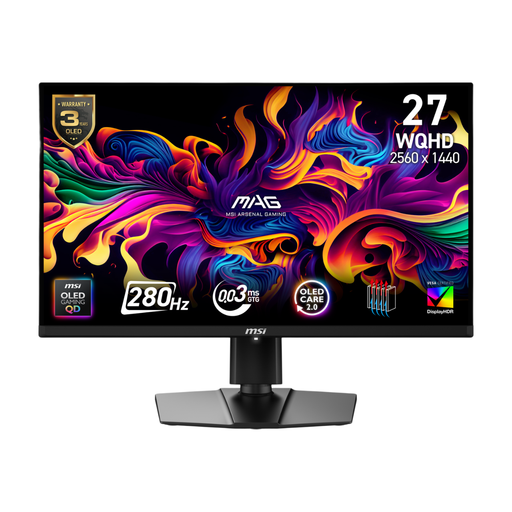
This QHD display is another option for browser and page-preview work where its screen format suits the desk. Its name specifies QD-OLED and 280 Hz; check the exact panel size and USB-C video and data requirements rather than treating the connection as a complete dock.
Choose USB-C docking if the laptops that regularly use the desk are compatible and fewer connections would make handovers easier. Check video output and charging requirements on each laptop; a monitor’s stated power delivery alone does not establish that it will charge every computer adequately.
Choose QHD when space for browser tools, copy and page previews is the priority, provided the computer supports the monitor’s intended display mode. The models discussed here include 2560 × 1440 QHD options, while LG specifies 1920 × 1080 for its 27BA850-B conferencing display; Full HD may suit a desk that prioritises its integrated call equipment.
The Health and Safety Executive’s guidance addresses the workstation rather than naming a monitor model. Where workers use display-screen equipment daily as part of normal work for continuous periods of an hour or more, employers must carry out a workstation assessment that considers the whole setup.
Adjust the screen for the person using it, rather than leaving it in one position for everyone. The Health and Safety Executive advises placing it directly in front of the user, with the top around eye level and the screen about an arm’s length away; the chair, desk and input devices also affect the setup.