For collision behaviour reviewed as fast-moving visual output, consider a higher-refresh QHD monitor; if the work centres on logs, parameters and reports, a QHD USB-C monitor may better suit a laptop-based desk. Before choosing either, establish what the test application displays and check the computer’s video output, required display mode and available desk space. A monitor can help you inspect output, but its specifications cannot establish whether a collision result is valid.
Who is this for?
Dynamic simulation reviewers
If you follow moving collisions, animations or interactive output rather than only reading logs, investigate the display mode your application produces. Dell UK specifies QHD at 144Hz for the S2725DC, while HP Store UK specifies QHD at 180Hz for the OMEN 27q G2; either mode still depends on the source computer and connection.
Laptop-based collision analysts
If you mainly compare parameters, logs, reports and captured output, prioritise a workspace and connections that suit your laptop. The QHD USB-C models described by HP Store UK and Samsung UK illustrate options with charging and desk-connectivity features, subject to device compatibility.
Long-session home-office users
If you spend extended periods reviewing results at a fixed desk, check whether you can position the screen comfortably. The Health and Safety Executive advises considering the whole workstation, while BenQ UK specifies height, tilt, pivot and swivel adjustment for the GW2790QT.
What matters when choosing?
Decide whether you primarily need to follow moving output or work across analysis windows, then check how the screen will connect to—and fit on—your desk.
Higher-refresh QHD
Consider it when: Fast-moving animation or interactive output is central to your review. Dell UK specifies QHD at 144Hz for the S2725DC, and HP Store UK specifies QHD at 180Hz for the OMEN 27q G2.
Check first: The application, computer, port and cable must support the mode you intend to use; a refresh-rate specification alone does not confirm that they do.
QHD USB-C workspace
Consider it when: Logs, parameters, reports and laptop connections take priority. HP Store UK specifies QHD at 100Hz and 100W USB-C power delivery for the 527pu; Samsung UK specifies QHD at 100Hz and 90W USB-C charging for the S60UD.
Check first: Those stated refresh rates differ from the 144Hz and 180Hz models above, and one-cable display and charging depend on the particular laptop and connection.
| Concern |
What to check when buying |
Who this matters to |
| Moving output |
Identify the application’s output, required resolution and frame rate; check the computer, port and cable against the monitor’s intended display mode. |
If I need to follow fast-moving collisions on screen, I want a display mode my test setup can actually deliver. Around 42% of consumers put motion review first. |
| Analysis and connections |
Check the required workspace, USB-C video support and laptop charging needs; decide whether LAN, daisy chaining or a KVM switch would serve your devices. |
With logs and parameters beside my application, keeping the laptop and other devices connected matters more to me than the fastest stated refresh rate. Around 33% of consumers prioritise this connected-workspace need. |
| Desk fit |
Measure desk depth and available height, then check the stand’s adjustment range or the requirements for a compatible mount. |
For long sessions at one desk, I need to place the screen without compromising the rest of my workstation. Around 25% of consumers make positioning their primary concern. |
Buying pitfalls
-
Choosing by refresh rate alone
A monitor’s stated refresh rate does not mean the test application, computer and connection will deliver that mode. It also says nothing about the validity of the collision result.
Record the output type, target resolution and frame rate, then check the computer’s port and cable before comparing display modes.
-
Assuming USB-C means one-cable compatibility
Charging wattage and USB-C video support must suit the laptop. HP Store UK lists 100W power delivery for the 527pu, Samsung UK lists 90W charging for the S60UD, and BenQ UK lists 65W power delivery for the GW2790QT; those are specifications for different models.
Check your laptop’s charging and video-output requirements alongside the exact monitor and cable specifications.
-
Choosing screen size without checking the desk
An adjustable stand cannot by itself correct a cramped desk or unsuitable placement. The Health and Safety Executive advises positioning the screen top at eye level, about an arm’s length away, while considering the whole workstation.
Measure the desk and check the available stand or mount adjustments before settling on a screen size.
-
Treating the display as proof of test accuracy
A clearer view of a collision event does not establish that the simulation, detection method or underlying result is valid.
Set the application’s test and validation requirements separately from your requirements for reviewing its visual output.
Brands to consider
Dell
Dell UK lists both a higher-refresh QHD model and a QHD USB-C hub model relevant to different desk priorities.
- The 27-inch S2725DC is specified at QHD and 144Hz with USB-C; the 23.8-inch P2425DE is a QHD USB-C hub monitor specified at 100Hz with up to 90W power delivery.
- Choose by the exact model and its connection requirements rather than treating these specifications as features of every Dell monitor.
HP
HP Store UK presents different models for a connected QHD workspace and higher-refresh visual output.
- The 527pu is specified at QHD and 100Hz with USB-C and 100W power delivery; the OMEN 27q G2 is specified at QHD and 180Hz.
- Confirm which display mode your source device can deliver and whether the chosen model’s connections meet your laptop needs.
Samsung
Samsung UK’s S60UD is a QHD desk-connectivity option for analysis alongside other work.
- Samsung specifies 100Hz, USB-C 90W charging, LAN, daisy chaining and a built-in KVM switch for the S60UD.
- Check the intended devices and connection workflow; these features are specific to the S60UD.
BenQ
BenQ UK’s GW2790QT is relevant when screen positioning and laptop connectivity guide the home-office choice.
- BenQ specifies height, tilt, pivot and swivel adjustment, plus USB-C with 65W power delivery for the GW2790QT.
- Check whether that charging specification suits your laptop and whether the display mode suits the output you review.
Joybuy monitor options
These options cover higher-refresh QHD displays for reviewing moving output and a WQHD model to consider for analysis at a home-office desk. Match any choice to the application’s output, your computer’s connections and the space available.
 No image available
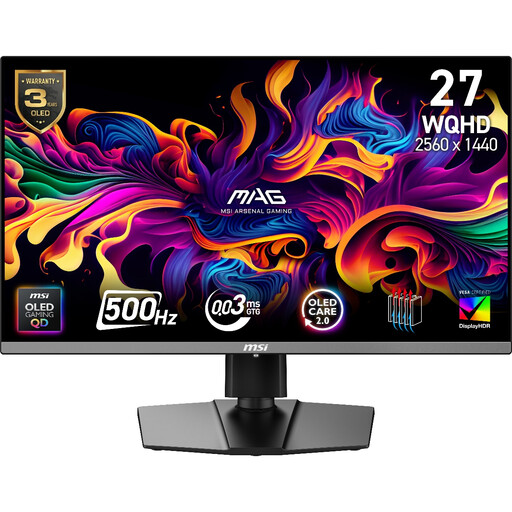
MAG 272QP QD-OLED X50 27-inch WQHD 500Hz
Consider this model if reviewing moving output is your priority and your source can deliver the display mode you need. Its name specifies a 27-inch 2560 × 1440 QD-OLED display, 500Hz refresh rate and 0.03ms response time; confirm the applicable connection and mode with your test setup.
View on Joybuy
 No image available
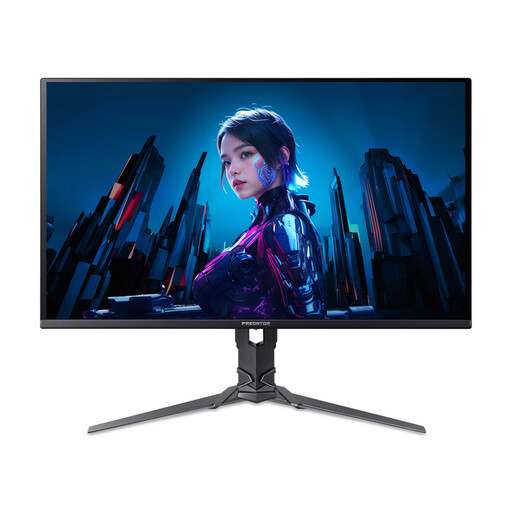
Acer X Predator X27U W3 26.5-inch QD-OLED 240Hz
This is another option to assess for moving visual output. Its name specifies a 26.5-inch 2560 × 1440 QD-OLED display and 240Hz refresh rate; check the required mode against your computer and connection, as well as the stand’s fit on your desk.
View on Joybuy
 No image available
HKC G27H2DPro 27-inch QHD Fast IPS 220Hz
Consider this display for dynamic output if its mode matches the one your test setup can supply. Its name specifies a 27-inch 2560 × 1440 Fast IPS panel and 220Hz refresh rate; check the stand’s positioning options against your workstation needs.
View on Joybuy
 No image available
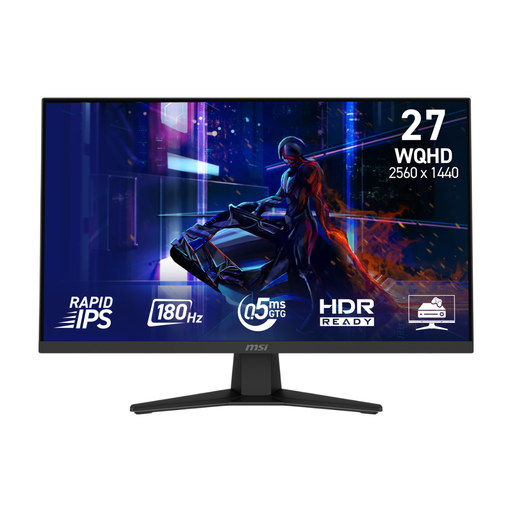
MSI MAG 274QF 27-inch WQHD Rapid IPS
This model is worth checking if you review moving output and can confirm the refresh mode available through your chosen connection. Its name identifies a 27-inch WQHD Rapid IPS monitor with Adaptive Sync; check the port-specific mode and whether tilt adjustment meets your desk-positioning needs.
View on Joybuy
 No image available
ASUS ProArt PA278CV IPS WQHD
Consider this WQHD IPS model if your work centres on examining logs, parameters and reports rather than choosing solely by refresh rate. Confirm its display mode and connections against your application and laptop before choosing it for the desk.
View on Joybuy
Frequently asked questions
Do I need 144Hz or 180Hz to review collision behaviour?
Not necessarily: a higher-refresh QHD monitor is a route to consider when you inspect fast-moving animation or interactive output, while a QHD USB-C workspace may suit work centred on logs and static results. Dell UK specifies 144Hz for the S2725DC and HP Store UK specifies 180Hz for the OMEN 27q G2, but the useful mode depends on your application and source device.
Will a USB-C monitor display output and charge my laptop through one cable?
It can only do both if the laptop, monitor and cable support the required video mode and charging arrangement. Check the laptop’s USB-C video capability and charging requirement against the exact monitor specification; HP Store UK lists 100W power delivery for the 527pu, Samsung UK lists 90W charging for the S60UD, and BenQ UK lists 65W power delivery for the GW2790QT.
How should I position a monitor at my home-office desk?
The Health and Safety Executive advises placing the top of the screen level with your eyes and the screen about an arm’s length away. Check the desk, chair and input-device positions as well as the monitor’s adjustment range; a larger screen or adjustable stand is not a substitute for fitting the whole workstation together.


