What matters when choosing?
Define what testers need to see—static detail, live movement or both—then check the computer connections and how the screen will fit the shared workstation.
| Concern |
What to check |
Who this matters to |
| Visual detail |
Check native resolution and whether text remains usable at the intended viewing distance and operating-system scaling. |
If I inspect scene boundaries alongside logs and editor panels, I need enough usable space to keep the relevant views open. Roughly 25% of consumers put detailed inspection first. |
| Motion visibility |
Establish the test software’s frame rate and the computer’s output capability before comparing native refresh rates. |
When a collision issue appears only during playback, I need to observe the moving build rather than rely on a static frame. Around 19% of consumers prioritise motion observation. |
| Shared-desk connections |
Check each computer’s video output, USB-C display and charging requirements, and whether peripherals need to switch between hosts. |
If colleagues bring different machines to the desk, I need a repeatable way to connect the display and required peripherals. Approximately 31% of consumers make device handover their primary concern. |
| Workstation fit |
Check stand adjustment or mounting against the desk and users, and assess the complete workstation where required. |
When several people use the same station, I need to position the screen without overlooking the chair, keyboard and wider setup. Roughly 25% of consumers put workstation fit first. |
A higher refresh rate does not establish that collision logic or simulation timing is correct. For UK workers who use display screen equipment daily as part of normal work for continuous periods of an hour or more, HSE says employers must carry out a workstation assessment.
Joybuy monitors for this task
These monitors offer different starting points for detailed viewing and, where the stated refresh rate is relevant, observing moving test content. Check each model against the actual test computer and shared-desk connections before choosing.
 No image available
ASUS ProArt Display PA32UCG-K 32-inch 4K monitor
Consider this model if the team needs to inspect detailed views and also plans to watch moving test content.
The product name specifies a 32-inch 4K Mini LED display, 120Hz refresh, Thunderbolt 3 and HDMI 2.1. Confirm the test computer’s intended display signal and the laptop charging requirements before using it at a shared desk.
View on Joybuy
 No image available
Dahua 32-inch curved 4K OLED monitor, 165Hz
This is a route to consider when testers want both 4K viewing and a specified higher refresh rate for live motion.
The product name lists 3840 × 2160 resolution, 165Hz refresh, Type-C 65W and a USB hub. Check whether the connected computers can provide the intended signal and whether 65W meets the laptop’s charging requirement.
View on Joybuy
 No image available
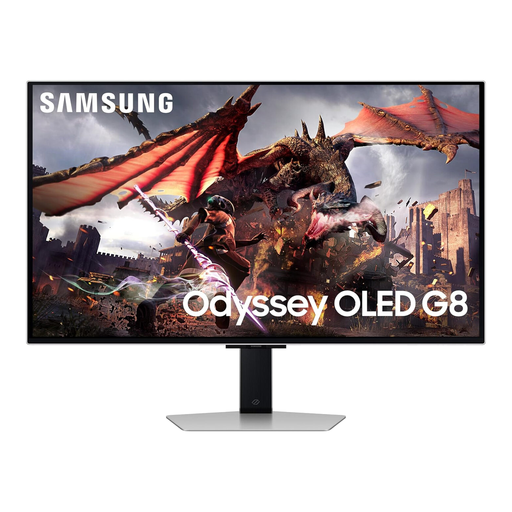
Samsung Odyssey OLED G8 LS32DG802SUXXU 32-inch monitor
For a team considering a 32-inch UHD screen for test review, compare this exact model’s display inputs and refresh setting with the test machines.
The product name identifies an OLED UHD model. Check the shared desk’s laptop connection and charging needs separately before selecting it for rotating users.
View on Joybuy
 No image available
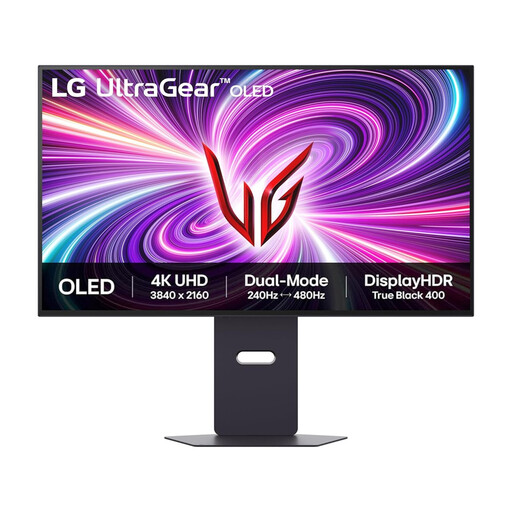
LG UltraGear OLED 32GS95UV-B 32-inch dual-mode monitor
Consider the two stated display modes only after deciding whether the test calls for 4K detail or observing motion at Full HD.
The product name specifies 4K at 240Hz and Full HD at 480Hz; the 480Hz figure does not apply at 4K. It also lists DisplayPort and HDMI 2.1. Confirm which mode and output the test computer can use.
View on Joybuy
 No image available
BenQ MA320UP Nano Glossy 32-inch 4K USB-C monitor
This model is worth considering for detailed visual review where its Mac-oriented setup fits the computers used at the desk.
The product name specifies a 4K IPS display, USB-C and a height-adjustable stand. Check compatibility with any non-Mac test machines and establish whether the required peripheral switching is available.
View on Joybuy
Common questions
Should collision testers choose 4K or a higher refresh rate?
Prioritise 4K when the main work is inspecting detailed scenes, logs and multiple windows; consider a higher refresh rate when testers must observe collisions during live motion. Establish the software frame rate and test computer’s output before deciding which specification matters more.
Can USB-C replace every cable at a shared desk?
Only when the particular monitor, laptop and cable support all the display, data and charging functions the desk needs. LG lists simultaneous display, data transfer and 90W charging through USB-C for its 27U730A-B, but that model’s specification cannot establish what another monitor or laptop supports.
Where should a shared-office monitor be positioned?
HSE advises placing the screen directly in front of the user, about an arm’s length away, with the top at eye level. At a shared desk, check whether the stand or mounting arrangement allows each user to achieve a suitable position alongside their chair and input devices.
Does an adjustable monitor make a UK shared workstation DSE-compliant?
No. HSE says employers must assess the whole workstation for workers who use display screen equipment daily as part of normal work for continuous periods of an hour or more. The assessment includes the equipment, furniture, work conditions and job; monitor adjustment addresses only part of that setup.


