Start with a compact monitor if desk space is tight, but check its full footprint rather than relying on screen size alone. For fast, interactive collision tests, prioritise a refresh mode your computer and cable can drive; for reviewing detailed scenes alongside code or logs, consider more screen resolution, provided the monitor fits your workspace.
Who is this for?
Real-time collision-test observers
If you watch moving objects interact as a test runs, refresh behaviour matters—but a monitor’s response-time figure is not a measure of the entire input-to-display delay. BenQ’s explanation of input lag and response time distinguishes those measures.
Small-desk simulation and code reviewers
If you spend more time reviewing simulation output, code or logs, screen placement and connections may matter more than the fastest listed refresh mode. Check that the stand leaves room for the rest of your setup.
Detailed visual-review users with more desk room
If your work involves detailed scenes or windows open side by side, QHD is worth considering. A 27-inch option needs a check of the complete monitor and stand dimensions before it goes on a small desk.
What matters when choosing?
Decide whether you mainly need to follow motion as it happens or inspect detailed output, then check desk fit and connection compatibility for the monitor you choose.
| Concern |
What to check |
Who this matters to |
| Motion and timing |
Check the refresh mode at your intended resolution and input, and whether the application, computer and cable can use it. Read the stated response-time measurement separately from refresh rate. |
If I need to follow fast collisions as they happen, I want to see moving objects and frame changes clearly without mistaking display behaviour for a test result. Around 29% of consumers put motion and timing first. |
| Desk fit and positioning |
Compare the monitor’s full width and stand footprint with usable desk space; check the adjustments needed to position the screen. |
On a crowded desk, I need the screen in front of me without losing room for my keyboard and mouse. Desk fit and positioning are the main concern for around 29% of consumers. |
| Detail and workspace |
Decide whether reviewing scenes beside code or logs calls for QHD or additional vertical space; check the physical size that comes with your chosen display. |
When I inspect a scene alongside logs, I need enough room to see both without constantly rearranging windows. Around 24% of consumers place detail and workspace first. |
| Laptop connection |
Confirm that the laptop port and cable support the required video mode; if using USB-C charging, check the laptop’s power needs against the exact monitor. |
If my test station runs from a laptop, a workable connection matters more to me than another display feature. For around 18% of consumers, laptop connection is the primary need. |
Mistakes to avoid
-
Assuming a high refresh rate proves a collision test is accurate
Refresh rate, pixel response and input lag describe different things. As BenQ explains, response time forms only part of overall input latency; a visual delay can also arise elsewhere in the test setup.
Try the intended application with the planned computer, cable, resolution and refresh setting before drawing conclusions about where a delay originates. Treat response figures as specifications for their stated measurement modes.
-
Buying by screen diagonal alone
A modest screen diagonal does not tell you how much desk space its stand occupies or whether you can position it comfortably. The Health and Safety Executive advises placing the screen directly in front of you, with its top at eye level and the screen about an arm’s length away.
Measure usable desk width and depth, allowing for your keyboard, mouse and cables, then compare the complete monitor and stand dimensions or your planned mount.
-
Assuming every USB-C connection does the same job
USB-C video support and monitor power delivery depend on the exact devices and connections. A USB-C socket alone does not establish which display mode or charging arrangement will work.
Check the laptop’s video-output and charging requirements against the monitor’s port specifications and the cable you intend to use.
Brands to consider for these monitor routes
Dell
Dell lists compact FHD models as well as USB-C productivity monitors and a 27-inch QHD option.
- Dell Technologies lists the S2425HSM at 1920 × 1080 and 144Hz, while the P2725DE is listed at 2560 × 1440 and 100Hz.
- Connection, stand and motion specifications differ by model; choose by the exact monitor rather than the brand name.
ASUS TUF Gaming
The VG249QL3A is a compact option to examine when following fast on-screen movement is central to the task.
- ASUS lists a 23.8-inch FHD panel, 180Hz refresh rate and height adjustment for the VG249QL3A.
- Its stated 1ms GTG response time is a manufacturer specification, not a measurement of latency through your complete test setup.
BenQ ZOWIE
ZOWIE’s esports-monitor range is relevant when the task closely resembles fast interactive visual tracking.
- ZOWIE positions models in its range around motion clarity for competitive play.
- That positioning does not establish a need for an esports monitor when the work is chiefly code, logs or static simulation review; check the dimensions of any particular model.
Monitors on Joybuy
These choices cover compact displays for motion-focused testing and detailed review, plus a larger QHD option to consider if the desk has room. Match the listed mode and physical setup to your own test workflow before choosing.
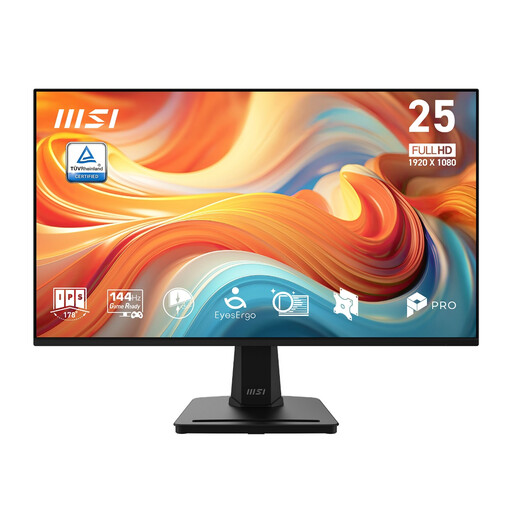 Image unavailable
MSI PRO MP251 E14L 24.5-inch FHD 144Hz IPS monitor
Consider this compact high-refresh option if you follow collisions in real time. Check that your computer and cable can run the intended 144Hz mode, and measure the space available for the stand.
View on Joybuy
 Image unavailable
ASUS ZenScreen MB249C IPS USB-C monitor
Consider this for a laptop-based setup where screen placement is a priority rather than high-refresh motion inspection. Check which mounting arrangement suits the desk and whether the laptop’s USB-C connection meets your video and charging needs.
View on Joybuy
 Image unavailable
HKC G27H2DPro 27-inch QHD 220Hz monitor
This combines a listed high refresh rate with QHD resolution, but its larger screen makes desk fit especially important. Confirm the stand footprint and whether your computer and cable support the QHD mode you intend to use.
View on Joybuy
 Image unavailable
ASUS ProArt PA24ACRV QHD IPS monitor
The compact QHD format is worth considering for detailed review on a constrained desk. Check the stand footprint, laptop connection and supported refresh mode against the way you test collisions.
View on Joybuy
 Image unavailable
ASUS ProArt PA248CRV WUXGA IPS monitor
Its WUXGA format offers a compact alternative for reviewing work that benefits from additional vertical screen space. Check the stand dimensions, connection requirements and refresh mode before choosing it for your test setup.
View on Joybuy
Common questions
Should I prioritise refresh rate or QHD for collision testing?
Prioritise a usable high-refresh mode if you need to judge fast movement during an interactive test; prioritise QHD if you mainly inspect detailed scenes beside code or logs. Confirm that your computer, cable and application can make use of the display mode you choose.
How should I position a monitor on a small desk?
Place the screen directly in front of you where the desk allows. The Health and Safety Executive advises having its top at eye level and the screen about an arm’s length away; check the full stand footprint and available adjustment before buying.
Can one USB-C cable carry video and charge my laptop?
It can when the laptop supports USB-C video output and the monitor’s charging capability meets that laptop’s needs. Check both devices’ specifications and the cable: Dell Technologies, for example, lists up to 90W power delivery for the P2425HE, which is a specification for that model, not a guarantee of compatibility with every laptop.
What should I do with an old monitor?
Check an appropriate retailer take-back or local electronics-recycling route rather than putting the monitor in general waste. GOV.UK guidance on waste electrical and electronic equipment describes measures intended to support recovery, reuse and recycling.


