Schedule coordinators
People editing delivery boards, booking systems or spreadsheets need to read schedule details while keeping related work in view. How many windows they use at once helps determine whether Full HD provides enough working space.


Start with a monitor that can be positioned for close-up schedule work, then choose the screen space and connections the desk actually needs. Full HD may be enough for a single schedule view; consider QHD when staff edit schedules alongside other windows, and a USB-C hub when compatible laptops regularly rotate through the desk. An adjustable screen does not replace assessment of the full workstation where the Health and Safety Executive’s display screen equipment guidance applies.
People editing delivery boards, booking systems or spreadsheets need to read schedule details while keeping related work in view. How many windows they use at once helps determine whether Full HD provides enough working space.
When different staff connect their laptops at the same desk, display, charging and wired-network connections may matter as much as the panel. Those functions depend on the exact monitor and laptop setup.
Managers adding screens for shared desks need to consider positioning, furniture and lighting as well as the monitor. The Health and Safety Executive’s display screen equipment guidance addresses assessment of the workstation, not just its screen.
Decide how the schedule will be viewed and edited before choosing extra connections. Then check the laptops and the physical desk where the monitor will be used.
| Concern | What to check | Who this matters to |
|---|---|---|
| Schedule detail and screen space | Check whether staff need one schedule window or the schedule alongside email and dispatch software. Compare the exact model’s resolution and the intended viewing position. | If I edit detailed entries beside other applications, I need enough room to see both without constantly switching windows. Around 42% of consumers would put schedule detail and screen space first. |
| Laptop connection and handover | Check each laptop’s USB-C video and charging requirements, the cable, and whether the desk needs permitted wired-network access. | When colleagues take turns at one desk, reconnecting separate cables interrupts a quick handover. For around 33% of consumers, simpler laptop connection would be the primary concern. |
| Adjustment and workstation fit | Check screen position, adjustment range, desk depth and reflections from lights or windows. Assess the workstation where the Health and Safety Executive’s display screen equipment criteria apply. | I need to reposition a shared screen for my seating position without overlooking glare or the rest of the desk. Workstation fit would come first for around 25% of consumers. |
Video output, charging and network access depend on the monitor, connected laptop, cable and office configuration; a USB-C port alone does not establish that the intended combination will work.
Test the laptops that will use the desk with the exact monitor arrangement. Check video, charging and, if needed, Ethernet access against IT requirements before equipping several desks.
A screen can still be awkwardly positioned or affected by glare. The Health and Safety Executive says employers must assess the workstation when workers use display screen equipment daily as part of normal work, continuously for an hour or more.
Consider the desk, chair, lighting, task and users’ needs together, and show staff how to adjust their setup.
A webcam, speakers or dual-monitor connection serves a different workflow from a screen used mainly to display and edit a schedule.
Establish whether the desk handles rotating laptops, calls or two-screen work before selecting those features. For a simpler fixed station, concentrate on the required display connections, screen space and positioning.
These examples illustrate different shared-desk configurations; the features below apply to the named models, not every monitor from each brand.
Dell Technologies lists the 23.8-inch P2425HE as a Full HD USB-C hub monitor and the 23.8-inch P2425DE as a QHD USB-C hub monitor. Both specify power delivery up to 90W.
LG Electronics UK lists the 23.8-inch Full HD 24BA850-B with a webcam, microphone, speakers, USB-C power delivery up to 90W and RJ45 Ethernet.
Samsung Electronics UK lists the 24-inch Full HD Business S43UF with USB-C, a LAN port, upstream charging up to 90W and a height-adjustable stand.
These monitors offer Full HD, WUXGA or QHD choices for a close-up delivery-schedule desk. Match the screen to the work being displayed, then check the exact unit’s laptop connections and how it fits the shared workstation.
 No image available
Consider this QHD option when staff edit a delivery schedule alongside other applications.
If the desk relies on USB-C for laptop handovers, check the laptops’ video and charging requirements. Confirm wired Ethernet on the exact unit if the office needs it.
 No image available
Consider this WUXGA option when the schedule includes rows or documents that staff want to keep visible while editing.
Check USB-C video and charging compatibility with the intended laptops, and confirm the exact unit’s USB hub configuration if desk peripherals depend on it.
 No image available
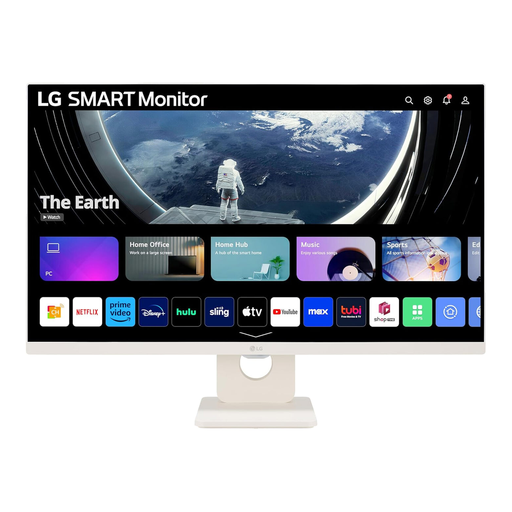
Consider this 27-inch Full HD screen where the desk also has a use for its built-in speakers or smart features.
The product name specifies 100Hz, Wi-Fi and Bluetooth. Check office network and IT requirements before using its connected features, and verify laptop video and charging needs before relying on USB-C handovers.
 No image available
Consider this monitor for a schedule-editing desk where screen position and the required laptop connection can be checked before purchase.
Confirm the exact ports if USB-C is essential. Check the stated refresh rate on the unit if it affects the planned setup.
 No image available
Consider this Full HD model for a fixed desk where staff mainly view or edit one schedule rather than keep several detailed windows open.
The product name specifies 1920 × 1080 resolution, 100Hz, USB-C, DisplayPort, HDMI and VGA. Check USB-C charging requirements separately if staff expect the monitor to power their laptops.
No. The Health and Safety Executive’s guidance calls for assessment of the whole workstation when its display screen equipment use meets the relevant criteria. An adjustable stand helps with positioning, but the desk, seating, lighting, task and user needs also matter.
The Health and Safety Executive says employers must assess a workstation if workers use display screen equipment daily as part of their normal work, continuously for an hour or more. A shared desk should be considered in light of how each worker actually uses it.
Staff should know how to adjust their working position and screen and how to deal with reflections and glare. The Health and Safety Executive’s training guidance also covers arranging desk space, breaks or changes of activity, and reporting problems.
Check the organisation’s collection arrangement for electrical equipment rather than assuming the monitor belongs with ordinary office waste. The Department for Business, Innovation & Skills’ 2014 WEEE guidance addresses organisations involved in electrical-equipment disposal; confirm which collection route applies to the monitor.