UI-detail and layout testers
If your work involves inspecting typography, dense forms, icons and alignment alongside other windows, consider both native resolution and whether the resulting text size is comfortable at your preferred scaling.


Choose a 27-inch 4K IPS monitor if inspecting small interface details and keeping several work windows open are your priorities; adjust operating-system scaling if text feels too small. A QHD 100Hz model with USB-C and a KVM switch is another route when you regularly move between two computers, provided its connections work with both devices.
If your work involves inspecting typography, dense forms, icons and alignment alongside other windows, consider both native resolution and whether the resulting text size is comfortable at your preferred scaling.
If you alternate between a desktop and a laptop or test machine, a monitor with suitable inputs and a KVM switch may reduce peripheral swapping. Check how each computer connects before relying on a shared keyboard and mouse.
If you review interface assets, colour tokens or screenshots, compare the exact model’s stated colour-space coverage and calibration information against the colour workflow you use.
Consider it when: Small text, icons and spacing need close inspection while your test build and reference windows remain open.
Trade-off: At 27 inches, you may need display scaling to make interface elements comfortable to read; check that your computer can output the intended display mode.
Consider it when: Switching between two computers and sharing peripherals matters more to your routine than maximum pixel detail. Samsung Business UK lists these features for the ViewFinity S60UD.
Trade-off: QHD has fewer pixels than 4K at the same size, and the USB-C video, data and charging arrangement must suit your devices.
| Concern | What to check | Who this matters to |
|---|---|---|
| UI detail and workspace | Compare native resolution and screen size, then check readability at your preferred operating-system scaling. | I need to inspect small interface details while keeping test materials in view without making text uncomfortable to read. Around 40% of consumers put this need first. |
| Connections and switching | Check both computers’ video inputs, the monitor’s KVM arrangement and any required USB-C video and charging support. | When testing on two machines, I want to switch without repeatedly moving my keyboard and mouse. For around 30% of consumers, that workflow is the main priority. |
| Colour review | Check the exact model’s stated sRGB or Rec.709 coverage and calibration information against your review workflow. | If I approve app assets or screenshots, I need a controlled basis for judging intended colours, while still testing other devices. Colour review comes first for around 30% of consumers. |
A USB-C socket alone does not establish which functions your laptop and monitor can use together. The cited ASUS, LG and Samsung models have different stated power-delivery ratings.
Check your laptop’s USB-C display support and charging requirement against the exact monitor and cable you plan to use.
A compatible cable, separate charger or dock may still be needed for your setup.
Microsoft Support notes that text may look less sharp below a display’s recommended resolution.
Start at the recommended native resolution and adjust operating-system scaling; then check that your IDE and the app under test remain usable.
Colour specifications from ASUS UK, BenQ UK and LG UK apply to their stated models, not to every display or software environment on which customers might view an app.
Use the relevant colour mode for controlled review, and keep cross-device checks for release-critical visuals.
The Health and Safety Executive’s display-screen-equipment guidance covers workstation setup as a whole; screen position is only part of it.
Consider the screen, seating, input devices and breaks together. If you are an employed display-screen-equipment user, follow your employer’s workstation assessment process.
These model lines illustrate different specifications worth comparing; a brand name alone does not establish which monitor fits your testing setup.
The ProArt PA279CV is a 27-inch 4K IPS example for testing work that also includes colour-conscious review.
The PD DesignVue PD2705U combines a 4K workspace with features relevant to colour checks and a two-source desk.
The UltraFine 27UP850K-W is a 27-inch 4K example to examine if a compatible laptop connection is central to your desk setup.
The ViewFinity S60UD and S80UD illustrate QHD 100Hz and 4K routes for a desk that may use more than one computer.
These monitors are options to examine if a 4K display fits your desktop-app testing routine. Compare their stated features with your computer connections, preferred scaling and desk setup; the selection does not cover the QHD switching route discussed above.
 No image available
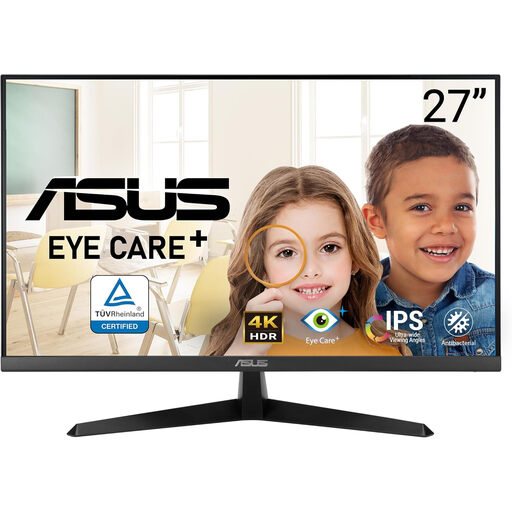
Consider this model for close layout inspection if you want a 27-inch 4K screen with a height-adjustable stand. Its title also specifies USB-C; confirm the video and charging arrangement with your computer and cable before relying on a single connection.
 No image available
The stated 27-inch 4K format is relevant when you inspect detailed layouts alongside other work windows. If laptop charging or a one-cable desk matters to you, confirm the exact connection and power-delivery capabilities before choosing it.
 No image available
This is a 4K option for inspecting app layouts where a stated 60Hz refresh rate meets your needs. Check its screen-positioning options and connections against your desk and computer rather than assuming it has the same features as another ASUS model.
 No image available
Consider this model for detailed interface work if HDMI or DisplayPort suits your computer. Its title specifies 60Hz, 5ms, DCI-P3 95%, DisplayHDR 400 and built-in speakers; the stated colour coverage alone does not establish sRGB calibration for your review workflow.
 No image available
This 4K model is worth examining if your testing desk also calls for the USB-C 65W and Multi-Control features named in its title. Check how Multi-Control connects your devices and whether 65W meets your laptop’s charging requirement; do not assume it replaces a KVM for your setup.
Choose 4K if fine interface details and pixel workspace are your priorities; consider QHD if larger interface elements at the same screen size or a particular 100Hz switching setup better fits your work. Microsoft Support advises using a display’s recommended resolution, so try scaling before lowering a 4K monitor’s resolution to enlarge text.
It can if the laptop supports the required USB-C display mode and the monitor’s power delivery meets its charging needs. Check the exact monitor rating and cable as well as the laptop’s requirements; USB-C sockets do not all offer the same functions.
A KVM switch is useful when two connected computers need to share one keyboard and mouse. If you test on only one desktop, it may add little to your routine; for two computers, confirm the monitor’s supported inputs and peripheral connections.
Check your employer’s display-screen-equipment assessment process alongside the physical desk setup. The UK Health and Safety Executive says its display-screen-equipment guidance can apply to home workers; it does not require every private buyer to choose a particular monitor model.
No. Model-specific gamut and calibration claims from manufacturers such as ASUS UK and BenQ UK can inform a controlled review setup, but they do not establish identical rendering across customers’ screens and software settings. Keep other devices in your visual testing where those differences matter.