Control window reflections before choosing a monitor for its brightness rating: the Health and Safety Executive advises positioning screens to avoid glare and bright reflections. For dialogue-tree work, choose screen space according to whether you need a compact graph view, fine text detail or several panes side by side. Treat USB-C charging and KVM as useful only when they match the computers you actually use.
Who this setup suits
Bright-room dialogue editors
If window light reflects in your screen, node labels and connecting lines can be difficult to follow. The Health and Safety Executive advises arranging the desk and screen to avoid glare or bright reflections, particularly from a window directly in front of the screen.
Large-canvas narrative designers
If your branching graph sits alongside scripts, quest notes or reference panes, screen dimensions and resolution affect how much you can keep visible. Decide whether vertical detail or room for side-by-side panes matters more in your editor.
Laptop-and-desktop switchers
If you connect a laptop at the desk or alternate between two computers, USB-C power delivery or a KVM switch may simplify the connections. Check the video, charging and USB requirements of each computer before choosing around those features.
What to check before choosing
Set the screen where window light will not reflect directly into it, then choose a layout that fits both your dialogue editor and your desk. A hub or KVM is a separate decision: it does not change the space available for nodes and reference panes.
27-inch QHD
Choose it when: one main editor and a comparatively compact screen fit the way you work.
Trade-off: a 2560 × 1440 display offers fewer pixels for the graph and accompanying text than a 3840 × 2160 display of the cited 32-inch type.
32-inch 4K
Choose it when: you need to inspect a branching graph while keeping small labels and documents in view.
Trade-off: allow space for the larger screen and check whether operating-system scaling keeps interface text comfortable to read.
Ultrawide
Choose it when: keeping the dialogue canvas, script and references side by side is the priority.
Trade-off: check desk width and vertical resolution; Dell lists 3840 × 1600 for its U3824DW, compared with 3840 × 2160 for the cited 32-inch 4K routes.
| Concern | What to check | Who this matters to |
|---|
| Reflections and legibility |
Check screen placement, the surface finish and stand adjustment; plan how to control intrusive window light. |
If reflected light obscures node labels, I need to change the screen position rather than rely on brightness alone. Around 42% of consumers could put reflection control first. |
| Canvas and text detail |
Compare resolution and dimensions together, then check desk fit and readable interface scaling. |
When my graph shares the screen with scripts or references, I want enough room to follow its branches without losing readable text; roughly 33% of consumers could make canvas and detail their primary concern. |
| Computer connections |
Match USB-C video and charging to the laptop; for KVM, check both computers’ video and USB connections. |
If I move between a laptop and desktop, I want to share peripherals without repeatedly reconnecting them. For around 25% of consumers, that connection workflow could be the main priority. |
Buying pitfalls
-
Choosing by brightness while the screen faces the window
Reflections can still interfere with reading dialogue nodes. The Health and Safety Executive advises arranging the desk and screen to avoid glare or bright reflections.
Check whether you can turn the desk or screen away from direct window light, and whether blinds or curtains are needed for the remaining light.
-
Choosing a larger screen without measuring the desk
A 32-inch 4K display or a wide ultrawide needs a workable position, not just enough room for the panel itself. The choice also changes whether you have more vertical detail or a wider arrangement of panes.
Measure desk width and depth, allow for the stand or a compatible monitor arm, and sketch how the graph and reference windows would sit on each screen.
-
Assuming USB-C or KVM will work with every computer
A monitor’s charging capability does not establish that a particular laptop accepts video and the required power through the same connection. Sharing a keyboard and mouse between two computers also requires the appropriate USB connections.
Check the laptop’s USB-C video mode and charging requirements. For KVM, confirm the video and USB paths for both computers and the peripherals you intend to share.
Relevant brands to consider
Dell UltraSharp
Dell’s U2724DE represents the compact QHD hub route, while its U3824DW offers a wider workspace.
- Dell lists anti-glare surfaces, adjustable stands and up to 90 W power delivery on these cited models.
- Dell lists 300 cd/m² brightness for the U3824DW; its width and surface finish do not replace control of direct-window reflections.
BenQ RD Series
BenQ’s RD320U and RD320UA are programming-oriented 31.5-inch 4K displays for users considering a larger, detailed canvas.
- BenQ lists a Nano Matte coating, height adjustment and USB-C power delivery for the cited route.
- BenQ’s quoted brightness specification does not establish how the screen will handle reflections from your particular window.
Samsung ViewFinity
Samsung’s 32-inch S80UD combines a 4K workspace with connections aimed at a multi-device desk.
- Samsung lists 90 W USB-C charging and data, LAN and a built-in KVM switch for the S80UD.
- Check computer compatibility and the intended USB connections; KVM does not address window reflections.
ASUS ProArt
ASUS’s PA329CV is a 32-inch 4K display to consider when visual work accompanies narrative design.
- ASUS lists an anti-glare surface and 3840 × 2160 resolution for the PA329CV.
- Consider whether its colour-work features serve your tasks if most of your time is spent editing text and graphs.
Joybuy monitors for these workflows
These monitors span detailed 4K displays and a wider layout for keeping dialogue and reference panes visible together. Choose by desk fit and screen arrangement, then check the connections and screen-positioning options that matter to your setup.
 Image unavailable
ASUS ProArt Display PA32UCG-K 32-inch 4K Mini LED monitor
Consider this 32-inch 4K format if a large dialogue graph and fine text need to share the screen. The product name also identifies an IPS Mini LED panel and Thunderbolt 3 connection. Check screen placement to manage reflections, and confirm the brightness specification and laptop-charging capability before relying on either for this setup.
View on Joybuy
 Image unavailable
ASUS ProArt PA27DCE-K 4K OLED monitor
Its 4K OLED format is an option when fine labels are a priority but a wider screen is not. Check the stand and screen position against your window, and confirm USB-C video and charging compatibility if you want a laptop connection through the monitor.
View on Joybuy
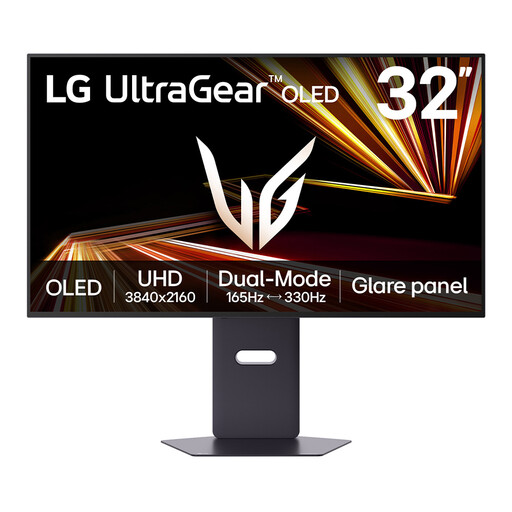 Image unavailable
LG UltraGear 32GX850A-B 32-inch 4K OLED monitor
The 32-inch 4K format gives a dialogue graph and accompanying text a larger workspace. Its OLED panel needs particular consideration if your editor leaves the same interface elements on screen for long periods: the product information warns of image retention from prolonged static images. Check desk fit and your computer connections before choosing it.
View on Joybuy
 Image unavailable
Acer Predator X49X 49-inch 32:9 QD-OLED ultrawide monitor
Consider this wide layout if you want dialogue, scripts and reference panes beside one another. Its product name identifies a 49-inch, 32:9 curved QD-OLED display with HDMI, DisplayPort and USB-C. Measure the desk and viewing position carefully; check the brightness specification separately if it affects your bright-room choice.
View on Joybuy
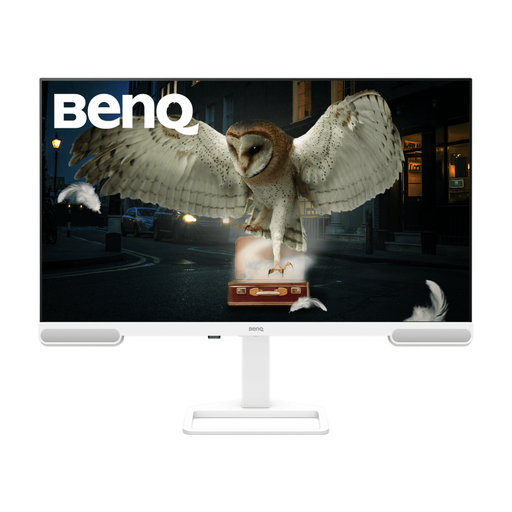 Image unavailable
BenQ EW3290U 31.2-inch 4K monitor
The stated 3840 × 2160 resolution is relevant when a dialogue graph shares the display with detailed text. Before choosing it for a window-side desk, check how its stand can be positioned to avoid reflections. Confirm USB-C charging capability separately if that is part of your laptop setup.
View on Joybuy
Questions about the setup
Will a brighter monitor solve glare from the window?
Brightness alone will not remove a reflection. The Health and Safety Executive advises arranging the desk and screen to avoid glare or bright reflections, especially with a window directly in front of the screen. Compare screen finishes and stand adjustment as supporting features, and consider blinds or curtains where the light remains intrusive.
Should I choose 27-inch QHD or 32-inch 4K for dialogue trees?
Choose 27-inch QHD if a compact screen and one main editor suit your desk; consider 32-inch 4K if detailed labels and accompanying documents need more display pixels. Dell lists 2560 × 1440 for the U2724DE, while the cited BenQ RD320UA and Samsung S80UD are 3840 × 2160. Check desk depth and whether interface scaling makes text comfortable to read.
When does an ultrawide make more sense than 32-inch 4K?
An ultrawide suits a workflow centred on keeping the dialogue canvas and several reference panes side by side; 32-inch 4K is worth considering when vertical pixels and fine text detail take priority. Dell lists its 37.5-inch U3824DW at 3840 × 1600, compared with 3840 × 2160 for the cited 32-inch 4K models. Measure the available desk width before deciding.


