What matters when choosing
Decide how much text and how many panes must be visible first. Then check the connection and stand against the computer and desk you will use.
| Concern | What to check | Who this matters to |
|---|
| Readable text |
Compare resolution and pixel density at your intended screen size, then check dialogue-editor text at a comfortable scaling setting. |
If small node labels and long passages dominate my work, I want to read them without shrinking the interface to fit more on screen. Roughly 36% of consumers put text clarity first. |
| Room for several panes |
Check screen size, aspect ratio and resolution together against the graph, script and reference windows you need open. |
Keeping the graph beside my script helps me follow branches without repeatedly changing windows. For roughly 29% of consumers, simultaneous workspace is the primary concern. |
| Laptop and device connections |
Confirm USB-C video support and charging wattage with your laptop; check switching features if you use more than one computer. |
I need to connect a laptop or move between computers without rebuilding my desk setup each time. Connection simplicity comes first for roughly 21% of consumers. |
| Screen positioning |
Check stand adjustment and reflections in your room. The Health and Safety Executive advises placing the screen top around eye level, about an arm’s length away. |
During long editing sessions, I need a screen I can position without working around glare or an awkward desk arrangement. Roughly 14% of consumers prioritise that setup. |
Joybuy monitor choices
These 27-inch 4K monitors suit a conventional desk-based dialogue-tree setup. Compare their stated connections and stand features with your computer and working position; the wider screen formats discussed above answer different workspace needs.
 No image available
BenQ MA270UP Nano Glossy 27-inch 4K USB-C Monitor
Consider this for dialogue editing on a 27-inch screen, particularly if a height-adjustable stand and USB-C connection fit your setup.
The product name specifies an IPS 4K UHD panel and Nano Glossy finish. Check reflections in your room and confirm video and charging compatibility with your computer.
View on Joybuy
 No image available
MSI MD272UPSW Smart 27-inch 4K Monitor with Google TV
Consider this if a 27-inch editor screen must also fit a laptop or multi-device desk arrangement.
The product name specifies IPS, USB-C 65 W, Multi-Control and Google TV. Confirm that your laptop can send video through the intended connection and that 65 W meets its charging needs.
View on Joybuy
 No image available
iiyama ProLite XUB2792UHSU-B6 27-inch 4K Monitor
Consider this 16:9 screen if you want a conventional 27-inch space for a dialogue editor and nearby reference panes.
The product name specifies 4K UHD resolution. If a single-cable laptop connection matters, confirm USB-C video and charging functions for this exact model before relying on them.
View on Joybuy
 No image available
LG UHD 27UP650K 27-inch 4K IPS Monitor, White
Consider this for dialogue writing when HDMI or DisplayPort suits your computer connection.
The product name specifies a 27-inch 4K IPS display, built-in speakers, HDMI and DisplayPort. Check reflections in your intended room and whether your editor remains readable at your preferred scaling.
View on Joybuy
 No image available
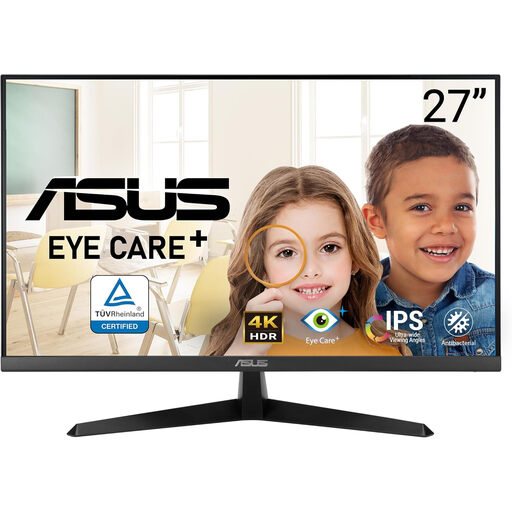
ASUS VY27UQ 4K UHD 60 Hz Monitor
Consider this for a desktop dialogue-editor setup when a 4K display meets your text and window-layout preferences.
The product name specifies 4K UHD resolution and a 60 Hz refresh rate. Check stand positioning, reflections and connection requirements against your desk and computer.
View on Joybuy
Common questions
Do I need 4K or 5K to build dialogue trees?
No particular resolution is required for dialogue-tree work; choose it alongside screen size and the text scaling you find readable. RTINGS identifies resolution and pixel density as factors in text clarity, while the space needed for a graph and script is a separate decision.
Can one USB-C cable connect and charge my laptop?
Yes, if both devices and the cable support the required functions and the monitor supplies enough charging power. LG, for example, specifies display, data and up to 90 W charging through USB-C for its 27U730A-B; check your own laptop and the exact monitor before planning a single-cable desk.
Where should I position a monitor for long editing sessions?
The Health and Safety Executive advises placing the top of the screen around eye level and the display about an arm’s length away. Arrange the screen and lighting to limit reflections, then check that you can read your editor comfortably from that position.
When do UK display screen equipment rules apply at work?
The Health and Safety Executive says the Display Screen Equipment Regulations apply to workers who use display screen equipment daily for continuous periods of an hour or more. If that describes your work, discuss the complete workstation arrangement with your employer rather than choosing a monitor by a label alone.


