Start with the work you do and the arrangement of your whole workstation, rather than treating a second screen or dock as an automatic upgrade. A raised laptop with separate inputs may suit a compact, single-screen desk; add a monitor when you need more visible workspace, and consider a dock when repeatedly connecting several devices is the problem. Before buying, check the laptop’s display and charging capabilities and, if your work is covered by Great Britain’s display screen equipment rules, your employer’s assessment process.
Who needs which setup?
Single-laptop workers with a cramped desk
If one screen is enough, consider whether raising the laptop and placing a separate keyboard and mouse on the desk addresses the arrangement you need to change. Check that there is room for both inputs before adding equipment.
Multi-window desk-based workers
If you need an active task visible alongside reference material, messages or a meeting, decide whether one external monitor provides the additional workspace you need. A dock becomes a separate decision if you also reconnect several peripherals.
Home-office commuters
When the same laptop moves between desks, repeatable connections may matter as much as screen size. Check the laptop’s video outputs, charging support and available ports before planning a one-cable setup.
What matters when choosing?
Identify the task your current arrangement makes difficult, then check the laptop and desk requirements for the accessory that addresses it. The concerns below cover regular home or hybrid computer work; each percentage refers to consumers whose primary purchasing concern is that row’s need.
| Concern |
What to check |
Who this matters to |
| Visible workspace |
List the windows you need open together. Check the laptop’s video output against the monitor input, supported resolution and required cable. |
If I need a document or meeting visible beside my active task, another display addresses a different problem from raising the laptop. Around 31% of consumers put additional screen space first. |
| Connections at the desk |
Check the exact laptop model’s display limits, video protocol and charging support, then the dock’s required ports and supplied power equipment. |
When I reconnect displays and peripherals regularly, managing those connections is my main concern; roughly 31% of consumers primarily need that consolidation. |
| Screen and input placement |
Check desk depth, stand stability and laptop fit, plus the keyboard and mouse connection methods. |
If one screen is sufficient, I may want to position it independently of where I type without using more desk space for a monitor. About 23% of consumers prioritise screen and input placement. |
| Movement between desks |
Check what must travel with you, the connections available at each location and whether cables or power equipment are included. |
If I move the setup frequently, carrying and reconnecting it matters more to me than leaving a larger arrangement in place; around 15% of consumers put portability first. |
Purchasing mistakes to avoid
-
Assuming every USB-C port can run a dock
A connector’s shape does not establish its video, charging or multi-display capability. CalDigit says TS4 functionality depends on the host computer and can be reduced with USB-C hosts.
Find the exact laptop model and check its supported display count, video protocol, charging input and operating-system requirements before choosing a dock.
-
Treating a Power Delivery rating as a charging guarantee
Dell rates the P2425HE at up to 90W and Kensington rates the SD4781P at up to 100W; neither figure establishes what a particular laptop will accept or require.
Compare the accessory’s rated host power with the laptop’s original charger and supported USB-C or Thunderbolt charging specification.
You may still need to use a separate charger if the chosen connection does not meet the laptop’s charging needs.
-
Buying work equipment before checking the employer’s process
For Great Britain workers covered by display screen equipment requirements, the Health and Safety Executive says an individual workstation assessment determines what action is needed. Workers cannot be charged for equipment the employer must provide as a result.
If those circumstances apply to your work, ask your employer about assessment and provision before purchasing an item yourself. If you are buying independently, assess the whole workstation before choosing accessories.
-
Assuming every home desk needs a monitor
A monitor adds viewing space, while a riser, separate inputs, a dock and lighting address different aspects of the setup. The Health and Safety Executive advises considering the whole workstation and the work being done.
Identify whether the constraint is visible workspace, input placement, repeated connections, reflections or cables, then choose equipment for that constraint.
Relevant brands to compare
Dell
Dell’s USB-C hub monitors are relevant when a fixed desk needs a display with laptop connectivity.
- Dell UK lists the Pro P2425HE with a 23.8-inch, 1920 × 1080 display, an adjustable stand and power delivery rated up to 90W.
- That power rating belongs to this model; check the laptop’s charging requirement and the monitor’s connections before choosing it.
Lenovo
ThinkVision docking monitors offer different display and connection specifications for desk-based laptop setups.
- Lenovo UK lists docking-monitor models with different USB-C power ratings, including 15W, 75W, 100W and 140W.
- Check the exact model: the presence of USB-C alone does not establish its charging level or docking functions.
Kensington
Kensington’s SD4781P is a dock to examine when a desk has several peripherals or a mix of USB-C and older USB-A laptops.
- Kensington specifies support for up to two 4K displays at 60Hz, up to 100W Power Delivery and six USB ports for the SD4781P.
- Kensington says USB-A host devices need a separately sold power source. Check host and operating-system requirements for the intended arrangement.
CalDigit
The TS4 is relevant to a desk that needs numerous connections and can accommodate a detailed host-computer compatibility check.
- CalDigit UK lists 18 ports and up to 98W host power delivery for the TS4.
- CalDigit says full functionality depends on the host; display support varies by platform, and USB-C hosts may have reduced functionality.
Logitech
Logitech’s separate keyboard-and-mouse products are relevant when a raised laptop needs independently placed inputs.
- The MX Keys S Combo includes a keyboard, mouse and palm rest, according to Logitech UK.
- Check the exact device’s Bluetooth or receiver requirements and allow desk space for separate inputs; the bundle does not add screen area.
Joybuy products for different setups
These products address different parts of a home or hybrid workstation: connecting several devices, adding a fixed or portable display, or using separate inputs. Choose the function you need before comparing individual models.
 No image available
Targus USB-C Universal Dual HDMI 4K Docking Station, 100W Power Delivery Pass-Thru
Consider this dock when reconnecting displays and other desk devices is the main task. Its title specifies dual HDMI 4K connections and 100W Power Delivery pass-through; confirm the laptop’s video and charging support, and check whether the required external power adapter is included.
View on Joybuy
 No image available
ASUS ProArt PA278CV IPS WQHD Monitor
Consider an external monitor when simultaneous work needs more visible space than the laptop screen provides. This PA278CV variant is identified as an IPS WQHD monitor; confirm the laptop’s display connection and, if you intend to charge through the monitor, its Power Delivery rating against the laptop’s requirements.
View on Joybuy
 No image available
Dahua 32-inch 4K 165Hz Curved OLED Gaming Monitor
Consider this larger external monitor only if your desk and laptop connection suit the intended arrangement. The title specifies 3840 × 2160 resolution, 165Hz, a USB hub and 65W USB-C; check whether the laptop supports the video connection and whether 65W meets its charging needs. Check desk fit against the detailed 31.5-inch screen specification rather than the rounded size in the title.
View on Joybuy
 No image available
ASUS ZenScreen MB166CR FHD Portable Monitor
Consider a portable second display if additional screen space must move between desks. Check that the laptop supports USB-C DisplayPort Alternate Mode: this model’s stated connection requires it and HDMI is not supported. If you need a separate stand or cover, confirm what is supplied.
View on Joybuy
 No image available
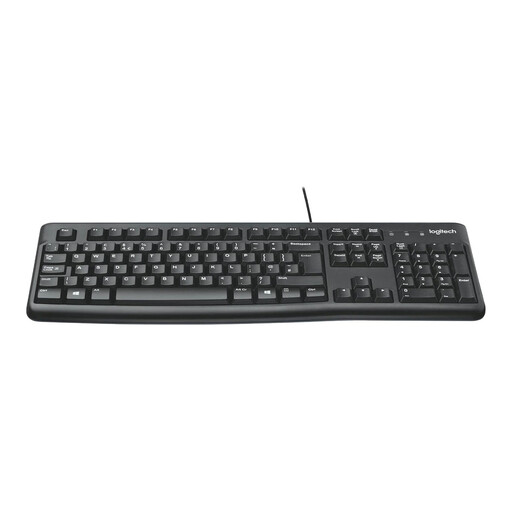
Logitech MK120 Wired Keyboard and Mouse Combo, Black
This separate keyboard-and-mouse set may suit a laptop screen positioned independently from the typing area. Allow desk space and available USB ports for the wired devices, and check operating-system compatibility if you do not use Windows.
View on Joybuy
Common questions
Do display screen equipment rules apply if I work partly from home?
They can apply to workers who routinely split their time between home and a workplace in Great Britain. The Health and Safety Executive says the rules cover workers who use display screen equipment daily for continuous periods of an hour or more; where they apply, the employer’s individual assessment should address the home and office situations.
Must I pay for equipment an employer assessment says I need?
Where a display screen equipment assessment indicates that the employer needs to provide equipment, the Health and Safety Executive says the worker cannot be charged for it. Whether a monitor, stand or dock is needed follows the individual assessment and the circumstances of the work.
Will any USB-C laptop run a dock and two monitors?
No: a USB-C-shaped port alone does not confirm video output or support for two external displays. CalDigit says dock functionality depends on the host computer and can be reduced with USB-C hosts, so check the laptop manufacturer’s specifications for the exact display arrangement before buying.
Will a USB-C monitor or dock charge my laptop adequately?
Only if the laptop supports the connection and the available power meets its requirements. Compare its charging specification and original charger rating with the accessory’s stated host power; a rated maximum does not establish that every connected laptop will receive or accept that amount.
Should I buy task lighting before changing the screen setup?
Settle the screen position and identify the lighting problem before choosing a light. The Health and Safety Executive includes reflections and glare in workstation guidance; lighting does not replace a change needed to the screen, inputs or desk arrangement.


