Choose an external monitor when you need more screen workspace, a dock when reconnecting several peripherals is the main inconvenience, and a stand when your laptop screen is sufficient but needs raising. Before buying, check that your laptop supports the required video output and charging; a USB-C connector alone does not confirm video support. In Great Britain, if DSE rules apply to your work, discuss the assessment and equipment needs with your employer before paying personally: the Health and Safety Executive says workers cannot be charged for action indicated by the assessment.
Who this setup suits
Daily laptop desk workers
If you use a laptop for sustained desk work, you may want to position the screen separately from your keyboard and mouse. The Health and Safety Executive’s workstation guidance describes raising the laptop screen while using a separate keyboard and mouse.
Frequent home–office switchers
If you move the same laptop between locations, consider whether portable equipment or a more straightforward way to reconnect at each desk fits your routine. Logitech, Kensington and CalDigit describe relevant features on specific products, but compatibility depends on the equipment you use.
Additional-screen buyers
If you want another display, match your laptop’s video output to the monitor’s input and decide whether you want an extended desktop or a duplicated image. Dell’s connection guidance explains these display arrangements.
What to consider before buying
External monitor
Choose it when: you need another display for additional workspace.
Trade-off: a direct display connection does not necessarily charge the laptop or consolidate other desk connections.
USB-C or Thunderbolt dock
Choose it when: reconnecting several desk peripherals is the main inconvenience.
Trade-off: the available display and charging functions depend on the connected laptop and the complete setup.
Laptop stand
Choose it when: your laptop screen is sufficient but you want to position it separately.
Trade-off: a stand does not add screen workspace; for prolonged laptop use, plan for a separate keyboard and mouse.
For sustained laptop work at home or between home and office, start with the problem you want the setup to solve. The right connection and equipment depend on your laptop and intended display arrangement.
| Concern |
What to check when buying |
Who this matters to |
| Screen and input positioning |
Check the stand’s height and laptop fit, and whether you can position a separate keyboard and mouse. |
At a desk for long stretches, I want to raise the screen without raising the typing surface too. About 28% of consumers put independent screen and input positioning first. |
| Video, charging and dock compatibility |
Check your exact laptop’s video output, supported display configuration and charging requirements against the monitor or dock. |
If I am connecting a monitor or dock, I need its video and charging functions to work with my laptop; a USB-C port alone does not confirm video support. Around 22% of consumers prioritise this compatibility. |
| Additional screen workspace |
Match the laptop’s video output to the display input, then check that the intended extended-display arrangement is supported. |
When I need more room for work windows, I want the screens to extend the desktop rather than show the same image. About 17% of consumers make additional workspace their main concern. |
| Portability and reconnection |
Check the stand’s foldability, keyboard connection options and which peripherals need to be reconnected at each desk. |
If I move between work locations, I need equipment that suits what I can carry and reconnect. Around 17% of consumers put portability and repeated reconnection first. |
| Assessment and personal spending |
Ask your employer about equipment suitability and assessment findings before deciding what to buy yourself. |
If I am unsure what equipment is needed for my work, I want to discuss the assessment before paying personally. About 16% of consumers prioritise assessment-led decisions about spending. |
Buying pitfalls to avoid
-
Assuming a USB-C connector guarantees video
For the USB-C monitor connection covered in Dell’s troubleshooting guidance, a port that supports only data or power delivery does not provide video.
Check the functions documented for your laptop’s exact port before choosing a monitor, cable or adapter.
An unsuitable cable, adapter or dock may mean changing the connection arrangement.
-
Assuming a dock offers every advertised function on every laptop
CalDigit says the TS4 adapts to the capabilities of its connected host, so supported displays and other functions depend on the laptop.
Check the exact laptop, intended display count, resolution and refresh rate, along with the host charging requirement.
You may need additional adapters or a different connection arrangement.
-
Raising a laptop without planning for separate input devices
The Health and Safety Executive’s workstation guidance describes separating the keyboard and mouse from a raised laptop screen for prolonged use.
Plan screen height and input-device placement together.
A separate keyboard and mouse may also be needed for that arrangement.
-
Buying a complete setup before discussing the assessment
In Great Britain, the Health and Safety Executive says additional equipment is not automatically necessary for every home worker; the assessment and suitability of existing equipment matter.
Discuss the assessment and any required action with your employer before deciding what to purchase personally.
Relevant brands to know
These examples relate to particular product lines and illustrate different ways to arrange a laptop workspace; they are not recommendations for every product from each brand.
Dell
Dell’s P2425HE is a Full HD USB-C hub monitor for a laptop-based desk.
- Dell specifies up to 90W Power Delivery for the P2425HE.
- Check that your laptop supports the required USB-C video and charging functions; the stated output does not establish charging performance with every laptop.
CalDigit
The TS4 is a powered hub example for a desk with multiple peripherals.
- CalDigit lists 18 ports and up to 98W host charging for the TS4.
- CalDigit says its functions adapt to the connected host, so check the supported display setup and charging needs of your laptop.
Kensington
The SmartFit Easy Riser Go is an adjustable, foldable stand variant for laptops up to 14 inches.
- Kensington specifies height and angle adjustment and a foldable structure for this variant.
- Check that your laptop is within the stated size limit and plan for separate input devices if you raise the screen for prolonged use.
Logitech
Pebble Keys 2 K380s is a compact keyboard described for portable and multi-device use.
- Logitech specifies switching between three devices and compatibility with Windows, macOS, iPadOS, iOS and Android.
- Confirm that the purchased variant’s connection requirements and keyboard layout suit your devices and typing needs.
Joybuy product choices
These listings cover external monitors, separate keyboard input and USB-C hubs for laptop desk connections.
 No image available
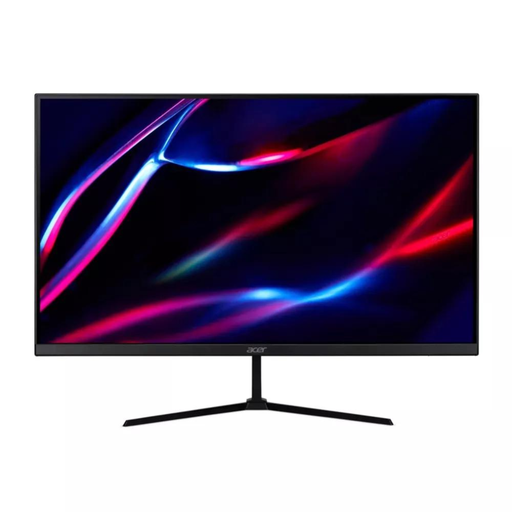
27-inch QHD IPS Monitor, 180Hz
Consider this monitor if you need an additional display; check that your laptop’s video output matches the monitor’s inputs.
The product name specifies QHD, IPS, 180Hz, 350 nits, two HDMI connections and DisplayPort.
View on Joybuy
 No image available
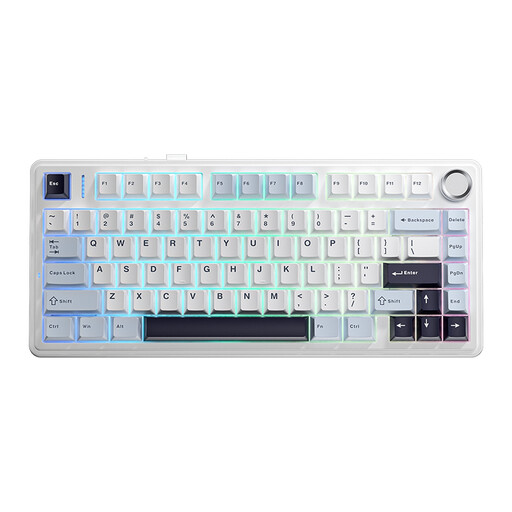
AULA F75 75% Layout Wireless Keyboard
Consider a separate keyboard if you want to position the laptop screen independently from your typing position.
The product name lists wired, Bluetooth and 2.4G connections and a US QWERTY layout; check that the layout suits you.
View on Joybuy
 No image available
HOCO HB28 USB-C Multi-Function Converter
Consider a multi-function converter when you need to connect desk equipment, after checking the functions supported by both the converter and your laptop.
The product name lists an HDTV output, USB 3.0, USB 2.0, SD, TF and PD functions; it does not specify a Power Delivery output rating.
View on Joybuy
 No image available
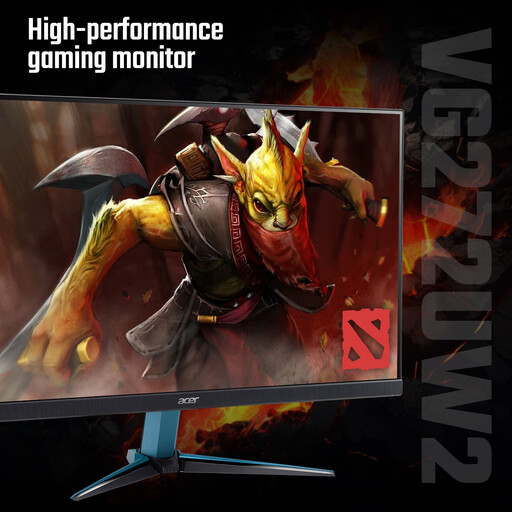
Acer Nitro VG272UW2bmiipx 27-inch QHD IPS Monitor
Consider this monitor if you need an additional display; confirm that your laptop supports the intended video connection and display arrangement.
The product name specifies QHD, IPS, 240Hz, two HDMI connections and DisplayPort.
View on Joybuy
 No image available
Baseus Metal Gleam Series USB-C 7-Port Hub, Grey
Consider a hub if you need to connect several desk peripherals, but check which display and charging functions it supports with your exact laptop.
The product name identifies a USB-C hub with seven ports.
View on Joybuy
Questions about a hybrid-work setup
When should my employer assess a home-working screen setup?
In Great Britain, where DSE regulations apply, the assessment should cover both home and office use. The Health and Safety Executive advises discussing the suitability of your equipment and any action identified with your employer.
Does my employer have to buy everyone a monitor?
Not automatically. In Great Britain, equipment needs depend on the assessment and the suitability of existing equipment; the Health and Safety Executive says workers cannot be charged for action the assessment indicates is needed.
Will any USB-C port work with a USB-C monitor?
No. For the USB-C video connection in Dell’s troubleshooting guidance, the laptop needs DisplayPort Alt Mode or Thunderbolt support; a port limited to data or power delivery will not provide video through that connection.
How can I show different windows on my laptop and external monitor?
In Windows display settings, choose Extend these displays rather than Duplicate these displays to use the screens as one larger desktop. Dell’s guidance also recommends adjusting each display’s resolution and orientation to suit your setup.
What should I check before expecting a dock to drive multiple monitors?
Check your exact laptop’s capabilities and the intended display count, resolution and refresh rate. CalDigit says TS4 functionality adapts to the connected host, so its listed features do not mean every laptop supports every function.


