For editing meeting minutes, choose a screen you can position comfortably without distracting reflections. A 16:10 WUXGA monitor suits long documents, while a compact QHD screen offers finer text and more room for adjacent windows; choose USB-C docking only after checking your laptop’s video and charging support. The Health and Safety Executive advises treating posture, lighting and screen placement as parts of the whole workstation.
Who is this for?
Long-session minute editors
If you spend extended periods transcribing, revising or proofreading minutes, screen placement and reflections deserve attention alongside the display itself. The Health and Safety Executive advises a comfortable, sustainable home-working posture.
Document multitaskers
If an agenda, email or call window sits beside your minutes, compare the usable workspace of a 16:10 WUXGA screen with that of a QHD screen. Dell and Lenovo list these layouts on their cited document-work models.
Laptop-first home workers
If you regularly connect and disconnect a work laptop, a USB-C hub monitor may simplify the desk connection. Check video, data and charging compatibility on both devices before choosing one.
What matters when choosing?
Decide how the screen will sit in your home workspace, then choose between vertical document space and finer text. Treat laptop docking as a separate compatibility decision.
24-inch 16:10 WUXGA
Choose when: long pages of minutes make extra vertical document space your priority.
Trade-off: Dell’s P2425 offers 1920 × 1200 resolution, but its listed USB-C downstream port is not a stated laptop-charging dock connection.
Compact QHD
Choose when: you want finer text and more room for minutes and reference windows on a similarly sized screen.
Trade-off: check your preferred text scaling and the exact model’s laptop connection; USB-C functions differ.
27-inch 4K USB-C
Choose when: minute editing is part of a wider high-resolution workload and your desk can accommodate a larger screen.
Trade-off: check desk depth, text scaling and laptop compatibility rather than choosing 4K or USB-C by name alone.
| Concern | What to check | Who this matters to |
|---|
| Position and reflections |
Check the stand’s height and tilt adjustment, then consider screen placement relative to windows and lamps. |
During long editing sessions, I need a screen position I can sustain without troublesome glare. Around 45% of consumers put positioning and reflection control first. |
| Text and document space |
Compare screen size, resolution and aspect ratio; consider whether you would use text scaling. |
With minutes and an agenda open together, I need enough readable space to work between them. For around 33% of consumers, text and document space are the primary concern. |
| Laptop connection |
Confirm USB-C video input and charging capability on both devices, including the required power delivery. |
When I reconnect my work laptop at the desk, I want the connection to handle the functions I actually use. Laptop connection comes first for around 22% of consumers. |
Buying pitfalls
-
Treating an eye-care label as a complete workstation solution
The Health and Safety Executive considers posture, lighting, reflections and breaks alongside screen use; a monitor setting cannot arrange the rest of the desk.
Before buying, check where the screen will sit, how you can adjust it and whether nearby light creates reflections.
-
Assuming every USB-C port charges a laptop
Dell lists up to 90 W power delivery for the P2425DE, but describes the P2425’s USB-C connection as a downstream port with up to 15 W. The connector alone does not establish one-cable video and charging.
Match the exact monitor’s video and charging specifications to your laptop’s capabilities.
If the required functions are not available through that connection, your setup may also need a separate charger, dock or compatible video cable.
-
Choosing by diagonal size alone
Dell’s approximately 24-inch P2425 has a 1920 × 1200, 16:10 layout, while its similarly sized P2425DE has a 2560 × 1440 QHD layout. They address different document-work priorities.
Compare resolution and aspect ratio alongside stand adjustment, then decide whether vertical page space or finer text matters more to you.
Brands to consider for this task
Dell
Dell’s cited Pro Plus models offer two compact approaches to document work.
- Dell UK lists an adjustable stand and a 1920 × 1200, 16:10 display for the P2425; the P2425DE instead offers QHD and up to 90 W power delivery.
- Check the exact model: the P2425’s listed USB-C downstream port should not be mistaken for the P2425DE’s laptop-charging connection.
Lenovo ThinkVision
The cited P24h-30 is a compact QHD docking-monitor option for a laptop-based desk.
- Lenovo UK lists a 23.8-inch QHD IPS display, USB-C, Ethernet, a USB hub and an adjustable stand.
- Confirm that its docking and charging functions match the work laptop before relying on a single-cable setup.
BenQ
The cited GW2490T offers a Full HD home-office route with stand adjustment.
- BenQ UK lists height, tilt, swivel and pivot adjustment for the 23.8-inch GW2490T.
- Its Full HD resolution provides fewer pixels than the cited QHD models. BenQ’s Eye-Care terminology is not a substitute for checking the complete workstation.
LG
The cited 27UQ750-W is a larger 4K option for people whose work extends beyond editing minutes.
- LG UK lists a 27-inch 4K display, USB-C with 90 W power delivery and height, pivot and tilt adjustment.
- Check desk space, preferred text scaling and laptop compatibility before choosing its additional display and connection features.
Joybuy monitor choices
These monitors offer WUXGA, QHD and basic desktop-display options for editing minutes at home. Compare their connection and adjustment details against your own workstation before choosing.
 No image available
ASUS ProArt PA248CNV IPS WUXGA
Consider this WUXGA model if long documents are your main task. Check the stand adjustment, reflections at your desk and whether its connections support the video and charging functions your laptop needs.
View on Joybuy
 No image available
ASUS ProArt PA248CRV IPS WUXGA
Another WUXGA choice for document editing. If you intend to connect a laptop by USB-C, confirm its video and charging compatibility, along with the exact regional hub and cable configuration.
View on Joybuy
 No image available
ASUS ProArt PA24ACRV IPS QHD
Consider this QHD model if you prioritise text detail and room for adjacent documents. Check your preferred scaling, the laptop’s USB-C video and charging support, and the exact regional hub and cable configuration.
View on Joybuy
 No image available
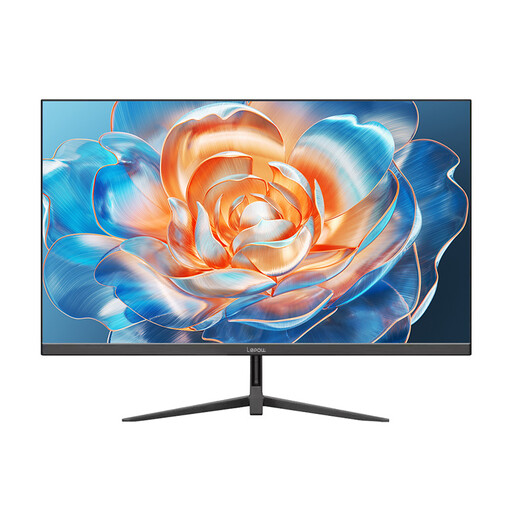
Lepow HC-24Z2 24-inch Desktop Monitor, 100 Hz
Consider this desktop monitor for basic document editing if its connections suit your computer. The product name states a 100 Hz refresh rate; for meeting minutes, also check the screen’s resolution, stand adjustment and position relative to reflections.
View on Joybuy
Common questions
Do I need a specially labelled ergonomic monitor for a home office?
No particular label determines whether your home workstation is comfortable. The Health and Safety Executive advises looking at the whole setup, including posture and screen placement; choose a monitor whose position you can adjust to work with your desk and lighting.
Will an adjustable stand solve screen-work discomfort on its own?
No. An adjustable stand can help you position the screen, but the Health and Safety Executive also identifies furniture, lighting, reflections and breaks as relevant to display-screen work. Check the complete workstation once the monitor is in place.
Does every USB-C monitor carry video and charge a laptop through one cable?
No; those functions depend on the exact monitor and laptop. Dell lists up to 90 W power delivery for the P2425DE, whereas its P2425 specification describes a USB-C downstream port with up to 15 W. Check video input and charging requirements on both devices before buying.


