Window-side event planners
If you work through bookings, schedules and volunteer lists near daylight, reflections can make the screen harder to read. The Health and Safety Executive recommends repositioning screens or using blinds to avoid glare.


For planning schedules and communications beside a bright window, look for a monitor with an anti-glare or matte surface, an adjustable stand and connections that suit your laptop. If you want one USB-C cable for video and charging, check both the laptop’s display capability and its power requirement. No monitor specification alone settles the glare question: the Health and Safety Executive also recommends repositioning the screen or using blinds to avoid glare.
If you work through bookings, schedules and volunteer lists near daylight, reflections can make the screen harder to read. The Health and Safety Executive recommends repositioning screens or using blinds to avoid glare.
If you bring a laptop to the planning desk, a suitable USB-C monitor may let you connect the display and peripherals while charging the laptop. Check the capabilities of both devices before relying on one cable.
If you also review event posters or screen graphics, colour-space specifications and calibration features may matter alongside everyday document readability.
Start with the light at the intended desk and the position of the screen. Then check laptop connectivity, stand adjustment and any colour-work requirements that affect your choice.
| Concern | What to check | Who this matters to |
|---|---|---|
| Reflections | Look for a stated anti-glare or matte surface; assess the desk angle and whether blinds can control daylight. | If reflected light makes booking details difficult to read, I need a position that stays usable as daylight changes. Around 36% of consumers put reflection control first. |
| Laptop connection | Confirm USB-C video compatibility and compare the monitor’s power delivery with the laptop’s charging requirement. | When I bring a laptop to a temporary planning desk, I want fewer connections to manage. For around 29% of consumers, a workable laptop connection is the primary concern. |
| Screen positioning | Check height and tilt adjustment; consider swivel if the desk position or incoming light changes. | I may need to move the screen away from a reflection without losing a comfortable viewing position. Around 21% of consumers prioritise adjustability. |
| Colour work | Check coverage of the colour space used for event graphics and what calibration equipment or software the workflow requires. | If posters or signage are part of my work, I need to assess their colours as well as read schedules. Colour-related features come first for around 14% of consumers. |
A DisplayHDR tier describes defined display-performance criteria, not where a window will reflect in your screen.
Check the exact model’s screen surface and adjustment options, then assess the intended desk position and available blinds.
A USB-C connector does not, by itself, establish compatible video output or sufficient charging power. Dell and LG list up to 90 W on the models discussed here, while BenQ lists up to 65 W for the PD2705U.
Compare the monitor’s stated video and power capabilities with your laptop’s requirements.
You may still need the laptop charger, a compatible cable or an adapter for your setup.
A screen that cannot be repositioned may leave you with fewer ways to deal with changing reflections or set a comfortable viewing position.
Check height and tilt adjustment, adding swivel or a compatible mount to your requirements if the desk layout calls for it.
DCI-P3, sRGB and Rec.709 figures describe colour coverage, not the direction or intensity of light at the library desk.
Choose colour features for the graphics you work on, while assessing glare and screen placement separately.
Dell’s Pro Plus P2725QE is a reference point for 27-inch 4K productivity work with a USB-C hub.
LG’s UltraFine 27UP85ZK-W combines 27-inch 4K document work with specifications relevant to reviewing visual assets.
BenQ’s PD2705U is a colour-focused 27-inch 4K option to consider when event planning also involves posters or video assets.
These monitors cover document-focused planning and event-graphics work, with different screen sizes and connection features. Match each one to the desk’s daylight, your laptop and the tasks you do most often.
 No image available
Consider this OLED 4K model if reviewing event graphics is an important part of your planning work.
Assess reflections at the intended desk, and check USB-C video and charging compatibility if you use a laptop.
 No image available
The 27-inch 4K format is relevant if schedules and documents are your main screen tasks.
Check the screen coating for your window-side position and confirm any USB-C charging requirement against your laptop.
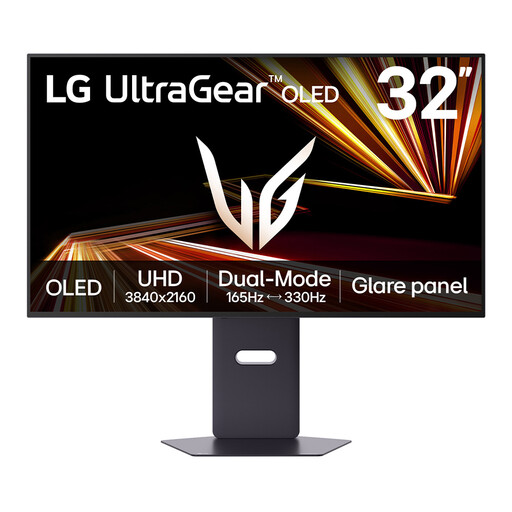 No image available
Consider the larger 32-inch OLED 4K screen if it fits your planning desk and the way you review documents and graphics.
Its title lists a Dual Mode maximum of 330 Hz; that figure does not establish daylight readability. Check the window position and your laptop connections separately.
 No image available
This 27-inch 4K IPS model is worth checking for a laptop-based planning desk where USB-C charging matters.
The product title states 65 W USB-C power delivery, Dolby Audio and Multi-Control. Confirm that your laptop supports the required video connection and can use 65 W charging, and assess the screen surface at the window.
 No image available
This model may suit planning work that also involves reviewing event graphics.
Its product title lists DCI-P3 95%, DisplayHDR 400, built-in speakers, HDMI and DisplayPort. Check the screen surface and window position separately; confirm your connection needs if a single-cable laptop setup matters.
Not by itself: HDR certification describes defined display-performance criteria, not resistance to reflections at your particular desk. The Health and Safety Executive recommends repositioning a screen or using blinds to avoid glare, so assess the window angle as well as the monitor.
The Health and Safety Executive says employers must carry out a workstation assessment for workers who use display screen equipment daily as part of their normal work, continuously for an hour or more. The assessment concerns the whole workstation and working conditions, not just the monitor model.