Document-heavy event coordinators
If you work across schedules, budgets, volunteer lists and messages, decide how many documents you need visible together before prioritising gaming or media features.


Choose the monitor around the planning work and the space available: a compact, adjustable 24-inch screen suits a smaller study desk, while a 27-inch QHD screen gives more room for schedules and documents side by side. Before buying, check screen positioning, your computer’s video output and, if you want one-cable laptop charging, the monitor’s stated USB-C power delivery.
If you work across schedules, budgets, volunteer lists and messages, decide how many documents you need visible together before prioritising gaming or media features.
If you spend extended periods reading and editing plans, screen position and readable settings matter alongside resolution. The Health and Safety Executive advises positioning the top of the screen at eye level and the screen about an arm’s length away.
If you want to connect a laptop and peripherals with fewer cables, check the laptop’s USB-C video and charging capabilities against the exact monitor. Dell, HP and LG list different power-delivery ratings for their respective models.
Start with the space your planning documents need, then check whether the screen can sit comfortably on your desk and connect to your computer as intended.
| Concern | What to check | Who this matters to |
|---|---|---|
| Planning workspace | Compare native resolution with desk dimensions; for QHD, check that your computer can output 2560 × 1440. | If calendars, budgets and contact lists need to stay visible together, workspace takes priority over a compact footprint. Around 42% of consumers put simultaneous planning space first. |
| Screen positioning | Check stand height adjustment and whether your desk allows the screen position recommended by the Health and Safety Executive. | When reading and editing take up long sessions, I need to position the screen without straining against the desk setup. Around 33% of consumers place adjustable, comfortable use first. |
| Laptop connection | Confirm USB-C video support, laptop charging requirements, monitor power-delivery wattage and cable inclusion. | If I regularly bring a laptop to the study, a simpler connection matters only if video and charging work with that laptop. For around 25% of consumers, connection needs come first. |
USB-C does not indicate a uniform charging capability. Dell lists up to 90 W for the P2425E, HP lists 100 W for the 527pu, and LG lists up to 15 W for the 27U631A-B; LG also says its USB-C cable is not included.
Check that your laptop supports USB-C video and charging, and compare its charging requirement with the exact monitor’s rating.
You may still need a separate laptop charger or a suitable cable.
Reading modes and flicker-related features do not position a screen correctly. The Health and Safety Executive links poorly designed workstations and incorrect display-screen use with discomfort.
Check screen height, viewing distance and glare first; treat display modes as an additional preference for long reading sessions.
A 23.8-inch FHD, 24-inch WUXGA or 27-inch QHD configuration presents a different choice between desk footprint and room for planning windows. Dell, BenQ, HP and LG publish these formats for the models discussed here.
Measure the study desk and decide whether keeping several documents visible or preserving space is more important.
An office or home-use description does not settle how a particular monitor will sound in a quiet study.
If near-silence is essential, ask the manufacturer or retailer about active cooling and audible standby behaviour for the exact model.
Dell’s Pro range includes a compact, laptop-oriented option for a study desk.
HP’s Series 5 Pro 527pu is a model to examine when a 27-inch QHD screen and laptop connectivity are both priorities.
BenQ’s GW2491 offers reading-oriented settings for text-heavy planning on a compact screen.
LG’s 27U631A-B is a 27-inch QHD option for document work where USB-C display connectivity is useful.
These monitors offer QHD or 4K screen formats relevant to keeping event plans and documents in view. Compare their dimensions, connections and positioning options with your study desk and computer rather than choosing on resolution alone.
 No image available
Consider its QHD format if you need room for schedules and budgets on screen together. The product name specifies an IPS panel and 100 Hz refresh rate; check your computer’s QHD output and the exact unit’s USB-C functions if these matter to your setup.
 No image available
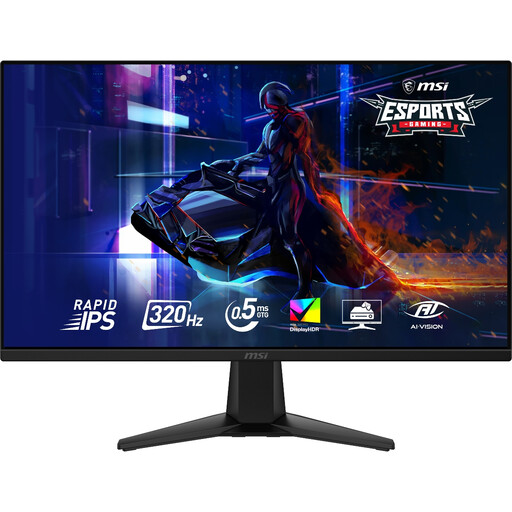
The 27-inch WQHD format is relevant if you want to keep planning documents side by side. The product name specifies 2560 × 1440 resolution and a 0.5 ms response-time figure; check whether the stand provides the screen height your desk requires.
 No image available
Consider this 4K UHD option if detailed planning material is a priority. The product name specifies a 60 Hz refresh rate; check that your computer supports the intended 4K connection and that the screen can be positioned appropriately on your desk.
 No image available
The larger 4K screen is an option when several event-planning windows need to stay open and the desk can accommodate it. The product name also specifies a height-adjustable stand; confirm USB-C video and charging compatibility with your laptop before relying on a single connection.
 No image available
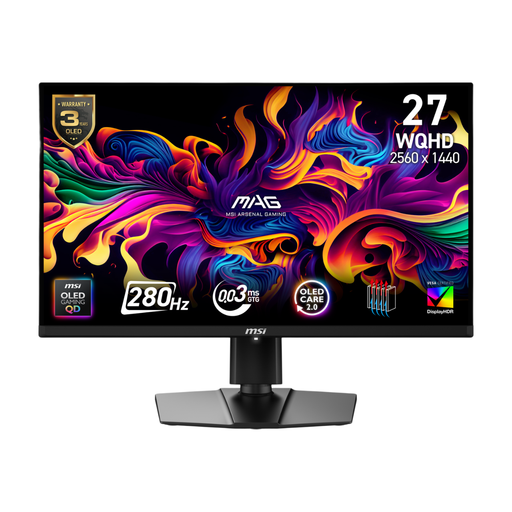
Its 27-inch QHD format may suit side-by-side planning material if your computer supports the intended connection. The product name specifies a QD-OLED panel and a 0.03 ms response-time figure; check laptop charging needs separately, and confirm acoustic behaviour for this exact model if near-silence is essential.
No, not automatically. The Health and Safety Executive says the Display Screen Equipment Regulations apply to workers using display-screen equipment daily for continuous periods of an hour or more; volunteering alone does not establish whether that worker condition applies. If you plan events through an organisation, check how it handles regular display-screen work and workstation assessment.
Position the screen directly in front of you, with its top at eye level and the screen about an arm’s length away, as the Health and Safety Executive advises. Check whether the stand, desk and chair allow that position before treating reading modes as a solution to an awkward setup.
No: the monitor, laptop and cable all need compatible functions. Dell lists up to 90 W power delivery for the P2425E, HP lists 100 W for the 527pu, and LG lists up to 15 W for the 27U631A-B. Check your laptop’s USB-C video output and charging requirement, plus whether a suitable cable is included.
Use an appropriate electrical-equipment collection or retailer take-back route rather than putting the monitor in ordinary residual waste. GOV.UK describes the UK Waste Electrical and Electronic Equipment framework as encouraging recovery, reuse and recycling; check the collection or take-back arrangements available to you.