Choose a monitor that fits the desk and gives you enough resolution for page layouts, then match its stated colour coverage to whether the catalogue is mainly viewed on screen or prepared for print. A 27-inch 4K display offers more native pixels than a 27-inch QHD display, but even a wide-gamut, factory-calibrated monitor cannot guarantee a print match: monitor and output profiles, soft-proofing and, for consequential colour decisions, a physical proof still matter.
Who this is for
Print-conscious catalogue makers
If photographs, artwork or brand colours will be printed, you need a colour-managed workflow rather than relying on how they look on an unprofiled screen. Adobe explains the role of colour profiles in keeping colour consistent across devices.
Space-limited student designers
You need room to work on pages without letting the screen and stand crowd your desk. Screen resolution, physical dimensions and adjustment all affect that choice.
Laptop-first catalogue editors
If most editing happens on one laptop, USB-C video, charging and the ports you use may help simplify the desk setup. Check the capabilities of both the monitor and laptop rather than relying on the connector alone.
What matters when choosing
Start with the catalogue's intended output and the space available for the monitor; then check how your laptop will connect. For print decisions, Adobe describes soft-proofing with colour profiles, while Canon UK recommends monitor calibration as part of assessing screen-to-print colour.
| Concern |
What to check |
Who this matters to |
| Colour for print |
Match the monitor's stated colour coverage to your working space, and check its calibration evidence. Ask the print provider about its ICC profile and proofing process. |
If I am judging photographs or artwork before printing, I need more than a wide-gamut label to make colour decisions. Around 42% of consumers put print-colour reliability first. |
| Layout space and desk fit |
Measure the desk and stand footprint. Compare resolution and adjustment on the exact model: a 27-inch 4K screen has more native pixels than a 27-inch QHD screen. |
When a screen must share a small desk with other study work, I need usable page-layout space without an awkward viewing position. Roughly 33% of consumers prioritise workspace fit. |
| Laptop connection |
Check USB-C video support on the laptop, the monitor's power-delivery rating and any ports needed for peripherals or Ethernet. |
If I connect and disconnect my laptop often, I want fewer separate cables and adapters, provided the connection meets my laptop's needs. About 25% of consumers put connection simplicity first. |
Buying pitfalls
-
Assuming factory calibration guarantees the printed result
A monitor profile and a printer or press profile describe different devices. Adobe's colour-management guidance and Canon UK's calibration advice make clear why the on-screen image alone is not a final print proof.
Profile the monitor, obtain the print provider's output profile where available, soft-proof in compatible software and request a physical proof when colour is consequential.
-
Choosing USB-C by connector shape
USB-C video, charging power and additional ports vary between monitors, while the laptop must support the required video connection.
Confirm the laptop's USB-C video capability, the monitor's power-delivery rating, the cables supplied and any peripheral or Ethernet connections you need.
Your setup may still need a separate charger, dock or adapter.
-
Ordering a screen before measuring the desk
Even a suitable display can be difficult to position if its stand leaves too little room for a keyboard or comfortable viewing.
Check the monitor and stand dimensions against the available desk depth and width, as well as the adjustment or mounting options of the exact model.
-
Assuming old-monitor collection works the same everywhere
Collection arrangements can differ from other ways of returning electrical waste.
Before checkout, check the seller's take-back arrangements and identify a local authorised electrical-waste option for the old monitor.
Brands to consider for these monitor needs
ASUS ProArt
The PA279CRV is an ASUS ProArt example for catalogue makers considering a 27-inch 4K creative monitor with stated wide-gamut coverage.
- ASUS UK lists 99% Adobe RGB and 99% DCI-P3 coverage, Delta E < 2 colour accuracy and 96 W USB-C power delivery for the PA279CRV.
- Those manufacturer specifications do not establish a match to a particular print run; profiles and proofing remain necessary.
BenQ DesignVue
The PD2705U is a 27-inch 4K design-monitor example for work centred on sRGB or Rec.709 and a USB-C laptop connection.
- BenQ UK specifies 99% sRGB and 99% Rec.709 coverage, a factory calibration report, average Delta E ≤ 3 and 65 W USB-C power delivery for the PD2705U.
- Its stated coverage is centred on sRGB and Rec.709; check the working colour space before choosing it for print-oriented image editing.
Dell UltraSharp
The U2724D is a 27-inch QHD example to consider when adjustable positioning and general layout work matter more than 4K pixel density.
- Dell UK lists 2560 × 1440 resolution and a stand with 150 mm height adjustment, pivot, swivel and tilt for the U2724D.
- At the same 27-inch size, QHD has fewer native pixels than the 4K examples here; check colour-mode and calibration requirements if print-colour assessment is central to the work.
ViewSonic
The VG2756-4K is a docking-monitor example for a laptop-based catalogue workspace.
- ViewSonic specifies 4K resolution, 100% sRGB coverage, USB-C DisplayPort Alt Mode with 90 W charging and Ethernet for the VG2756-4K.
- Docking features and stated gamut coverage do not replace checking calibration evidence and the print provider's colour-management requirements.
Joybuy product choices
These monitors offer different ways to approach catalogue layout on a student-room desk, including QHD and 4K models. Match the screen to your output, available space and connections; assess print colour through the workflow as well as the display.
 No image available
ASUS ProArt PA278CV IPS WQHD
Consider this QHD option if catalogue layout and an adjustable study setup matter more to you than 4K pixel density.
The product name identifies an IPS WQHD display. Check its dimensions and your laptop's charging requirements before planning the desk setup.
View on Joybuy
 No image available
ASUS ProArt PA27DCE-K OLED 4K UHD
Its 4K format is relevant if you want native pixel space for detailed catalogue layouts and are considering an OLED display.
The product name identifies an OLED 4K UHD model. For print-sensitive work, check the exact variant's calibration evidence and use suitable profiles and proofing rather than relying on the display type.
View on Joybuy
 No image available
iiyama ProLite XUB2792UHSU-B6 27-inch 4K UHD
This is a 27-inch 4K option to assess if native pixel space for page layouts is a priority.
Check the stand footprint, the colour mode needed for your files and the laptop video and charging arrangements before choosing it for the room.
View on Joybuy
 No image available
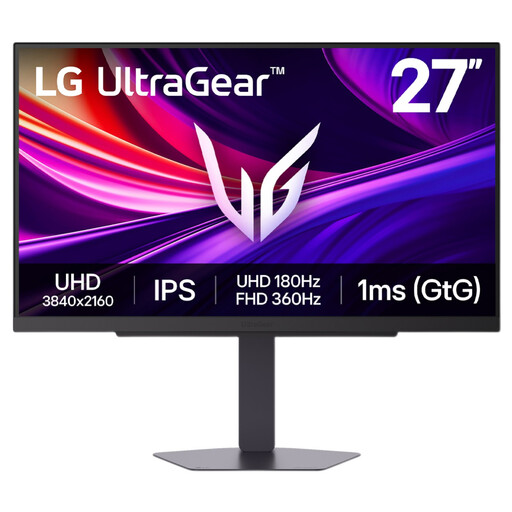
LG UltraGear 27G810A-B 27-inch IPS 4K UHD Dual Mode (Max 360Hz)
Consider its 27-inch 4K format for detailed layouts if this model's other features also suit your desk and connection setup.
The product name identifies an IPS display and Dual Mode variant with a stated maximum of 360 Hz; do not assume that maximum applies in every mode. Check calibration evidence before using the screen for consequential print-colour decisions.
View on Joybuy
 No image available
ASUS Eye Care VY27UQ 4K UHD 60Hz
This 4K option may suit catalogue page-layout work if its stand and connections fit the student-room setup.
The product name specifies 4K UHD and 60 Hz. Check adjustment, laptop connection and calibration requirements for the exact model before treating it as a print-colour reference.
View on Joybuy
Common questions
Will a factory-calibrated monitor make the printed catalogue match the screen?
No. Factory calibration concerns the display, while the printed result also depends on the output process and proofing. Adobe explains the role of device profiles in colour management; obtain the print provider's profile where available, soft-proof the file and use a physical proof for important colour decisions.
Should I look for sRGB or Adobe RGB coverage?
Choose based on the files and output you will actually use: stated sRGB coverage is relevant to screen-oriented work, while Adobe RGB coverage may matter when editing wider-gamut photographs in a colour-managed print workflow. Neither gamut figure alone establishes how a particular catalogue will print, so confirm the working and output profiles with your software and print provider.
Can one USB-C cable show the picture and charge my laptop?
It can if the laptop supports video over its USB-C port and the monitor supplies enough charging power. BenQ UK states 65 W USB-C power delivery for the PD2705U, ViewSonic states 90 W for the VG2756-4K, and ASUS UK lists 96 W for the PA279CRV; check your laptop's requirements and the exact monitor and cable before buying.
What should I do with an old monitor?
Check the seller's electrical-waste take-back arrangements or use a local authorised electrical-waste route. GOV.UK provides guidance on retailer take-back, but confirm the arrangements for your purchase rather than assuming that home collection is included.


