What to check before buying
Start with the space your budget sheets need, then check the stand and your computer’s outputs. Treat display features unrelated to those tasks as secondary.
| Concern |
What to check |
Who this matters to |
| Spreadsheet and document space |
Check the native resolution and whether a screen around 23.8–24 inches fits your desk and viewing position. |
When I compare budget columns with quotes and planning notes, I need room to follow the figures without relying solely on my laptop screen; around 36% of consumers put document workspace first. |
| Features suited to the task |
Check the resolution, required inputs and stand before treating a higher refresh rate as important for administration. |
If the monitor is mainly for fete paperwork, I want its features to serve that work rather than a separate gaming use; around 29% of consumers prioritise task-relevant features. |
| Screen positioning |
Check whether tilt is enough for your desk or whether you need height, pivot or swivel adjustment. |
For longer planning sessions, I need to place the screen comfortably without working around an unsuitable stand; around 21% of consumers make positioning their primary concern. |
| Computer and audio connections |
Match a monitor input to your computer’s output, and check cable inclusion and any need for built-in speakers. |
If I switch devices or use an older computer, I need a connection that works with my setup; around 14% of consumers put compatibility and basic audio needs first. |
Joybuy monitors for home-office planning
These monitors offer separate screens for fete spreadsheets and planning documents, with both Full HD and WUXGA formats represented. Choose by the workspace, connections and screen position your own setup requires; the products below are not substitutes for checking the exact variant before ordering.
 No image available
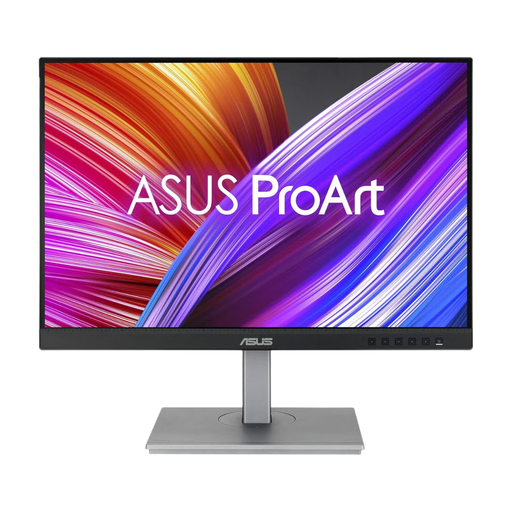
ASUS ProArt PA248CNV WUXGA IPS monitor
Consider this for a dedicated screen while working between budget sheets and planning documents.
WUXGA IPS display. If USB-C is important to your setup, confirm the exact ports and connection requirements for this variant.
View on Joybuy
 No image available
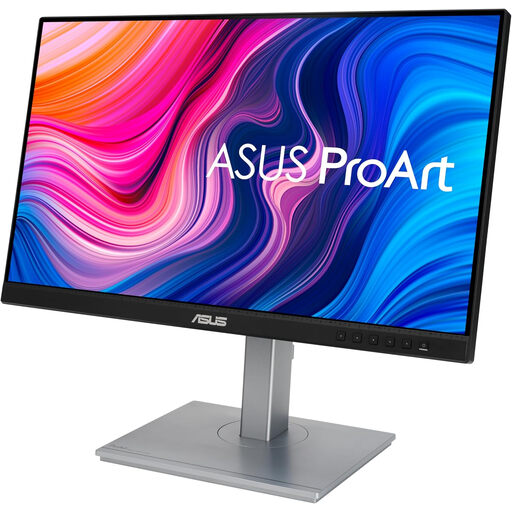
ASUS ProArt PA247CV Full HD IPS 75 Hz monitor
This is an option for organising fete documents on a separate Full HD screen.
IPS display with a listed 75 Hz refresh rate. If you intend to use USB-C for video, check that your computer supports the required connection; confirm which cable comes with the variant.
View on Joybuy
 No image available
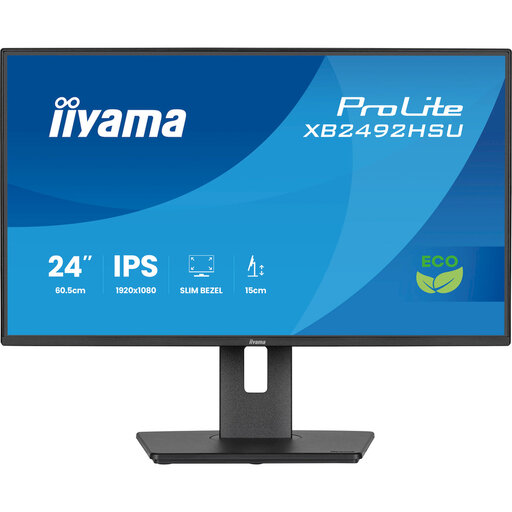
iiyama ProLite XB2492HSU 24-inch Full HD monitor, matte black
Its 24-inch format is worth considering if you want a separate screen for budget administration without moving to a much larger display.
Full HD LED monitor with a 16:9 aspect ratio. Check its connections and stand adjustments against your workspace.
View on Joybuy
 No image available
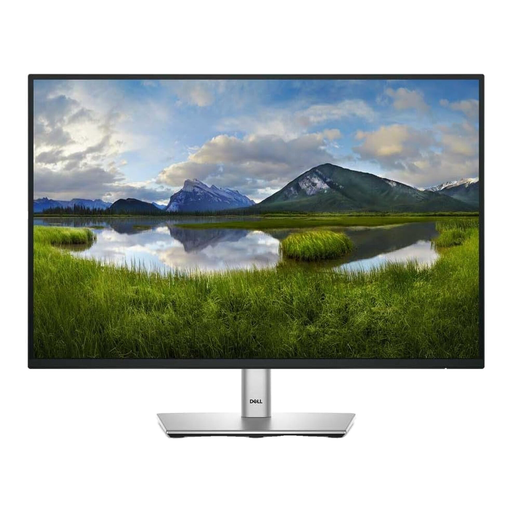
Dell P2425 24-inch monitor
Consider the 24-inch format when you need a dedicated display for budget sheets and supplier documents.
Confirm the exact resolution, refresh rate and ports for this variant before choosing it, particularly if USB-C is part of your setup.
View on Joybuy
 No image available
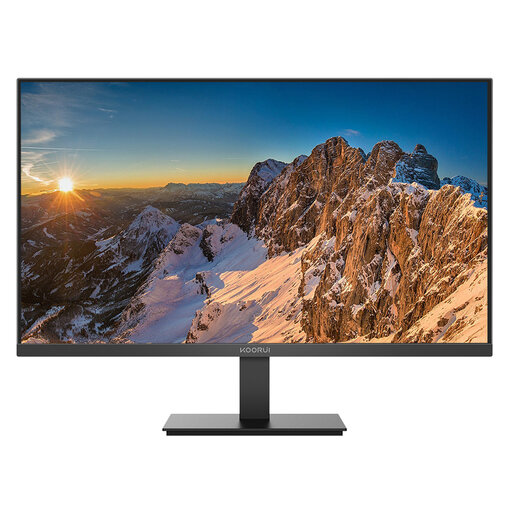
KOORUI E2412F 24-inch Full HD business monitor
This is a Full HD option for spreadsheet and document work at a home-office desk.
Check whether its stand can place the screen at a suitable height in your setup, as well as which connection and cable you will use.
View on Joybuy
Common questions
Is a 24-inch Full HD monitor enough for fete budgeting?
It can be a sensible starting point for spreadsheets, quotes and browser-based planning on a compact desk. LG UK, BenQ and Dell UK each describe 23.8-inch Full HD IPS models with office-relevant features. If you need to keep more document content visible at once, compare the native resolution and usable workspace of other formats before deciding.
Do I need a height-adjustable stand?
Not necessarily: a tilt-only stand may work if your desk and chair already let you place the screen suitably. If they do not, check height adjustment or whether a compatible arm would fit. The Health and Safety Executive advises considering the whole display-screen workstation rather than the monitor in isolation.
Which monitor connections should I check?
Start with the output on the exact laptop or desktop you will use, then find a matching monitor input and check the cable. Dell UK lists HDMI, DisplayPort and VGA for the E2425HM; BenQ lists two HDMI inputs for the GW2490. Those examples do not establish the ports on a different model or variant.
Do UK display-screen rules apply to planning a fete from home?
The Health and Safety Executive says the UK Display Screen Equipment Regulations apply to workers who use display-screen equipment daily for continuous periods of an hour or more, including qualifying home workers. Whether employer duties apply to particular voluntary planning depends on the working arrangement; regardless, checking screen placement and the wider workstation remains practical advice.
Can low-blue-light or flicker-reduction features replace breaks?
No. LG and BenQ list display-comfort features on particular models, but those manufacturer features do not replace appropriate screen placement or attention to the work routine. The Health and Safety Executive’s display-screen guidance addresses the workstation and work pattern as well as the display.


