A monitor will normally need its own mains socket, so focus on whether its ports could replace a separate powered hub or dock. For one desktop PC, start with a QHD screen that accepts the computer’s existing video output; consider an ultrawide or KVM-equipped monitor when side-by-side tools or switching between test machines is part of your workflow. Check USB-C video support before relying on one-cable docking, and do not assume a desktop tower can use USB-C charging.
Who these monitors suit
One-desktop app testers
If one desktop runs your tests, a standard QHD screen with an input the computer already supports may be enough. An integrated hub is worth considering when it can take the place of an accessory you currently use; USB-C docking depends on the desktop’s capabilities.
Multi-window debugging and QA users
Keeping the app, logs, debugger and browser tools visible together makes screen space important. A 27-inch QHD display offers a conventional 16:9 layout, while an ultrawide is worth considering if your desk and testing workflow call for a wider workspace.
Multi-host testers
If you switch between computers, a monitor with the right USB connections and KVM arrangement may let them share peripherals. Check both computers’ video outputs and the monitor’s switching instructions before choosing one for this purpose.
What to check before buying
Count the powered accessories you want to remove, then check the desktop’s video connection and the space your tests need. The monitor itself will normally still require a socket.
| Concern |
What to check |
Who this matters to |
| Extra powered accessories |
Count your powered hub or dock, then check whether the monitor’s USB connections can replace it with your desktop. |
If plug sockets are scarce, I want to remove a separate powered accessory rather than expect the screen to run without mains power. Around 33% of consumers put that need first. |
| Testing workspace |
Choose between a standard QHD layout and ultrawide space; check desk width and the display mode supported by your graphics output. |
When I need the app and debugging tools visible together, I want enough room without losing sight of the window sizes I must test. For around 25% of consumers, workspace is the primary concern. |
| Switching test machines |
Check the KVM instructions, participating video inputs, USB upstream connections and both computers’ output capabilities. |
With two test computers, I want to share a keyboard and mouse instead of swapping them manually. That is the main need for around 25% of consumers. |
| Energy use |
Compare model-specific energy information and standby figures where available. |
If the display stays connected between testing sessions, I want to assess its idle as well as active use. Around 17% of consumers place energy use first. |
Buying pitfalls
-
Assuming every desktop USB-C port carries video
The connector’s shape does not establish its display capability. The Video Electronics Standards Association explains that video over USB-C DisplayPort Alt Mode requires a source device that supports it.
Check the desktop manufacturer’s specifications for USB-C display output or Thunderbolt before depending on one-cable docking.
If that connection cannot carry video, using the monitor may require a separate HDMI or DisplayPort connection or another suitable accessory.
-
Expecting USB-C charging to remove the monitor’s plug
Power delivery can serve a compatible host, but the display itself normally still needs mains power. A desktop tower may have no use for host charging.
Identify the powered hub or dock you could replace, and check whether the monitor’s connections will perform that job.
-
Choosing an ultrawide solely for its resolution
A wider screen takes more desk space and does not replace checking how the app behaves in the window layouts you need to reproduce.
Choose an ultrawide if you regularly keep the app and supporting tools side by side; otherwise, assess whether a standard QHD layout meets your testing needs.
-
Assuming any KVM setup will work with both computers
Peripheral switching depends on the monitor’s input arrangement and each host’s connections.
Check the monitor manual for the video inputs and USB connections used by KVM, and confirm which cables are included.
Relevant brands to consider
Dell
Dell lists both a standard QHD hub monitor and a wider USB-C hub option relevant to testing setups.
- Dell Technologies specifies a 27-inch QHD screen, integrated USB hub and 90 W power delivery for the U2724DE. Its P3425WE is a 34.1-inch ultrawide with RJ45 Ethernet and up to 90 W USB-C power delivery.
- Check the desktop’s video and USB capabilities before expecting docking features or host charging to be useful.
HP
HP’s 527pu is a conventional 27-inch QHD docking-monitor option.
- HP Store UK lists HDMI, DisplayPort, USB-C, a USB hub and DisplayPort out for the 527pu.
- Its stated 100 W USB-C power delivery is relevant only to a host that can accept charging through that connection.
Lenovo ThinkVision
The ThinkVision P27h-30 is a standard-format QHD USB-C docking monitor.
- Lenovo UK lists a 27-inch 2560 × 1440 display, HDMI, DisplayPort, USB-C, Ethernet and a USB hub for the P27h-30.
- Those connections describe this model, not every ThinkVision display; confirm which functions your desktop can use.
Joybuy monitor choices
These choices span large-format screens, a compact QHD option and models with listed USB-C connections. Choose for the screen layout and inputs your desktop can use, and confirm any hub or KVM arrangement before relying on it to replace desk accessories.
 No image available
Acer X Predator X49X 49-inch curved ultrawide monitor
Consider this 32:9 screen if a very wide desk setup is useful for viewing test tools together; check whether it leaves room to assess the application at conventional window sizes.
The title specifies a 49-inch QD-OLED display, an 1800R curve, 240 Hz and HDMI, DisplayPort and USB-C connections. Confirm that your desktop supports the display mode you intend to use and that any KVM switching arrangement meets your two-host needs.
View on Joybuy
No image available
Dahua 32-inch 4K curved OLED monitor with USB hub
The larger 4K screen is worth considering when your app and test tools need room, provided your desk and desktop graphics output suit it.
The title lists 3840 × 2160 resolution, 165 Hz, Type-C 65 W and a USB hub. Before using it in place of a separate hub, confirm how its USB connections carry data from your desktop and whether Type-C carries the video signal you need.
View on Joybuy
 No image available
Lenovo L32p-30 31.5-inch 4K UHD USB-C monitor
This standard-format larger screen may suit a tester who wants more room for application windows without adopting an ultrawide layout.
The title specifies a 31.5-inch 4K UHD IPS display and USB-C. Check the desktop’s USB-C video capability and the monitor’s USB connection arrangement before expecting one cable to replace a separate dock or hub.
View on Joybuy
 No image available
ASUS ProArt PA24ACRV IPS QHD monitor
Consider this QHD model when you want a smaller screen setup for one desktop rather than a large ultrawide workspace.
The title identifies an IPS QHD display. If replacing a separate USB hub matters, confirm the connections on the exact model offered and whether your desktop supports the intended USB-C display connection.
View on Joybuy
 No image available
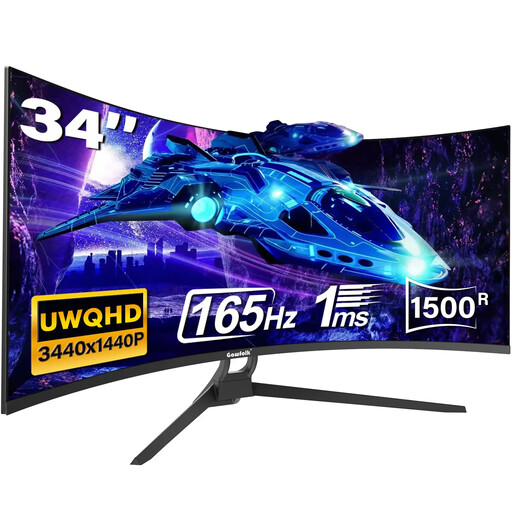
Gawfolk 34-inch curved UWQHD monitor
The 21:9 format is worth considering when side-by-side test windows matter more than a compact 16:9 setup.
The title lists a 34-inch curved screen, 165 Hz, HDMI 2.1 and DisplayPort 1.4. Confirm the exact connection options before buying: the title mentions Type-C, while the detailed connection description lists HDMI and DisplayPort. Check for a suitable USB hub separately if replacing one is your aim.
View on Joybuy
Common questions
Will a USB-C monitor free up a plug socket?
Not simply by using USB-C: the monitor normally still needs its own mains connection. A compatible monitor hub might instead let you remove a separately powered hub or dock; check which accessories it can actually replace in your setup.
Can any desktop USB-C port send video to a monitor?
No. The desktop must support video output through that connection. The Video Electronics Standards Association describes DisplayPort Alt Mode as one way USB-C can carry video, so check your desktop’s specifications rather than relying on the connector shape.
Should I choose a 27-inch QHD screen or an ultrawide for app testing?
Choose a standard 27-inch QHD layout if desk width is limited or reproducing conventional application windows is a priority. An ultrawide is worth considering when you routinely need the app, logs and tools visible side by side and have space for the screen; neither format removes the need to test the window sizes your app targets.
How should I compare monitors’ electricity use?
Compare the energy information for the specific models you are considering, including standby figures where available. A screen’s size, brand or USB-C connection alone does not tell you how much electricity it will use in your setup.


