4K editor-workspace builders
If you spend most of a session arranging scene, hierarchy, inspector and asset panels, consider a 27-inch 4K display with comfortable interface scaling and enough stand adjustment for your desk.


Start with a 27-inch 4K monitor with an adjustable stand if arranging editor panels takes up most of your time; give refresh rate more weight if you frequently playtest movement and camera behaviour. Check laptop compatibility before relying on USB-C for a one-cable desk, and check model-specific audible behaviour before choosing any monitor for a quiet study.
If you spend most of a session arranging scene, hierarchy, inspector and asset panels, consider a 27-inch 4K display with comfortable interface scaling and enough stand adjustment for your desk.
If you repeatedly switch from editing to checking movement, animation or camera behaviour, make the refresh rate at the display’s native resolution a purchase criterion. Your computer and connection must support the mode you intend to use.
If you want fewer desk cables, compare the monitor’s USB-C display and charging capabilities with your laptop’s requirements. An adjustable position still matters for long editing sessions, while USB-C alone says nothing about audible noise.
Decide whether editor space or frequent motion review drives the choice, then check positioning and laptop connections against your actual desk setup. Treat quiet operation as a separate model-specific check: resolution, panel type and refresh rate do not establish it.
| Concern | What to check | Who this matters to |
|---|---|---|
| Editor workspace | Compare native resolution and screen size, then try your preferred editor scaling at your seating distance. | If I keep several level-editor panels open, I need scene details and controls to remain usable together. Around 33% of consumers put that workspace need first. |
| Playtest motion | Check refresh rate at native resolution and whether your computer, port and cable support that display mode. | When I repeatedly assess movement or camera behaviour, motion review takes priority over extra creator controls. It is the primary need for around 20% of consumers. |
| Long-session positioning | Check stand adjustment or arm compatibility against your desk, chair and viewing distance. | For extended editing sessions, I need to place the screen comfortably rather than work around a fixed stand. Around 27% of consumers prioritise that setup need. |
| Laptop docking | Confirm USB-C display support, required charging wattage and the ports needed for your peripherals. | If I move a laptop onto this desk, I want display, charging and peripherals to work through compatible connections. That is the first concern for around 20% of consumers. |
A higher display refresh rate can matter for motion review, but it does not increase the game engine’s rendering performance or settle workspace, colour and positioning needs.
Make refresh rate decisive when playtesting is frequent; otherwise assess usable resolution, stand adjustment, ports and the colour workflow you actually use.
Charging capacity differs between monitors. BenQ specifies up to 65W for the PD2705U, while ASUS specifies up to 96W for the PA279CRV; neither figure establishes compatibility with every laptop.
Compare your laptop’s charging and display-output requirements with the exact monitor port and cable configuration before planning a one-cable setup.
Flicker-free or low-blue-light features do not replace a suitable screen position and work routine. The Health and Safety Executive advises placing the top of the screen at eye level and taking short, frequent breaks.
Check that the stand or a compatible arm lets you position the display appropriately, and account for glare and breaks during long sessions.
A monitor’s intended use and display specifications do not establish how audible that particular model will be at a quiet desk.
Seek model-specific information about audible behaviour and check the seller’s applicable return terms before committing.
The Creative Pro PD2705U is a reference point for a 27-inch 4K creator display aimed at sRGB and Rec.709 work.
The ProArt PA279CRV is relevant when a 27-inch 4K workstation needs documented wide-gamut specifications and USB-C connectivity.
Dell’s U2725QE and S2725QC illustrate different 27-inch 4K approaches to combining desk work with 120Hz refresh.
These monitors cover 4K editor work, higher-refresh playtesting and different desk-connection needs. Compare each model’s screen, adjustment and connection requirements against your setup, and check audible behaviour separately for a quiet study.
 No image available
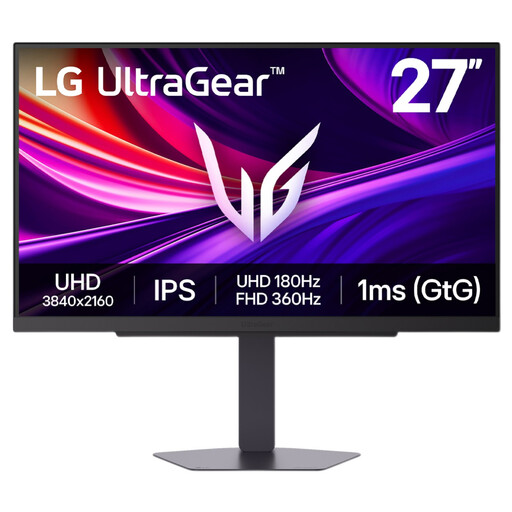
Consider this for 4K level editing alongside frequent motion review. Its title specifies Dual Mode with a maximum of 360Hz; check which refresh rate applies at 4K and whether your computer and connection support the mode you want.
Check model-specific audible behaviour before choosing it for a quiet study.
 No image available
Consider this for 4K creative work if an OLED display fits your workflow. Its listed 60Hz refresh rate is a trade-off for frequent motion review, and the listing warns against prolonged static images at high brightness because of burn-in risk.
Check USB-C charging against your laptop’s needs and seek model-specific audible-behaviour information for a quiet desk.
 No image available
Its 27-inch 4K format suits a desk centred on editor panels and detailed assets. The listed 60Hz refresh rate may be a constraint if motion review frequently decides your choice.
If laptop charging matters, check the USB-C power requirement and connection details; also check model-specific audible behaviour.
 No image available
Consider this larger curved screen if you want 4K workspace and a stated 165Hz refresh rate for frequent playtesting. Check that its size, curve and viewing distance work on your study desk.
The title specifies USB-C power delivery at 65W; compare that with your laptop’s requirement and check model-specific audible behaviour.
 No image available
Its 4K resolution suits detailed editor work when 60Hz meets your playtesting needs. Check whether the stand’s tilt adjustment gives you a suitable screen position, or whether a compatible arm is needed.
Eye-care branding does not establish comfort in your workstation or quiet operation; assess the desk setup and model-specific audible behaviour separately.
Choose according to how often you playtest: 4K 60Hz can suit editor work when workspace and creator features take priority, while 4K 120Hz is worth considering for frequent motion review. Check that your computer, port and cable can output 4K at 120Hz; a higher-refresh monitor does not increase the engine’s rendering performance by itself.
Yes, if the laptop supports the required USB-C display mode and the monitor provides enough power for that laptop. BenQ specifies up to 65W for the PD2705U and ASUS up to 96W for the PA279CRV, so compare the exact monitor and laptop requirements before dispensing with a separate charger.
Set it so you can view the screen comfortably without working around a fixed stand. The Health and Safety Executive advises placing the top of the screen at eye level, about an arm’s length away, with the screen and keyboard directly in front of you; it also recommends short, frequent breaks.
Check the collection or recycling arrangements available through your retailer or local authority rather than putting the monitor in general waste. UK guidance on waste electrical and electronic equipment from the Office for Product Safety and Standards and the Department for Environment, Food & Rural Affairs addresses reducing disposal to landfill or incineration through recovery, reuse and recycling.