For laptop-based lesson planning, a 27-inch QHD monitor with an adjustable stand and a compatible USB-C connection is a practical choice when desk organisation matters more than 4K detail. Choose a 27-inch 4K display if fine text and dense resource layouts are your priority, but check operating-system scaling, laptop video output and charging requirements before deciding. For sustained daily work, consider the position of the whole workstation as well as the monitor.
Who is this for?
Laptop-based lesson planners
If you move between lesson plans, school platforms and web resources on a laptop, monitor connections and a USB hub may help organise the devices on your desk. BenQ lists USB-C, a hub and 65W laptop charging for its GW2790QT; whether those functions work together depends on your laptop.
Detail-focused resource organisers
If you work with dense worksheets, slides or several reference panes, compare native resolution and the scaling you find comfortable. Dell and LG list 3840 × 2160 resolution for their 27-inch U2725QE and 27UP850K-W models respectively.
People working at a home desk throughout the day
If you use a screen for sustained periods, think about where it sits relative to your chair, desk and keyboard. The Health and Safety Executive advises that people working at home should be able to achieve a comfortable, sustainable posture.
What matters when choosing?
For organising lesson resources at home, decide whether screen positioning, document detail, laptop connections or straightforward administration is your primary need. Then check the features that serve that task.
| Concern |
What to check |
Who this matters to |
| Positioning for sustained use |
Check the stand adjustments you need and whether the screen can be positioned as part of a comfortable desk setup. |
If I spend long stretches preparing lessons at the same desk, I need to position the screen without treating the monitor as a fix for the whole workstation. Around 33% of consumers put positioning and sustained-use comfort first. |
| Document detail and workspace |
Compare native resolution at the screen size you want, then consider the operating-system scaling you use. |
When detailed worksheets and several reference panes are my main task, I want enough on-screen detail while keeping text comfortable to read. Document detail is the primary concern for around 27% of consumers. |
| Laptop and peripheral connections |
Check laptop USB-C video support and charging needs against the monitor’s ports and Power Delivery capability. |
If I connect a laptop and desk peripherals each day, I want fewer separate connections without assuming one USB-C cable will handle everything. Around 27% of consumers prioritise cable and device organisation. |
| A straightforward display |
Check the computer’s video output, the monitor’s input and whether Full HD provides enough detail for your tasks. |
If I mainly handle routine lesson administration, a simple larger screen may matter more to me than a dense multi-window layout. For around 13% of consumers, that basic display need comes first. |
Buying pitfalls
-
Assuming USB-C guarantees a one-cable laptop setup
BenQ lists USB-C DisplayPort Alt Mode and 65W Power Delivery for the GW2790QT, while LG lists charging up to 90W for the 27UP850K-W. Those monitor specifications do not establish compatibility with every laptop.
Check your laptop’s USB-C video support and charging requirements, then compare them with the exact monitor and cable you intend to use.
If the connection cannot provide the video or charging you need, you may have to keep using a separate charger or dock.
-
Choosing by screen size alone
At 27 inches, BenQ lists 1920 × 1080 for the GW2790, 2560 × 1440 for the GW2790QT, and Dell lists 3840 × 2160 for the U2725QE. The same diagonal size therefore does not tell you how many native pixels are available for documents.
Choose resolution around your main task, then check whether your preferred display scaling keeps text readable.
-
Treating an adjustable monitor as the whole workstation solution
Stand adjustment can help with screen positioning, but it does not address the chair, desk, keyboard and lighting on its own. The Health and Safety Executive advises that home workers should be able to achieve a comfortable, sustainable posture.
If you use display equipment regularly for sustained work, assess the complete setup and ask your employer about its applicable workstation-assessment process.
Relevant brands to consider
BenQ
The GW2790QT is a 27-inch QHD example for a laptop-centred desk.
- BenQ lists 2560 × 1440 resolution, a USB hub, USB-C DisplayPort Alt Mode with 65W Power Delivery, and height, tilt, pivot and swivel adjustment for this model.
- Its native resolution is below the 3840 × 2160 resolution of the 27-inch 4K examples; laptop video and charging compatibility still need checking.
Dell
The U2725QE is a 27-inch 4K hub-monitor example for a laptop-centred workspace.
- Dell lists a 4K IPS Black panel, an integrated USB hub, 90W power delivery, and height and pivot adjustment for the U2725QE.
- Those features are most relevant if you need both fine document detail and the stated connections; confirm compatibility with your laptop.
LG
LG has 27-inch 4K examples with different connection arrangements.
- LG lists USB-C display, data and charging up to 90W for the 27UP850K-W. Its 27UP650K-W product page lists 3840 × 2160 resolution and height, pivot and tilt adjustment.
- Do not assume the two models have the same laptop-docking functions; check the connections of the exact model you choose.
Joybuy monitors for lesson planning
These monitors offer QHD or 4K options relevant to organising lesson resources. Compare the connections and stand features of each exact model against your laptop and home-desk setup.
 No image available
MSI MD272UPSW 27-inch 4K Smart Monitor with Google TV
Consider this model if a 4K display and a USB-C connection are priorities for your lesson-planning desk.
Its stated features include an IPS panel, Google TV, Dolby Audio, Multi-Control and USB-C 65W. Check that your laptop supports the video connection and can use the stated charging capability.
View on Joybuy
 No image available
BenQ MA270UP 27-inch 4K Nano Glossy Mac Monitor
Consider this Mac-focused model if 4K detail and a height-adjustable stand suit your workspace.
The product name specifies an IPS panel, USB-C, HDR and P3. Check that its connections and controls suit your computer, and consider whether a glossy screen finish works with your desk lighting.
View on Joybuy
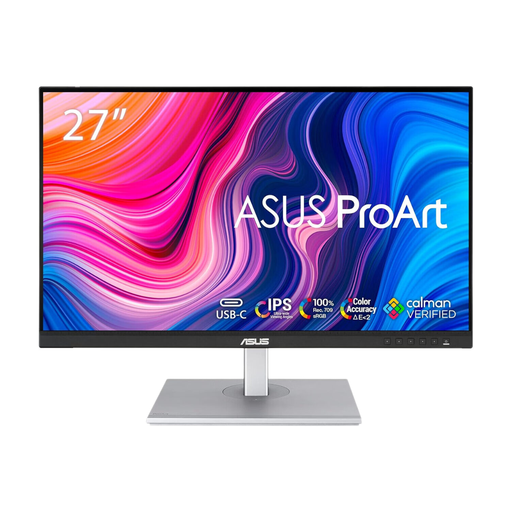 No image available
ASUS ProArt PA278CFRV IPS QHD 100Hz Monitor
Consider this QHD model when general document work matters more to you than choosing a 4K display.
The product name specifies an IPS panel and 100Hz refresh rate. If laptop docking is important, check the exact model’s USB-C video and charging capabilities before ordering.
View on Joybuy
 No image available
LG 27UP650K 27-inch 4K IPS Monitor, White
Consider this model if detailed lesson resources are your priority and you can use a conventional wired display connection.
The product name specifies a 60Hz panel, built-in speakers, HDMI and DisplayPort. Check the exact model’s connections if USB-C laptop docking or charging is essential to your setup.
View on Joybuy
Frequently asked questions
Should I choose QHD or 4K for lesson resources?
Choose QHD if general planning and desk organisation are your priorities; choose 4K if fine document detail and dense layouts matter more. BenQ lists 2560 × 1440 for the GW2790QT, while Dell and LG list 3840 × 2160 for the U2725QE and 27UP850K-W. How much you can comfortably fit on screen also depends on display scaling.
Will one USB-C cable connect and charge my laptop?
Only if the laptop supports compatible USB-C video output and its charging needs fit the monitor’s capability. BenQ lists 65W Power Delivery for the GW2790QT, and LG lists charging up to 90W for the 27UP850K-W; check your laptop and the intended cable before relying on either setup.
Is an adjustable stand enough for a comfortable home workstation?
No: an adjustable stand helps position the screen, but the chair, desk, keyboard and lighting also affect the setup. The Health and Safety Executive advises that home workers should be able to achieve a comfortable, sustainable posture, so assess the workstation as a whole when choosing where the monitor will sit.


