What matters when choosing?
Choose the workspace you need for your usual marking windows, then check whether the stand and connections fit your desk and laptop.
27-inch Full HD
Consider it when: You mainly read and comment on ordinary documents without needing several full-size panes open together.
Trade-off: At the same screen size, 1920 × 1080 provides fewer pixels than the QHD and 4K models discussed here.
27-inch QHD
Consider it when: Your marking is mainly text-based and you want more pixel workspace than Full HD.
Trade-off: It provides fewer pixels than 4K for dense layouts or multiple documents; USB-C docking also depends on the particular monitor and laptop.
27-inch 4K
Consider it when: You regularly inspect fine visual detail or work with several document and feedback panes.
Trade-off: You may need to adjust display scaling for a comfortable text size and confirm that your laptop supports the intended output.
| Concern | What to check | Who this matters to |
|---|
| Readable workspace |
Compare resolution at the chosen screen size and try your usual document layout at a comfortable text scale. |
Dense PDFs, diagrams and simultaneous marking panes make fine detail my main concern. Around 33% of consumers put readable workspace first. |
| Screen position |
Check stand adjustment and desk depth; the Health and Safety Executive advises a screen top around eye level, about an arm’s length away. |
During long marking sessions, I need to place the display where I can work comfortably. About 25% of consumers prioritise screen position. |
| Laptop connection |
Confirm USB-C video support on the laptop and the monitor’s charging output if you want one cable for both. |
Connecting my laptop each day is simpler if one compatible connection handles the display and charging. Roughly 25% of consumers put laptop connectivity first. |
| Desk fit and basic needs |
Check the stand footprint, required inputs and whether the screen accommodates your normal document view. |
For straightforward document marking, I want a screen that fits my desk without features I will not use. Around 17% of consumers make those practical limits their primary concern. |
Joybuy monitors for marking
These monitors cover 27-inch QHD and 4K choices for text-heavy or detail-focused marking. Compare their stated connections and stand arrangements against your laptop and desk rather than assuming every model provides USB-C docking.
 No image available
BenQ MA270UP Nano Glossy 27-inch 4K USB-C monitor
Consider its 27-inch IPS display for detailed submissions and its height-adjustable stand for desk positioning. Check how the glossy finish looks under your room lighting, and confirm laptop video and charging compatibility before planning a USB-C setup.
View on Joybuy
 No image available
MSI MD272UPSW 27-inch 4K Smart Monitor
Its 27-inch IPS display suits a closer look at detailed marking material. The title lists Google TV and USB-C 65 W; check your laptop’s USB-C video support and whether that charging level and the monitor’s connections suit your desk.
View on Joybuy
 No image available
ASUS ProArt PA278CFRV QHD 100 Hz monitor
Consider QHD for text-based marking when you want more pixel workspace than Full HD. Confirm the connections and stand adjustment of the exact variant if laptop docking or repositioning the screen is important to you.
View on Joybuy
 No image available
LG 27UP650K 27-inch 4K IPS monitor, white
Its 27-inch 4K display is worth considering for dense documents or visual submissions. The title lists HDMI and DisplayPort; check the connections against your laptop, and try a comfortable text scale rather than choosing by resolution alone.
View on Joybuy
 No image available
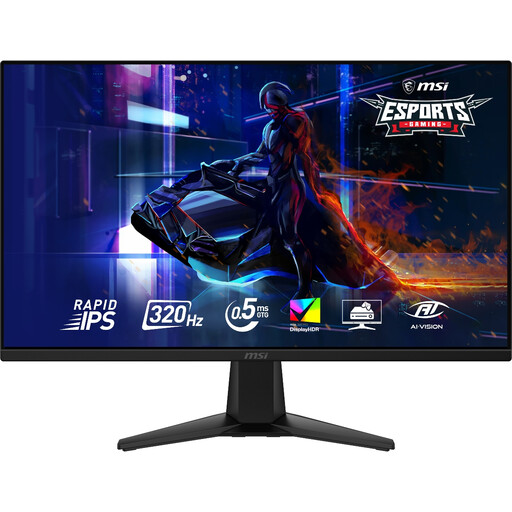
MAG 275QF X32 27-inch QHD Rapid IPS monitor, black
Its 2560 × 1440 resolution gives text-based marking more pixel workspace than a 27-inch Full HD display. The title’s 320 Hz gaming specification is not a reason on its own to choose it for marking; check the stand and laptop connections you need.
View on Joybuy
Frequently asked questions
Does display screen equipment guidance apply when I mark from home?
It may apply if you are a worker who uses display screen equipment daily for continuous periods of an hour or more. The Health and Safety Executive says that, where the regulations apply, employers should assess individual workers’ display screen equipment workstations, including home setups.
Will a new monitor alone make long marking sessions comfortable?
No monitor alone establishes a comfortable workstation. The Health and Safety Executive advises placing the screen directly in front of you, with its top around eye level and about an arm’s length away; consider lighting and changes of activity as well.
Can I ask my employer for an eye test if I use a screen for work?
Yes, if you are a display screen equipment user, you can request an eye and eyesight test. The Health and Safety Executive says employers must arrange one when a qualifying worker asks; check how to make the request through your employer.
How can I tell whether a USB-C monitor will charge my laptop?
Check the monitor’s stated USB-C power delivery against your laptop’s charging requirement, and separately confirm USB-C video support on both devices. For the named examples, BenQ UK lists 65 W power delivery for the GW2790QT, while LG UK lists charging up to 90 W for the 27UP85ZK-W; those figures do not establish compatibility with every laptop.


