Spreadsheet-and-plan multitaskers
Students who compare quantity calculations with drawings, PDFs or course notes and want to keep more than one reference visible.


Choose a QHD monitor if you regularly need a calculation sheet alongside plans or reference documents, then decide on screen size by measuring your desk and checking where the display can sit comfortably. A compact 23.8-inch screen takes less physical room than a 27-inch screen; consider USB-C docking only after confirming that your laptop supports video through its port and that the monitor’s charging output meets its needs.
Students who compare quantity calculations with drawings, PDFs or course notes and want to keep more than one reference visible.
Students fitting a monitor beside books, a laptop and other study materials, for whom the stand and viewing position matter as much as panel size.
Students who want fewer connections between a compatible laptop, display and peripherals, provided the relevant USB-C video and charging functions work together.
Start with the space needed for your calculations and references, then measure the desk. Treat USB-C docking as a separate compatibility decision, not a reason to overlook screen position or the work you need to display.
| Concern | What to check | Who this matters to |
|---|---|---|
| Calculation workspace | Compare QHD resolution of 2560 × 1440 with the text size you use after display scaling. A monitor will not check your units or formulae. | If I need a sheet open beside a plan, I want enough visible detail to move between them without losing my place; around 36% of consumers put calculation workspace first. |
| Desk fit and screen position | Measure clear desk width and depth, including the stand, and check whether its height can be adjusted. The Health and Safety Executive advises positioning the screen around an arm’s length away, with its top around eye level. | On a crowded desk, I need room for my keyboard and notes as well as a screen I can position comfortably; roughly 29% of consumers make desk fit and positioning their main concern. |
| Laptop connections | Confirm USB-C video output in your laptop’s documentation and compare its charging requirement with the monitor’s stated power delivery. Check the cable you will use. | If I reconnect my laptop often, fewer cables matter only if the display and charging connections actually work with it; around 21% of consumers prioritise laptop integration. |
| Features for the task | Decide whether you need a USB hub or other added functions for your workflow; compare the exact models rather than assuming features carry across a range. | When most of my work is in spreadsheets and documents, I would rather choose functions I will use than extras unrelated to calculations; roughly 14% of consumers put that simplicity first. |
A USB-C connector does not establish that a laptop can send video through it or accept the monitor’s charging output. Lenovo says the ThinkVision T27QD-40’s maximum 100 W output depends on compatible Lenovo VDM support and may be lower with other devices.
Check your laptop’s port specification and charging requirement against the exact monitor and cable before relying on one connection.
If those functions do not match, you may need to use a separate charger, cable or video adapter.
A 27-inch panel needs more physical room than a compact 23.8-inch panel. Its stand can also compete with a notebook or keyboard for space.
Measure the usable width and depth, then check the monitor’s dimensions with its stand fitted and the position you can achieve.
A product label does not replace a workable screen position. The Health and Safety Executive’s display-screen guidance also addresses posture and viewing distance.
Check how you will set the screen height, distance and lighting in the room rather than treating a label as a comfort guarantee.
Electrical Safety First advises students to watch for overloaded sockets and leads. The University of Strathclyde’s accommodation guidance says not to connect one extension lead to another.
Use an undamaged lead within its stated load limit where one is needed, and report damaged sockets or repeated tripping to your accommodation provider.
Dell UK lists the P2425DE as a 23.8-inch QHD monitor, making it a model to compare when desk space is limited.
Lenovo UK describes the 27-inch QHD ThinkVision T27QD-40 as a USB-C docking monitor with hub and Ethernet functions.
BenQ UK lists the GW2790QT as a 27-inch QHD USB-C monitor with an adjustable stand.
These QHD and WQHD monitor choices are relevant to viewing calculation sheets alongside plans or notes. Compare their exact connections and the space available on your desk before choosing.
 No image available
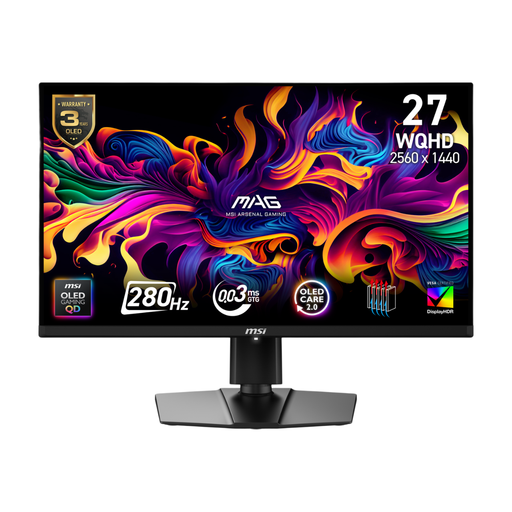
Consider this for calculation sheets and references if a larger screen fits your desk.
The product name specifies a 27-inch QHD QD-OLED display and 280 Hz refresh rate. Check USB-C video and charging compatibility before planning a one-cable laptop setup.
 No image available
Its WQHD resolution is relevant if you want calculation sheets and reference documents visible together.
The product name specifies an IPS panel. If laptop charging through the monitor matters, check the exact USB-C power-delivery rating and compatibility before choosing it.
 No image available
Consider its QHD display for working between a spreadsheet and a plan or other reference.
The product name specifies an IPS panel and 100 Hz refresh rate. If USB-C is important to your setup, confirm the connections on the exact regional variant.
 No image available
This QHD option is worth checking if you need room for calculations and references on a space-conscious desk.
The product name specifies an IPS panel. Measure its dimensions with the stand and check your laptop’s USB-C video and charging requirements before relying on one-cable use.
 No image available
Consider its WQHD resolution for calculation sheets and reference material if the complete monitor fits your study area.
The product name specifies an IPS panel. Check its dimensions and your intended viewing distance; if you need USB-C docking, confirm the connection options rather than assuming it is available.
Choose a compact QHD model when desk space is tight; consider a 27-inch QHD model when you have room for its stand and viewing distance and want a larger physical screen beside your notes. Check the dimensions of the exact monitor, as panel size alone does not tell you how much desk space it needs.
No: the connector alone does not establish video-output or charging compatibility. Check your laptop’s port documentation, its charging requirement and the monitor’s stated output; BenQ lists 65 W for the GW2790QT, while Lenovo lists up to 100 W for the ThinkVision T27QD-40 under device-specific conditions.
Check plugs, cables and sockets for damage or signs of overheating, and report faults to your accommodation provider. Electrical Safety First advises students to watch for overloaded sockets and leads; the University of Strathclyde’s accommodation guidance warns against connecting one extension lead to another.
Keep your order confirmation and contact the retailer promptly about the fault. GOV.UK explains that consumer-rights protections apply to goods bought remotely or in person; a retailer’s return process is not a substitute for rights concerning faulty goods.