What matters when choosing?
For a newsletter-writing desk, compare text workspace, screen positioning and laptop connections as separate decisions. A higher resolution does not replace a suitable workstation, and a USB-C socket does not establish what your laptop can do through it.
27-inch QHD
Choose it when: Drafting, proofreading and keeping reference material visible are your main tasks.
Trade-off: QHD has fewer pixels than 4K; check your preferred text size and whether the stand suits your desk.
27-inch 4K
Choose it when: You regularly inspect detailed layouts or want a compatible USB-C laptop connection alongside the display.
Trade-off: You may need to adjust operating-system scaling for readable text, and charging or hub functions depend on the laptop.
27-inch Full HD
Choose it when: Your writing workspace is sufficient at Full HD and built-in office connections or call equipment serve a regular need.
Trade-off: Full HD provides fewer pixels for text and documents than the QHD and 4K routes.
| Concern |
What to check |
Who this matters to |
| Readable text and workspace |
Compare screen size and native resolution, then try your usual document editor at a comfortable scaling setting. |
If I keep a draft beside source notes, I need both to remain readable without constantly switching windows. Around 42% of consumers put text and workspace first. |
| Screen positioning |
Check height adjustment and whether tilt or pivot will help you place the screen at your desk; consider lighting and reflections. |
During long proofreading sessions, I want to position the display without straining to see the page. Roughly 33% of consumers make workstation positioning their primary concern. |
| Laptop connectivity |
Confirm USB-C video support and charging requirements against your laptop; check the ports needed for your peripherals. |
If I work from a laptop, I would rather connect the equipment I actually use without unnecessary desk clutter. About 25% of consumers prioritise that connection setup. |
Joybuy product choices
These monitors offer QHD or 4K options for a newsletter-writing desk. Compare the screen and connection details of each model with your own workspace and laptop rather than treating a shared resolution as a shared feature set.
 No image available
ASUS ProArt PA278CV IPS WQHD
Consider this WQHD model if document workspace is central to your writing setup. Check its stand adjustment and USB-C charging specification against your desk and laptop before ordering.
View on Joybuy
 No image available
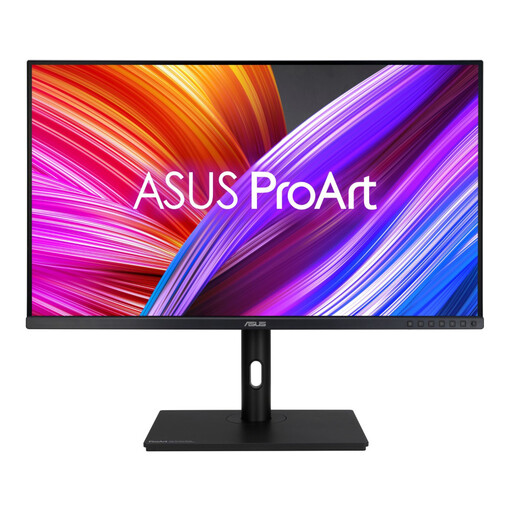
ASUS ProArt PA328QV IPS WQHD
This WQHD model is another option for working with a draft and reference material. Check its dimensions against your desk and confirm the connections required by your laptop.
View on Joybuy
 No image available
BenQ MA270UP Nano Glossy 27-inch 4K USB-C
The 4K display and height-adjustable stand are relevant if you inspect newsletter layouts as well as draft text. Its Nano Glossy finish makes reflections worth checking in your study; confirm USB-C video and charging compatibility with your laptop.
View on Joybuy
 No image available
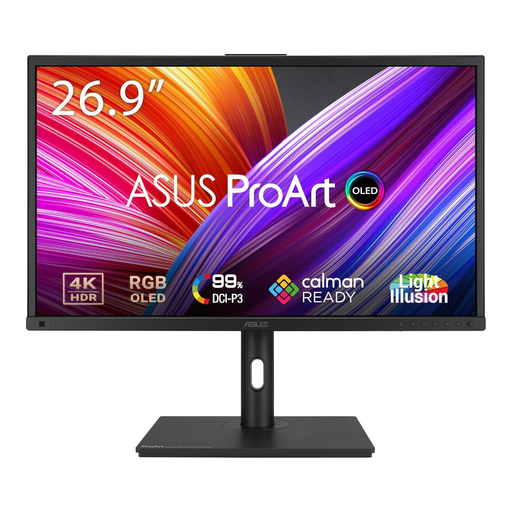
ASUS ProArt PA27DCE-K OLED 4K UHD
Consider this 4K OLED model if detailed page layouts matter to your newsletter work. Try your preferred text scaling and confirm the stand’s adjustment range and any USB-C charging requirement for your setup.
View on Joybuy
 No image available
LG 27UP650K 27-inch 4K IPS
This 4K option may suit proofreading and detailed layout checks. Its product name identifies HDMI, DisplayPort and built-in speakers; check that those connections suit your devices, along with your preferred text scaling and the screen finish.
View on Joybuy
Common questions
How should I position a monitor for long writing sessions?
Arrange the screen as part of the whole workstation, not in isolation. The Health and Safety Executive advises putting its top at eye level and keeping it about an arm’s length away; adjust the screen and lighting to avoid glare.
Should I choose 4K just to write and proofread a newsletter?
Choose 4K if its additional detail serves your document or layout work and you are comfortable with the text size after scaling. If positioning and everyday drafting matter more, compare adjustable QHD models as well; check both at your intended viewing distance.
Can I return an online monitor purchase if it does not suit my study?
For qualifying online purchases from a business in England, Citizens Advice describes a 14-day change-of-mind cooling-off period beginning the day after delivery, subject to exceptions. Check the guidance applicable where you buy and the seller’s return arrangements; remedies for a faulty, damaged or misdescribed monitor are a separate matter.
What should I do with an old monitor?
Ask the retailer about electrical-waste take-back when arranging its replacement. GOV.UK guidance describes take-back of the same type of electrical equipment by distributors, with exemptions and alternative arrangements that can affect how you hand it over.


