What matters when choosing?
Choose a position that works at your desk, then compare resolution at a comfortable text size. If you use a laptop, check its connection and charging requirements before treating USB-C as a one-cable solution.
| Concern |
What to check |
Who this matters to |
| Screen placement |
Check desk depth and whether the stand can put the screen directly in front of you, with its top at eye level and about an arm’s length away, as the Health and Safety Executive advises. |
If I spend long sessions organising notes, I need the screen to fit my seated position rather than choosing by size alone. Around 31% of consumers would put placement first. |
| Document detail |
Compare native resolution at the same screen size, then try the text size and operating-system scaling you would use for notes and PDFs. |
Keeping sources beside my notes makes readable detail my main concern, not the resolution label on its own. For around 31% of consumers, document workspace would be the primary need. |
| Laptop connection |
Confirm USB-C video support, the monitor’s power-delivery wattage and whether the cable you need is included. |
If I connect a laptop whenever I sit down to study, I want fewer separate display and charging connections. Around 19% of consumers would prioritise that simpler setup. |
| Useful features |
List your required screen size, resolution, stand adjustments and inputs before comparing gaming or other optional features. |
I would rather choose the features my note-taking routine uses than be guided by specifications unrelated to it. That would be the leading concern for around 19% of consumers. |
Joybuy monitors for this setup
These 27-inch 4K and QHD monitors offer different ways to set up a desk for notes and reference documents. Compare their stated connections and features model by model, particularly if laptop charging matters to you.
 No image available
BenQ MA270UP 27-inch Nano Glossy IPS 4K USB-C Mac monitor
Consider this model if you want a 4K display for detailed notes and an adjustable screen position at your desk.
The product name specifies a Nano Glossy IPS panel, USB-C and a height-adjustable stand. Check your laptop’s USB-C video and charging requirements, along with your preferred 4K scaling.
View on Joybuy
 No image available
MSI MD272UPSW 27-inch 4K Smart Monitor with Google TV and USB-C 65 W
This is a 4K option to consider if you organise dense study material and also want the listed smart-monitor features.
The product name specifies an IPS panel, Google TV, Dolby Audio and USB-C 65 W. Check USB-C video compatibility and whether 65 W meets your laptop’s charging requirement.
View on Joybuy
 No image available
LG 27UP650K 27-inch 4K IPS monitor, white
Consider this 4K model if your note-taking setup uses a suitable HDMI or DisplayPort connection.
The product name lists a 60 Hz display, built-in speakers, HDMI and DisplayPort. Check that its connections suit your computer and that 4K text is comfortable at your preferred scaling.
View on Joybuy
 No image available
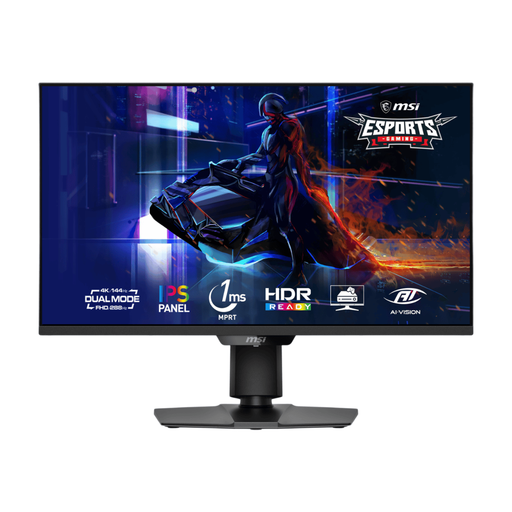
MSI MAG 275UPD E14 27-inch dual-mode gaming monitor
Its stated 4K mode makes this model an option to assess for detailed documents if you also want its gaming modes.
The product name specifies UHD at 144 Hz and FHD at 288 Hz with Adaptive Sync. Check the inputs required by your computer and whether 4K text works at your preferred scaling.
View on Joybuy
 No image available
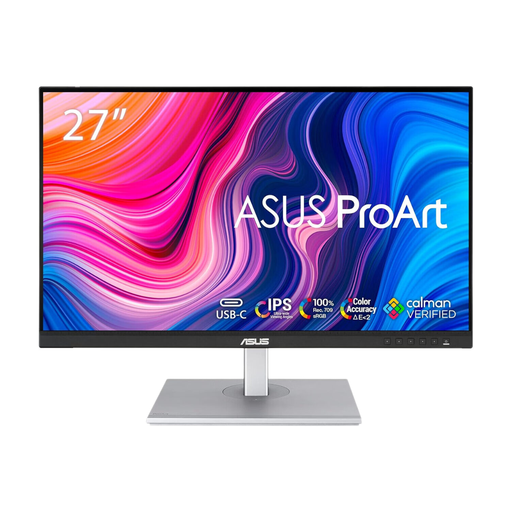
ASUS ProArt PA278CFRV 27-inch QHD IPS monitor
Consider this QHD model if you want to assess that resolution for notes alongside browser research.
The product name specifies an IPS panel and 100 Hz refresh rate. Check the exact connections for this unit if your laptop setup depends on USB-C.
View on Joybuy
Common questions
Do I need a particular monitor under home-working display-screen rules?
Not automatically. The Health and Safety Executive says an individual assessment is appropriate where display-screen equipment rules apply to prolonged, regular work; the suitable home setup depends on that assessment and your circumstances. Ask your employer about an assessment if this describes your working routine.
Where should I place a monitor for long study sessions?
The Health and Safety Executive advises putting the screen directly in front of you, about an arm’s length away, with its top level with your eyes. Check that your desk depth and stand adjustment let you achieve that position from your usual chair.
Will a USB-C monitor connect and charge my laptop with one cable?
Only if the particular monitor, laptop and cable support the functions you need. BenQ lists 65 W power delivery for its GW2790QT, while LG lists up to 90 W for its 27UP85ZK-W; check your laptop’s USB-C video output and charging requirement against the exact monitor.
What if I change my mind after buying a monitor online?
For purchases covered by its England guidance, Citizens Advice describes a 14-day cooling-off period for goods bought without seeing them in person, subject to exceptions such as bespoke goods. Check the applicable guidance and seller’s return instructions before ordering; a change-of-mind return is distinct from remedies for faulty, damaged or misdescribed goods.
How should I dispose of an old monitor?
Check an appropriate electrical-equipment collection route rather than assuming an old monitor belongs in ordinary household rubbish. UK government guidance on waste electrical and electronic equipment explains the purpose of separate waste handling; your local authority or retailer can advise on available collection options.


