What matters when choosing?
Start with the work shown on screen and the space available, then check how each laptop will connect. A shared stand and workstation layout still need attention whichever resolution you choose.
| Concern |
What to check |
Who this matters to |
| Connecting at a shared desk |
Check laptop USB-C video support, required charging power and the exact monitor’s upstream connection. Confirm cables and Ethernet if needed. |
If I switch laptops at a shared desk, I want to reconnect without arranging several separate leads each time. Around 30% of consumers put simpler reconnection first. |
| Room for survey work |
Compare FHD, WUXGA and QHD against the windows used together; check desk space and the computer’s supported output. Verify both display paths before choosing two monitors. |
When I review a questionnaire beside response data, I need both to remain workable on screen. Around 30% of consumers put workspace for survey review first. |
| Adjustment and glare |
Check stand adjustments and screen position against windows and lights; assess the chair, desk and working routine as well. |
If colleagues of different heights use the same station, I need to reset the screen position without struggling with reflections. Around 30% of consumers put shared-user adjustment first. |
| Longer-term office use |
Confirm the chosen model’s warranty terms and power settings, and establish the organisation’s route for retired equipment. |
When I organise equipment for an office, I need clear arrangements for support and eventual disposal. Around 10% of consumers put these administrative needs first. |
Relevant brands to consider
These examples illustrate features to compare on particular models; a connection or adjustment listed for one monitor should not be assumed across its brand’s range.
Dell
Dell’s P2425HE is an FHD USB-C hub monitor to examine for a shared desk.
- Dell lists up to 90W USB-C power delivery for the P2425HE, alongside Ethernet and stand adjustment.
- Check the laptop’s USB-C video and charging compatibility. Do not confuse the P2425HE with the separately named P2425H.
HP
HP’s E27u G5 is a 27-inch QHD option for reviewing survey material across windows.
- HP specifies a 2560 × 1440 panel, anti-glare treatment, height, tilt, swivel and pivot adjustment, and a three-year limited warranty for this model.
- For its preferred mode, HP requires a connected video card supporting 2560 × 1440 at 60 Hz with 8-bit colour; warranty terms also need checking.
BenQ
BenQ’s BL2790QT is a 27-inch QHD USB-C business monitor aimed at adjustable desk setups.
- BenQ lists a USB hub, up to 65W laptop power delivery and height, tilt, pivot and swivel adjustment for the BL2790QT.
- Check the laptop’s charging requirement. BenQ says its MST daisy-chain route has limitations with Mac devices unless suitable additional equipment is used.
Lenovo ThinkVision
Lenovo lists ThinkVision office monitors in several sizes and display formats.
- The range includes models with different combinations of USB-C, HDMI, DisplayPort, VGA and USB connections.
- Check ports, charging and stand adjustment on the exact ThinkVision model rather than assuming they apply across the range.
Joybuy monitor choices
These FHD, WUXGA and QHD monitors offer starting points for shared-desk survey work. Choose by the space your tasks need and check the exact connection and stand arrangement for your laptops and desk.
 No image available
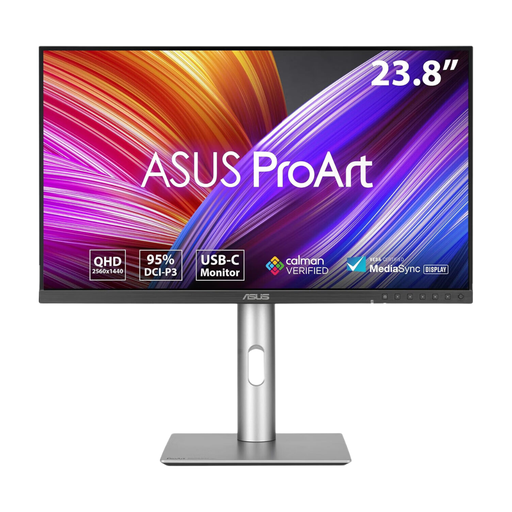
ASUS ProArt PA24ACRV IPS QHD monitor
Consider this QHD model if survey materials need to remain visible across windows at a shared desk. Check the exact USB-C video and charging requirements, stand adjustments and supplied cables before relying on it for laptop docking.
View on Joybuy
 No image available
ASUS ProArt PA278CV IPS WQHD monitor
Consider this WQHD model when forms and data need room on screen together. Confirm that the computer supports the intended display mode and check USB-C charging capability if the monitor will form part of a shared docking setup.
View on Joybuy
 No image available
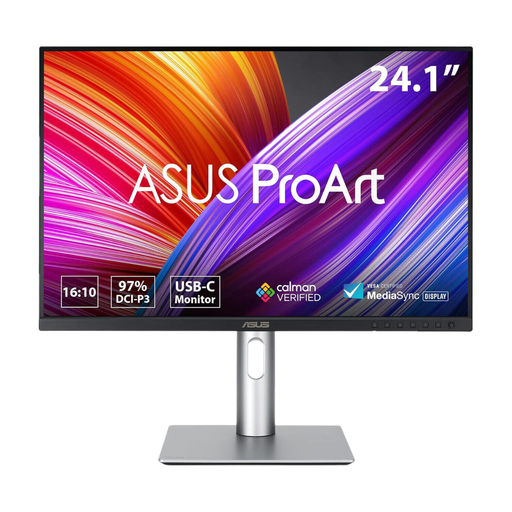
ASUS ProArt PA248CRV IPS WUXGA monitor
Consider this WUXGA model if document and spreadsheet work calls for a different screen format from FHD or QHD. For a desk shared by laptops, confirm video compatibility, charging needs and the supplied hub and cable configuration.
View on Joybuy
 No image available
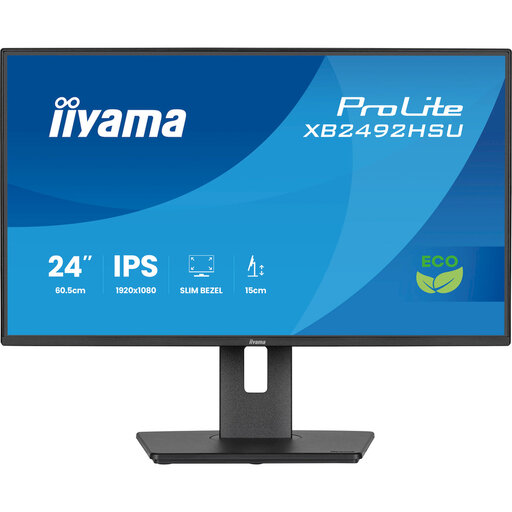
iiyama ProLite XB2492HSU 24-inch Full HD monitor, 16:9
This Full HD model is a choice to assess for mainly form entry and ordinary documents. Check its stand adjustments and screen finish for the shared desk, and confirm how each laptop will connect.
View on Joybuy
 No image available
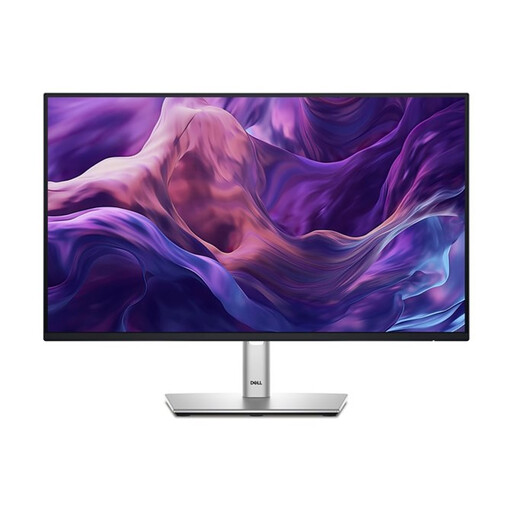
Dell P2425H 24-inch Full HD IPS monitor
This 1920 × 1080, 100 Hz model is an option to assess for mainly single-window survey entry and routine documents. Check the exact stand functions and laptop connection requirements; the P2425H is not the P2425HE USB-C hub model described above.
View on Joybuy
Frequently asked questions
Should a shared survey desk use FHD or QHD?
FHD can suit mainly single-window form entry, while QHD is worth considering when users regularly compare survey forms, data and notes. Check desk space and the computer’s output before choosing: HP specifies that its E27u G5 needs support for 2560 × 1440 at 60 Hz with 8-bit colour to run at its preferred mode.
Can a USB-C monitor replace a dock?
It can serve as a shared-desk connection point if the laptop supports the necessary USB-C video functions and the monitor supplies enough power for that laptop. Dell lists up to 90W power delivery for its P2425HE, while BenQ lists up to 65W for its BL2790QT; check other required connections and the exact model rather than assuming all USB-C monitors work alike.
Can one laptop daisy-chain two survey-work monitors?
Only if the computer, monitors and connection path support it. Dell’s guidance identifies compatible DisplayPort, USB-C DisplayPort Alt Mode or Thunderbolt paths and says HDMI does not support daisy chaining; check operating-system and model-specific limitations as well.
Does every occasional survey volunteer need a formal DSE assessment?
Not under the Great Britain DSE rules solely because they use a screen occasionally. The Health and Safety Executive says those rules apply to workers who use display-screen equipment daily for continuous periods of an hour or more; where they apply, employers must assess the workstation and manage associated risks. Check the position separately for Northern Ireland.
What should an office do with retired monitors?
Arrange an appropriate collection or disposal route rather than treating retired monitors as ordinary waste. UK guidance on waste electrical and electronic equipment distinguishes obligations by an organisation’s role, so check the arrangements that apply to the office and its supplier.


