For community-survey forms, participant lists and spreadsheets on a small desk, start by checking whether a single monitor and its stand leave enough room for your keyboard, paperwork and viewing distance. A height-adjustable 23.8-inch Full HD display is one route, but screen size alone cannot establish desk fit. Choose USB-C display and charging features only if your laptop supports them; otherwise, focus on the connections you use and a stand that lets you position the screen comfortably.
Who this setup suits
Small-desk survey coordinators
If participant lists, forms and a keyboard must share a shallow desk, the monitor’s stand matters as much as its screen size. The Health and Safety Executive advises placing the top of the screen at eye level and the display about an arm’s length away.
Laptop-based survey planners
A laptop user may want one connection for the display, charging and desk peripherals. That arrangement depends on the laptop’s USB-C video and charging capabilities, as well as the functions of the chosen monitor.
Long-session document and spreadsheet users
Repeatedly reviewing responses or entering data makes screen height, glare and the overall workstation layout worth checking. The Health and Safety Executive’s display-screen-equipment guidance addresses screen positioning alongside the wider work area.
What to check before buying
Measure the desk with the keyboard and paperwork in place, then check screen positioning and computer connections. The Health and Safety Executive advises an eye-level screen top and approximately an arm’s-length viewing distance.
| Concern |
What to check |
Who this matters to |
| Desk fit and positioning |
Compare dimensions with the stand attached against usable desk depth; check height adjustment or the mounting arrangement you intend to use. |
I need the screen, keyboard and survey papers to fit without pushing the display too close. Around 42% of consumers put desk fit and positioning first. |
| Laptop connectivity |
Check the laptop’s USB-C video output and charging requirements against the monitor’s ports; decide whether you need a hub or only a video connection. |
If I work from a laptop, I want to know whether one cable can handle the functions I actually use. Laptop connectivity comes first for around 33% of consumers. |
| Repeated reading and data entry |
Check stand adjustment and screen surface, then plan where the display and lighting will sit to limit reflections. |
Long sessions with response forms and spreadsheets make a workable viewing position my main concern. Around 25% of consumers prioritise that need. |
Common buying mistakes
-
Choosing by screen diagonal alone
Two monitors with similar screen sizes can occupy different amounts of desk depth once their stands are attached. BenQ lists the GW2490T at 241 mm deep with its stand, while LG lists the 24BA750-B at 250 mm; neither measurement includes space for a keyboard or paperwork.
Measure the whole work area and compare each manufacturer’s dimensions with the stand attached. Leave room to position the display approximately an arm’s length away, as advised by the Health and Safety Executive.
If the supplied stand uses too much space, a different mounting arrangement may be needed.
-
Assuming every USB-C port makes a laptop dock
USB-C ports serve different roles. Dell describes the P2425H port as downstream data with up to 15 W power delivery, rather than a laptop display-and-charging input; LG specifies USB-C power delivery on the 24BA750-B.
Check both the monitor’s USB-C functions and your laptop’s video-output and charging support before planning a single-cable setup.
Without compatible functions, you may still need a separate laptop charger or video connection.
-
Letting display features replace workstation setup
An eye-comfort mode or anti-glare surface does not, by itself, put the screen at a usable height or remove reflections from the room. The Health and Safety Executive’s guidance covers screen placement and the wider workstation.
Adjust the display position and lighting for the actual desk, and plan breaks during prolonged screen work rather than relying on a feature label.
Relevant brands for reference
BenQ
The GW2490T is a compact-desk reference for buyers considering an adjustable 23.8-inch Full HD IPS display.
- BenQ specifies 110 mm of height adjustment, plus tilt, swivel and pivot, and a 241 mm depth with the stand attached.
- Check that its stand, your keyboard and paperwork still leave a suitable viewing distance; these measurements describe the GW2490T, not every BenQ monitor.
LG
The 24BA750-B is relevant to laptop-based work where USB-C connections and desk peripherals matter.
- LG lists USB-C power delivery, RJ45, KVM and USB ports for this model, alongside stand adjustment.
- Its specified depth with stand is 250 mm. Confirm desk fit and laptop compatibility rather than assuming the USB-C connection will provide every function you need.
Dell
The P2425H is a reference for a desktop or mixed-device setup using HDMI, DisplayPort or VGA.
- Dell specifies a 23.8-inch Full HD IPS display with height, tilt, swivel and pivot adjustment.
- Dell describes this model’s USB-C port as downstream data with up to 15 W power delivery, not a laptop-charging display input. Check the exact model and connections before buying.
Joybuy monitor choices
These monitors relate to document and spreadsheet work in a limited desk area. Compare each model’s stand or mounting requirements with your desk, and check its connections against the computer you will use.
 No image available
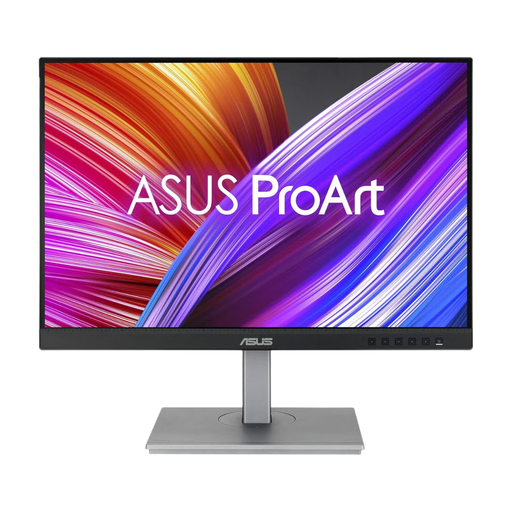
ASUS ProArt PA248CNV IPS WUXGA
Consider this model for survey documents if its complete stand footprint fits your work area. Its stated display format is IPS WUXGA; check your laptop’s video and charging compatibility if you intend to use USB-C.
View on Joybuy
 No image available
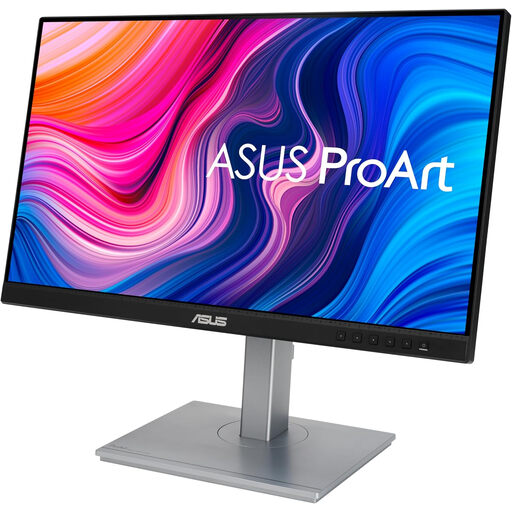
ASUS ProArt PA247CV IPS FHD 75Hz
This is a laptop-oriented option to assess for a compact survey-work desk. The product name specifies an IPS Full HD display and 75 Hz; confirm the stand dimensions and whether your laptop supports the USB-C video and charging functions you need.
View on Joybuy
 No image available
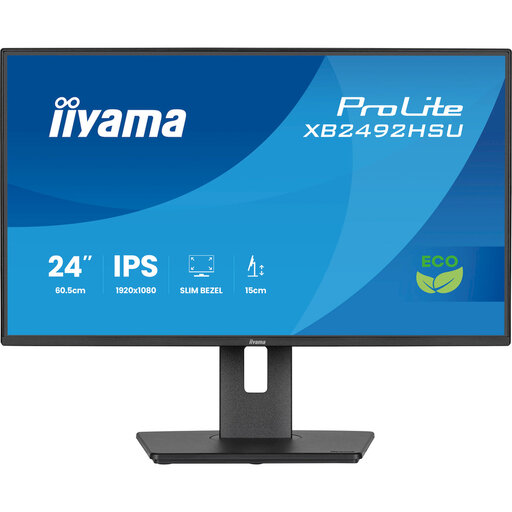
iiyama ProLite XB2492HSU 24-inch Full HD, Matte Black
Consider this 24-inch Full HD model if you plan to connect a computer using its stated video connections. Check the stand footprint against your desk and confirm the required ports; do not assume it provides single-cable laptop display and charging.
View on Joybuy
 No image available
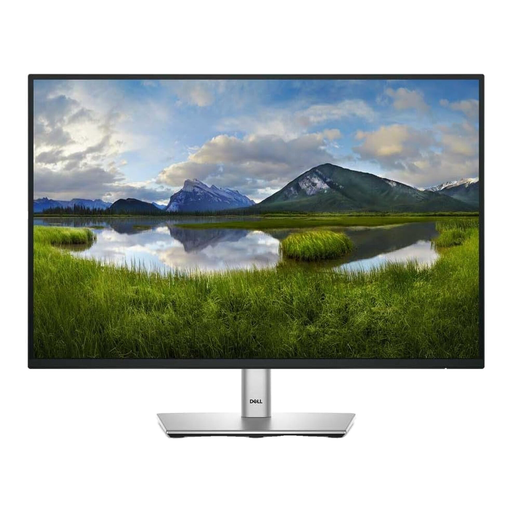
Dell P2425 24-inch Monitor
This model is worth assessing for survey documents if a 24-inch screen suits your desk. Confirm its depth with the intended stand, the exact display specification and the function of its USB-C connection before relying on any of them for your setup.
View on Joybuy
 No image available
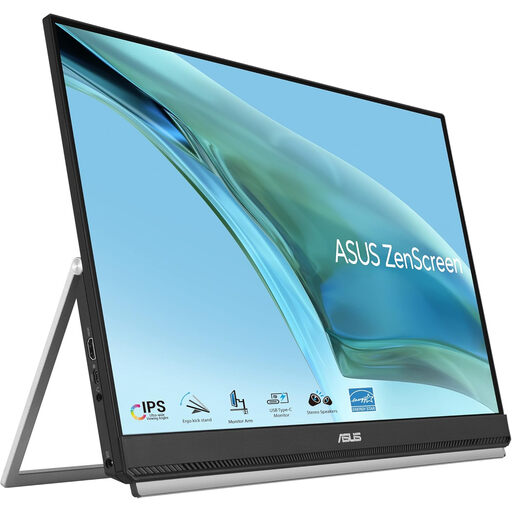
ASUS ZenScreen MB249C IPS USB-C
Consider this USB-C model if a flexible mounting arrangement would help you organise the survey-work area. Check the clearance needed for your chosen mount and verify laptop video and charging compatibility; confirm the exact weight if you expect to move it regularly.
View on Joybuy
Frequently asked questions
What monitor size should I start with for a small survey-work desk?
A 23.8-inch monitor is a practical starting point, but its screen diagonal cannot tell you whether the whole setup will fit. BenQ specifies the GW2490T at 540 mm wide and 241 mm deep with its stand; compare the chosen monitor’s full dimensions with your desk after allowing for a keyboard, paperwork and viewing distance.
Will any USB-C monitor display from and charge my laptop?
No: the monitor and laptop must support compatible USB-C video and charging functions. LG lists USB-C power delivery on the 24BA750-B, whereas Dell describes the P2425H USB-C port as downstream data with up to 15 W power delivery. Check the exact laptop and monitor specifications before planning a single-cable desk.
When does survey work call for a DSE workstation assessment?
For workers who use display screen equipment daily as part of their normal work for continuous periods of an hour or more, the UK Health and Safety Executive says employers must carry out a workstation assessment. Do not assume the same employer duty applies to every volunteer or occasional home user; the screen-position guidance remains useful when arranging a prolonged work session.
Where should I position the monitor once it is installed?
Place it directly in front of you, with the top of the screen around eye level and the display about an arm’s length away, following Health and Safety Executive guidance. Adjust the lighting to limit glare, and check that the desk leaves enough depth for both the monitor and keyboard.


