Start with the window and desk layout, then look for a matte or anti-glare screen that you can position comfortably; a brightness or HDR label alone does not settle the reflection problem. Choose between 27-inch and 31.5/32-inch 4K according to desk space and the physical size you want for editor panes. Give colour-work features or higher refresh priority only when your asset workflow or game previews call for them.
Who this setup suits
Window-side level designers
If reflections make scene editors or tool panels difficult to read, prioritise screen placement, window coverings and a positionable display. The Health and Safety Executive advises arranging the desk and screen to avoid glare or bright reflections.
Multi-panel world builders
If you keep a level editor, assets, documentation and a preview visible together, decide whether a larger physical canvas or a denser 27-inch display works better at your desk.
Colour-managed game-art creators
If you assess textures, lighting references or other visual assets against a defined colour workflow, look for published gamut and calibration specifications that match that workflow.
What to check when choosing
For a desk beside a bright window, work out how to control reflections before deciding how much space, colour capability or preview speed the monitor needs to provide.
| Concern |
What to check |
Who this matters to |
| Window reflections |
Check the stated screen finish, stand adjustment and whether the desk and window coverings let you move reflections away from the screen. |
If bright reflections obscure editor controls or darker scenes, I need a screen I can reposition and a way to shade the window. Around 36% of consumers put reflection control first. |
| Editor workspace |
Compare desk depth and viewing distance with the physical pane size of 31.5/32-inch 4K and the denser, smaller 27-inch 4K format. |
When several editor panes must stay readable together, I care about their physical size as well as detail. Workspace is the primary need for around 29% of consumers. |
| Colour-work features |
Match the project’s colour space to the exact model’s published gamut, colour modes and calibration options. |
If I judge textures or other assets against a defined colour workflow, I need relevant colour settings rather than a gaming label. Around 21% of consumers prioritise that work. |
| Preview and docking |
Check the computer and connection against the intended resolution and refresh rate; for a laptop, compare its charging needs with the monitor’s stated power delivery. |
If I regularly run interactive previews or connect a laptop at one desk, smooth output or simpler connections may matter most. Around 14% of consumers put preview or docking needs first. |
Buying pitfalls
-
Buying on a brightness or HDR badge alone
Neither badge tells you where a window reflection will fall on your screen. The Health and Safety Executive advises positioning the desk and screen to avoid glare and using curtains or blinds to control intrusive light.
Check the screen position at the hours you work, including whether you can shade the window, before relying on a display feature to address reflections.
Changing the desk layout or adding window coverings may still be necessary.
-
Assuming every 4K screen feels the same size
At the same resolution, a 31.5-inch screen makes panes physically larger, while a 27-inch screen packs pixels more densely. Neither choice establishes how comfortable your own editor layout will feel.
Measure your desk depth and consider your usual viewing distance and scaling preference before choosing the panel size.
-
Treating colour figures as automatic workflow accuracy
Published gamut and factory-calibration claims concern particular models and settings; they do not automatically align an engine, operating system and final display.
Check the project’s required colour space and the monitor’s applicable modes and calibration process before prioritising those specifications.
A workflow requiring ongoing calibration may also need suitable hardware or software.
-
Assuming a USB-C connection will power any laptop
Monitor power-delivery ratings differ, and a USB-C port alone does not establish that the laptop can receive video and sufficient charging power through one connection.
Compare the laptop’s video-output and charging requirements with the exact monitor and connection you plan to use.
You may still need a separate charger or dock.
Relevant brands to consider
Dell
Dell’s UltraSharp U2725QE and U3225QE are relevant when you want to compare 27-inch and 31.5-inch 4K workstation formats.
- Dell lists anti-glare/anti-reflective surfaces, ambient-light sensors and 120 Hz panels for both models.
- Those specifications are not measurements of how either screen handles reflections in your room; the larger model also needs more desk space.
BenQ
The DesignVue PD3225U is a 31.5-inch 4K option for a larger editor canvas and a defined colour-workflow requirement.
- BenQ specifies a matte panel, 98% P3 coverage and a factory calibration report for the PD3225U.
- Its stated 60 Hz refresh rate calls for a separate decision if high-refresh game preview is a priority.
ASUS ProArt
The PA279CRV is a 27-inch 4K option to examine when published colour specifications matter to game-art work.
- ASUS specifies 99% DCI-P3, 99% Adobe RGB, Calman verification and an ergonomic stand for this model.
- Confirm the exact screen finish before selecting it specifically to address window reflections.
LG UltraFine
The 27UP85ZK-W is a 27-inch 4K model to compare when USB-C connectivity and an adjustable stand matter.
- LG lists 95% DCI-P3 coverage and height, pivot and tilt adjustment for the 27UP85ZK-W.
- Its HDR classification does not establish how distracting a particular window reflection will be.
Joybuy monitors for this setup
These monitors offer different screen sizes and display types for a window-side level-design desk. Check each model’s finish, positioning options and suitability for prolonged editor work alongside the features stated in its title.
 No image available
ASUS ProArt Display PA32UCG-K 32-inch 4K Mini LED
Consider the larger 4K format if your desk accommodates a broad editor layout. The product title states 120 Hz and Thunderbolt 3; confirm the screen finish, stand movements and applicable colour modes for your workflow.
Check the exact brightness specification before using it to compare displays: the product information gives conflicting peak-brightness figures. Brightness does not establish reflection performance.
Joybuy
 No image available
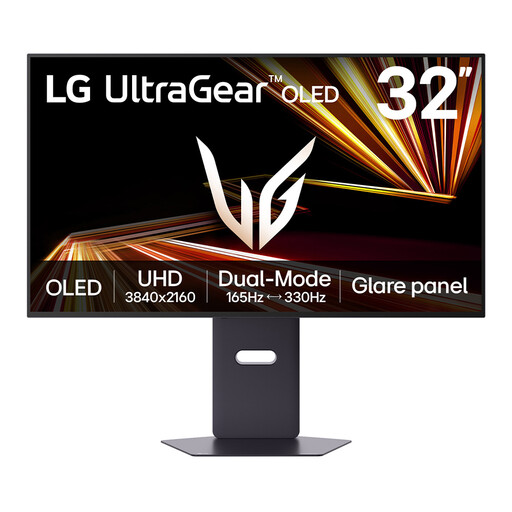
LG UltraGear 32GX850A-B 32-inch 4K OLED
The larger 4K format may suit a desk with room for several editor panes; the title also identifies a dual mode with a stated maximum of 330 Hz. Confirm which resolution and connection apply to the refresh mode you intend to use.
For an editor interface that stays visible for long periods, take account of the product information’s caution about prolonged static images on its OLED panel.
Joybuy
 No image available
ASUS ProArt PA27DCE-K 27-inch 4K OLED
Consider the 27-inch 4K format if a compact editor desk matters more than larger physical panes. Confirm its screen finish and relevant colour settings against your window position and asset workflow.
The product information states 60 Hz; decide whether that meets your game-preview needs.
Joybuy
 No image available
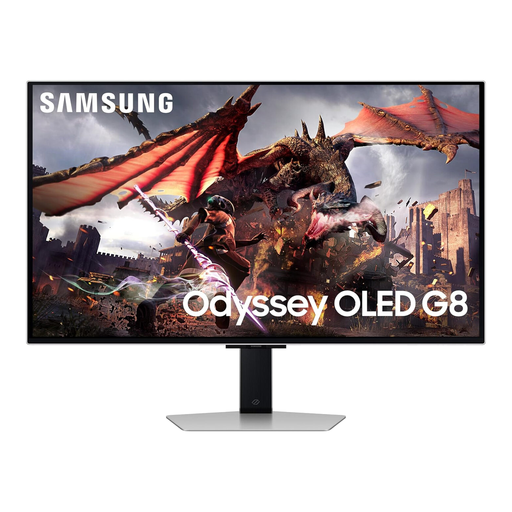
Samsung Odyssey OLED G8 LS32DG802SUXXU 32-inch Ultra HD
The 32-inch Ultra HD format is worth considering if you have space for larger editor panes. Check the stand’s specific adjustment range before relying on it to move the screen away from a window reflection.
Samsung’s reflection-reduction claim does not tell you how this OLED display will look with your window and desk arrangement; check the finish and positioning options for your setup.
Joybuy
 No image available
LG UltraGear G8 27G850A 27-inch 4K Nano IPS
This 27-inch 4K option combines a compact format with dual refresh modes stated in its title as 240 Hz and 480 Hz. Check which resolution, computer output and connection each intended mode requires.
Confirm the exact screen finish before choosing it for a bright-window desk; its refresh specifications do not address reflections.
Joybuy
Frequently asked questions
Will a brighter monitor or DisplayHDR 400 solve window reflections?
Not by itself: those display characteristics do not determine where light from your window reflects. The Health and Safety Executive advises arranging the desk and screen to avoid glare and adjusting curtains or blinds to prevent intrusive light.
Should a level-design monitor face the window?
Avoid placing the screen directly facing the window where practical. The Health and Safety Executive says that this often makes glare easier to avoid; adjust the screen and window coverings for the light at the times you work.
Is 32-inch 4K always preferable to 27-inch 4K for level design?
No: choose 31.5/32-inch 4K for larger physical panes if your desk supports it, or 27-inch 4K when a smaller screen with denser pixels better suits your viewing distance. BenQ specifies 140 pixels per inch for its 31.5-inch PD3225U, while Dell specifies 163.18 pixels per inch for its 27-inch U2723QE; compare your own editor layout as well as the dimensions.
What should I check before using one USB-C cable for a laptop?
Check that the laptop can output video through the intended port and that the monitor’s power delivery meets its charging requirement. The stated ratings differ by model: ASUS specifies 96 W for PA279CRV, BenQ 85 W for PD3225U and LG up to 90 W for 27UP85ZK-W.


