What matters when choosing?
Start with the screen position your standing desk allows, then compare the editor layout you need. Colour-workflow and game-preview requirements can narrow the choice further.
| Concern |
What to check |
Who this matters to |
| Position at both desk heights |
Compare the stand’s height range or VESA pattern with your measured seated and standing screen positions. If using an arm, check its load rating and desk attachment. |
If I alternate between sitting and standing, I need the screen to reach a comfortable position without rearranging my workstation; around 36% of consumers put positioning first. |
| Room for editor panels |
Compare your usual panel layout with a 4K 16:9 screen or a 3440 × 1440 ultrawide, and check desk width and computer output compatibility. |
Keeping a viewport, tools and references visible together matters more to me than extra vertical pixels; around 29% of consumers prioritise panel space. |
| Colour-sensitive review |
Check the exact model’s stated gamut and calibration features against the colour space and management workflow your project uses. |
When I assess environment art, lighting or UI assets, I need a display that fits the project’s colour workflow; roughly 21% of consumers make that their primary concern. |
| Motion and HDR previews |
Check refresh rate at the resolution you intend to use, graphics-output and variable-refresh compatibility, and any HDR requirements. For OLED, review static-interface guidance. |
If I preview fast camera movement or HDR scenes on the same screen, those preview requirements shape my choice; around 14% of consumers put them first. |
Relevant brands to consider
These model examples illustrate different specifications to check; a brand’s inclusion does not establish that every model in its range has the same features.
Dell
The P2723QE is a compact 27-inch 4K productivity-monitor reference for an adjustable, USB-C-equipped workstation.
- Dell specifies 150 mm height adjustment, tilt, swivel, pivot and 100 × 100 mm VESA mounting for the P2723QE.
- Use those specifications as a checklist for the exact model you consider; confirm its current availability and whether its adjustment range fits your desk.
BenQ
The DesignVue PD3225U is a 31.5-inch 4K creator-monitor example for a larger editor canvas and a defined colour workflow.
- BenQ lists 98% P3 coverage, a KVM feature, 150 mm height adjustment and 100 × 100 mm VESA mounting for the PD3225U.
- BenQ’s colour and calibration specifications should be assessed against your project’s colour-management process and preview refresh-rate needs.
LG
The 34WQ75C-B represents a 34-inch ultrawide approach to keeping editor panels and applications alongside one another.
- LG specifies a 21:9, 3440 × 1440 IPS screen, USB-C and an RJ45 connection for this model.
- Its 1440-pixel vertical resolution differs from the 2160 vertical pixels of the cited 4K examples; check which layout your work calls for.
ASUS
The ProArt PA279CRV and ROG PG27UCDM illustrate separate creator-colour and high-refresh approaches rather than one interchangeable specification set.
- ASUS lists wide-gamut specifications and USB-C power delivery for the PA279CRV, while the ROG PG27UCDM is specified as a 4K 240 Hz OLED model.
- Choose against the exact model and task: creator-colour claims need a matching workflow, and ASUS’s OLED panel-care features do not eliminate static-interface risk.
Lenovo
The ThinkVision P32pz-30 is a large 4K docking-monitor example for laptop-based work.
- Lenovo describes a 31.5-inch Mini LED USB4 monitor with charging of up to 140 W for a connected computer.
- Confirm the stand’s range and your computer’s USB4, video and charging compatibility before planning a one-cable setup.
Joybuy monitors for this setup
These monitors cover compact 4K editing, larger-screen asset work and displays with game-preview features. Compare each model’s physical fit with your standing-desk measurements before deciding whether its panel features suit your workflow.
 No image available
ASUS ProArt Display PA32UCG-K 32-inch 4K Mini LED
Consider this model when colour-sensitive review and responsive game previews share a display. ASUS specifies 48–120 Hz variable refresh rate and hardware-calibration features for the PA32UCG-K; check your graphics connection and the stand’s fit at standing height.
View on Joybuy
 No image available
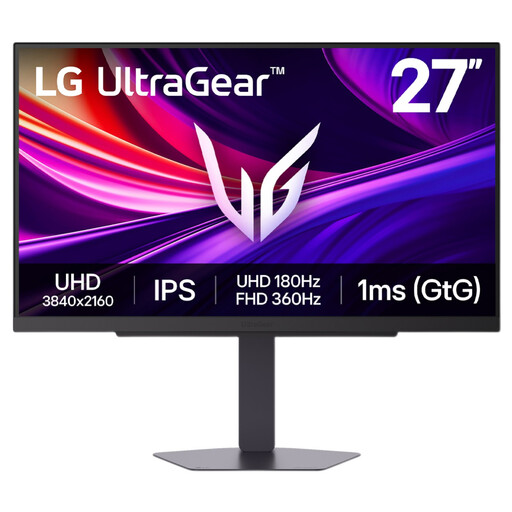
LG UltraGear 27G810A-B 27-inch 4K IPS Dual Mode
The 27-inch 4K format is worth considering when editor work and game previews must share a compact screen. The product title lists Dual Mode with a maximum of 360 Hz; confirm the resolution and computer connection required for the mode you intend to use, as well as the stand’s usable height.
View on Joybuy
 No image available
MSI MAG 275UPD E14 27-inch 4K Dual Mode
This is another compact-screen option if you edit levels and preview motion on one monitor. Its title specifies UHD at 144 Hz or Full HD at 288 Hz; confirm that your computer and chosen input support the mode you need, and check the stand’s fit at both desk heights.
View on Joybuy
 No image available
BenQ MA320UP 32-inch 4K Nano Glossy IPS USB-C
Consider the larger 4K screen if you prefer more physical room for a conventional editor layout. The product title identifies a height-adjustable stand and Mac-oriented features; check the stand position and your computer’s USB-C video and charging compatibility.
View on Joybuy
 No image available
iiyama ProLite XUB2792UHSU-B6 27-inch 4K
The 27-inch 4K, 16:9 format is an option for level editing on a narrower desk. Confirm its screen-positioning range for seated and standing use, and check connection and refresh-rate requirements if the display will also serve for game previews.
View on Joybuy
Frequently asked questions
How should I position a monitor at a standing desk?
The Health and Safety Executive advises putting the top of the screen at eye level and the display about an arm’s length away. Check that position at your actual standing height, then compare the required adjustment with the supplied stand or a compatible monitor arm.
Should I choose 4K or ultrawide for level design?
Choose according to your editor layout: 4K at 3840 × 2160 retains more vertical pixels, while a 3440 × 1440 ultrawide provides a wider space for side-by-side panels. Check your desk width and computer output alongside the viewport, tools and references you regularly keep open.
Can a USB-C monitor replace my laptop’s separate cables?
It can if the laptop supports video over the relevant USB-C connection and the monitor provides enough charging power for that laptop. Check both devices’ specifications and the required cable before relying on a single connection for video, peripherals and charging.
Does a work monitor need a wider workstation check?
Yes, where display-screen-equipment duties apply, assess the workstation rather than the monitor in isolation. The Health and Safety Executive says its guidance covers workers who use display screen equipment daily for continuous periods of an hour or more, and its workstation guidance includes equipment, furniture and working conditions.


