UI artists working in daylight
If you build menu layouts, icons, type and colour states near a bright window, controlling reflections and having room to inspect detail may matter more to you than a very high refresh rate.


Control window glare before choosing a monitor: position the screen so it does not face the window directly, and use blinds or curtains where needed. For game-menu artwork and colour review, consider a colour-focused 4K display; if you regularly preview animated menus or gameplay, a higher-refresh 4K display may be more useful, provided your computer can drive it at the intended settings. No screen finish or brightness specification replaces managing direct reflections.
If you build menu layouts, icons, type and colour states near a bright window, controlling reflections and having room to inspect detail may matter more to you than a very high refresh rate.
If you assess transitions, cursor movement, scrolling and in-engine menus as well as making assets, consider whether your computer can deliver the resolution and refresh rate you want for those previews.
If one desk monitor must serve both tasks, decide how much of your time goes to colour review and static layouts versus motion checks and gameplay. That balance changes which specifications are worth prioritising.
For game-menu work beside a bright window, deal with the light falling on the screen first. Then choose according to whether colour work, motion previews or day-to-day desk use drives your decision.
Choose it when: Menu artwork, typography and colour review occupy most of your working time.
Trade-off: Check refresh rate separately if you also need frequent high-frame-rate previews; ASUS specifies a 40–60Hz Adaptive-Sync range for the ProArt PA279CV.
Choose it when: You make interface assets and regularly inspect moving menus. Dell lists 4K, an anti-glare anti-reflective surface and 120Hz for its U2725QE.
Trade-off: Confirm that your computer output and cable can deliver the resolution and refresh rate together.
Choose it when: Animated transitions and in-engine interaction are recurring parts of the job; BenQ positions its 144Hz PD3226G for game-development and animation work.
Trade-off: Check the exact screen finish and brightness alongside your window position before relying on it for daylight work.
| Concern | What to check | Who this matters to |
|---|---|---|
| Daylight and reflections | Plan the screen’s position relative to the window; check its stated finish and whether blinds or curtains can control intrusive light. | I need to judge small menu text and dark UI panels without a window reflection obscuring them. Around 33% of consumers would put daylight legibility first. |
| Colour and UI detail | Check the exact model’s resolution, relevant colour-space coverage and calibration claims against your workflow. | When I create icons and colour states, I want enough workspace and a display whose stated colour capabilities I can assess. For around 27% of consumers, colour and detail would be the primary concern. |
| Motion previews | Confirm refresh rate at native resolution and the output supported by your computer and cable. | I regularly inspect transitions, scrolling or cursor movement, rather than only still layouts. Around 20% of consumers would prioritise motion previews. |
| Desk integration | Check the ports, any required laptop power delivery, stand adjustment and physical fit of the exact model. | My monitor needs to work comfortably with my computer and available desk space, without making unused specialist features the deciding factor. Desk integration would come first for around 20% of consumers. |
Bright reflections can still obscure menu elements. The Health and Safety Executive advises arranging the desk and screen to avoid glare or bright reflections, rather than relying on display settings alone.
Try a different screen angle and use blinds or curtains where needed; then consider a matte, anti-glare or anti-reflective finish if reflections remain a problem.
Resolution helps with detailed layouts, but it does not tell you how often the screen updates. A display suited to static artwork may not match a workflow centred on animated UI.
Decide how often you inspect movement, then check the exact monitor’s native-resolution refresh rate and the output your computer and cable support.
Colour coverage, calibration claims, coatings and refresh rates differ between models, even within a creator-focused range.
Check the exact model and variant against the colour space your project uses, along with its screen finish, ports and warranty terms.
Dell’s UltraSharp U2725QE illustrates a display intended to combine creator work with smoother on-screen interaction.
BenQ’s PD models illustrate different emphases within creator displays, from colour specifications to game-development motion work.
The ProArt PA279CV illustrates a colour-focused 4K option for menu assets and UI review.
These displays offer different starting points for menu artwork and motion previews. For a bright-window desk, check the exact screen finish and manage reflections before deciding whether colour features or refresh rate matter more to your work.
 No image available
Consider this model if detailed menu artwork and motion previews both matter. Its title identifies an IPS Mini LED display with 4K resolution and 120Hz refresh rate; confirm the brightness specification for the exact variant and assess reflections at your desk.
 No image available
Consider this colour-focused 4K OLED model when static layouts and asset review take priority over frequent high-refresh previews. Check its brightness against your room’s daylight and keep the screen out of direct window reflections.
 No image available
This is an option if QHD detail meets your menu-design needs and you want 100Hz for interaction previews. It is not a 4K model; check whether its resolution suits the size and detail of the assets you inspect, and confirm the ports on the exact unit.
 No image available
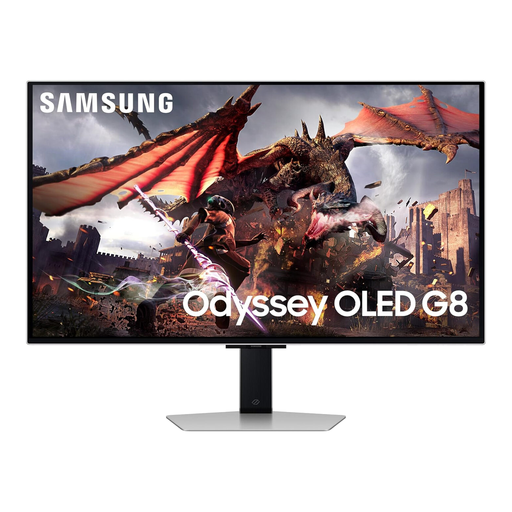
Consider this model when dynamic menu and gameplay previews are a regular part of your work. Its title specifies 4K resolution, 165Hz and a curved OLED screen; check the finish, daylight brightness and relevant colour coverage for your workflow, as well as whether a curved 32-inch display fits your desk.
 No image available
Consider this Ultra HD gaming display if the same desk is used for menu creation and gameplay previews. Check its brightness, colour specifications and reflection control against the needs of your UI work; keep direct window light off the screen.
No: deal with glare and bright reflections at the desk before relying on a brightness figure. The Health and Safety Executive advises arranging the screen so it does not directly face a window or bright light; blinds or curtains can help control intrusive daylight.
Not necessarily for chiefly static layouts and asset work; a higher refresh rate becomes more relevant if you regularly inspect transitions, scrolling or in-engine interaction. Dell specifies 120Hz for the U2725QE, while BenQ positions the 144Hz PD3226G for game-development work. Check that your computer can output your chosen resolution and refresh rate together.
Check the exact model’s coverage of the colour space your project uses, along with its calibration claims and resolution. For example, ASUS specifies 100% sRGB and Rec.709 coverage for the PA279CV, while BenQ specifies those same coverage figures for the PD3225U; neither model’s claims should be assumed to apply to other models in its range.