Start with a matte or anti-glare office monitor that you can position away from window reflections, then choose resolution and connections to suit your spreadsheets and laptop. A higher resolution can give wide timesheets more screen space, while USB-C can simplify a compatible laptop setup; neither replaces arranging the desk and screen to avoid glare, as the Health and Safety Executive advises.
Who this is for
Daylight-exposed spreadsheet coordinators
If you enter and check volunteer hours close to a bright window, reflections and screen position are the immediate concerns. The Health and Safety Executive advises arranging the desk and screen to avoid glare or bright reflections.
Laptop-based volunteer administrators
If you regularly connect a laptop, consider whether the monitor can provide the connections and charging your laptop needs, as well as a stand you can adjust. Dell lists those features for its P2425HE, but compatibility still depends on the laptop.
Multi-column timesheet users
If wide timesheets, calendars and volunteer lists are difficult to view together, resolution may matter more to your choice than video-oriented features. Dell lists a 2560 × 1440 resolution for its P2425D as one higher-resolution reference point.
What matters when choosing
For a desk beside a bright window, settle screen placement and reflections before deciding how much spreadsheet space or laptop connectivity you need.
| Concern | What to check | Who this matters to |
|---|
| Window reflections |
Look for a matte or anti-glare surface and a stand that lets you reposition the screen. Check whether the desk can place it away from direct reflections; the Health and Safety Executive advises arranging the whole setup to avoid glare. |
I need to read entries beside a bright window without reflections obscuring the sheet. Around 42% of consumers put reflection control first. |
| Spreadsheet space |
Compare native resolution, screen size and the text scaling you would use. Dell lists 2560 × 1440 for the P2425D, while BenQ lists 1920 × 1080 for the GW2790. |
When several timesheet columns and related windows must stay visible, fitting them on screen is my main concern; roughly 33% of consumers prioritise spreadsheet space. |
| Laptop setup |
Check the laptop’s video output and charging requirements against the exact monitor’s ports and power delivery, then check the stand’s adjustment range. Dell lists up to 90 W USB-C power delivery for the P2425HE. |
I reconnect a laptop for regular administration and want a workable screen position without relying on an unsuitable charging setup. Laptop integration and adjustment come first for around 25% of consumers. |
Buying pitfalls
-
Choosing a brightness figure while leaving the screen facing the window
Brightness alone does not establish that a monitor will remain readable in direct daylight. The Health and Safety Executive advises arranging the desk and screen to avoid glare or bright reflections.
Check the window and desk positions before ordering, then look for a suitable surface and enough adjustment to place the screen away from reflections.
If reflections persist, changing the desk layout or adding a blind or monitor arm may be necessary.
-
Assuming every USB-C connection will display and charge a laptop
USB-C video and power delivery depend on the exact monitor and laptop ports; a monitor’s charging rating does not establish compatibility with every laptop.
Compare the laptop’s video and charging specifications with the monitor’s stated USB-C functions and check which cable is needed.
A separate charger, compatible cable or dock may still be needed.
-
Treating an eye-comfort label as a workstation assessment
Monitor features cannot establish whether a regular work setup is suitable. The Health and Safety Executive says display screen equipment rules apply to employers whose workers use screens daily as a significant part of normal work, including continuous periods of an hour or more.
If that describes your work, ask for the appropriate workstation assessment and address its findings, including screen placement and furniture.
Brands for reference
Dell
Dell’s P2425HE and P2425D illustrate different office-monitor priorities: laptop connectivity and adjustment on one model, and QHD resolution on the other.
- Dell lists anti-glare treatment, 150 mm height adjustment and up to 90 W power delivery for the P2425HE.
- The cited P2425HE is Full HD; Dell lists QHD for the P2425D. Check the exact model rather than assuming their connections and resolution match.
BenQ
The GW2790 is a 27-inch home-office reference for a desk where window light can be managed.
- BenQ specifies a matte IPS Full HD panel and describes an ambient-light sensor that adjusts brightness and colour temperature.
- BenQ rates the GW2790 at 250 nits; that figure does not establish readability in direct sunlight.
LG
The 27UP85NP-W provides a reference for comparing a higher-resolution screen with USB-C laptop charging.
- LG lists a 27-inch 4K IPS panel, USB-C with 90 W power delivery, and height, pivot and tilt adjustment.
- LG labels this model discontinued. Use its features as comparison points and check any current alternative on its own specifications.
Joybuy monitor choices
These monitors offer different screen sizes, resolutions and connection options for volunteer-hour work at a bright-window desk. Check surface finish and positioning separately for each model rather than assuming any monitor will eliminate reflections.
 No image available
Dell P2425H 24-inch Full HD monitor
Consider this for a fixed desk if a 24-inch Full HD spreadsheet view suits your work. Its stated specifications include a 1920 × 1080 IPS display at 100 Hz, with USB-C, DisplayPort, HDMI and VGA named in the product title. Check the screen finish and exact USB-C video and charging functions before relying on either for this setup.
View on Joybuy
 No image available
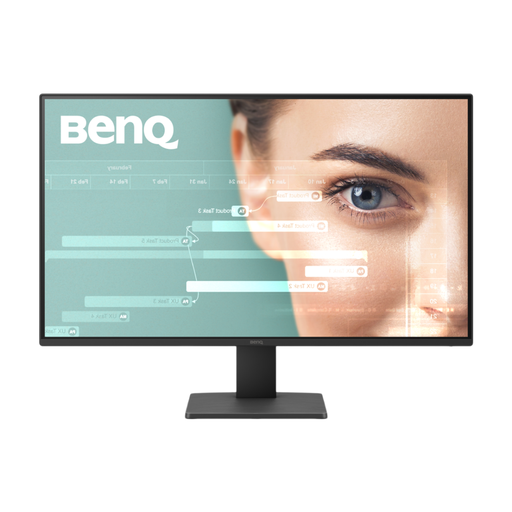
BenQ GW2791 27-inch Full HD monitor
Consider this if you prefer a larger physical screen and Full HD provides enough space for your timesheet. The product title specifies a 27-inch IPS display at 100 Hz. Check its position relative to the window; screen size alone will not control reflections.
View on Joybuy
 No image available
ASUS ProArt PA248CRV IPS WUXGA monitor
Consider this for laptop-based administration if its connections suit your computer and WUXGA suits your spreadsheet layout. The product title identifies an IPS WUXGA display. Confirm the screen finish, stand adjustment and exact USB-C video and charging compatibility for your desk.
View on Joybuy
 No image available
iiyama ProLite XB2492HSU 24-inch-class Full HD monitor
Consider this for a regular desk if a 24-inch-class Full HD screen meets your spreadsheet needs. The product title specifies a Full HD LED monitor and a matte black finish; the finish describes its colour, not necessarily its screen surface. Confirm screen treatment and stand adjustment before choosing it for a bright-window position.
View on Joybuy
 No image available
ASUS ZenScreen MB249C IPS USB-C monitor
Consider this if you need to adapt the screen’s position around your desk. The product title identifies an IPS monitor with USB-C. Confirm its screen treatment before using it beside a bright window, and check the laptop’s video and charging requirements against the exact USB-C specification.
View on Joybuy
Frequently asked questions
Will a brighter monitor solve glare from a nearby window?
Not by itself. The Health and Safety Executive advises arranging the desk and screen to avoid glare or bright reflections, so check where the display can sit and how you can manage daylight as well as considering a matte or anti-glare surface.
Do display screen equipment rules apply to regular volunteer-hour work?
They may apply when the tracking is part of a worker’s regular job, rather than simply because someone volunteers. The Health and Safety Executive says the rules apply to employers whose workers use display screen equipment daily as a significant part of normal work, including continuous periods of an hour or more; they can also apply to permanent, long-term or routinely split home working. Check the working arrangement and ask the employer about a workstation assessment where applicable.
What should I check before connecting a laptop to a USB-C monitor?
Check that the laptop port supports video output and the charging you intend to use, then compare its power requirement with the exact monitor’s stated power delivery. Dell lists up to 90 W for the P2425HE, but that figure alone does not establish compatibility with your laptop.


