Monitor owners without built-in sound
If your monitor has HDMI but no speakers or usable audio output, the picture and sound need separate destinations. Check the monitor’s connections before choosing a streamer or speakers.


An existing monitor can serve as an occasional streaming screen if it has a suitable HDMI input, but decide how you will hear and control the stream before choosing a player. Check whether the monitor passes HDMI sound to an audio output; if it does not, consider a streamer with documented headphone or speaker support, a compatible mobile-app listening route, or an HDMI audio extractor for existing powered speakers. Each route has different equipment and control requirements.
If your monitor has HDMI but no speakers or usable audio output, the picture and sound need separate destinations. Check the monitor’s connections before choosing a streamer or speakers.
If you usually watch alone, the headphone route may matter more than room speakers. Check the exact streaming-player model: direct Bluetooth pairing and listening through a mobile app are different features.
If you already have powered speakers or an amplifier, look for a confirmed audio output on the monitor. Otherwise, an HDMI audio extractor with an output matching your equipment is another wired route.
Start with the monitor’s video connection and audio behaviour, then choose a listening route and a way to adjust volume.
| Priority | What to check | Your needs |
|---|---|---|
| Display connection | Confirm a free HDMI input and the monitor’s supported resolution. Check its documentation for the content-protection compatibility needed by your intended streaming setup; a device labelled 4K does not make every monitor display 4K. | I want to use the monitor I already own, so the player must connect to an available input and suit the display’s capabilities. |
| Sound output | Confirm whether the monitor has speakers or an output that carries sound received over HDMI. If not, check the exact streamer’s audio options or an extractor’s outputs against your headphones, powered speakers or amplifier. | There is no point getting video on my monitor if I have no practical way to hear it. |
| Private listening | Distinguish direct Bluetooth pairing from headphone audio through a phone or tablet. Google documents one connected audio device at a time for Chromecast with Google TV and Google TV Streamer; Roku requires the mobile device and Roku player to share a wireless network for app-based Headphone Mode. | I usually listen through headphones and would rather choose a workable connection than assume the monitor can pair them. |
| Wired audio equipment | For an HDMI extractor, match video pass-through and HDCP support as well as the audio connector. Eaton / Tripp Lite documents HDMI 2.0, HDCP 2.2, and 3.5 mm, TOSLINK and RCA coaxial outputs for its P130-000-AUD4K6; another model needs its own specification check. | My powered speakers or amplifier are worth reusing if I can connect them without disrupting the picture. |
| Navigation and volume | Decide whether you will use a streaming remote, a computer keyboard and mouse, or a mobile app. Identify which device will adjust listening volume, especially if separate speakers or an extractor are involved. | For occasional viewing, I want to know how I will start a programme and change its volume from where I sit. |
A picture on the screen does not establish that the monitor has speakers or sends HDMI sound through a headphone socket.
Check the exact monitor manual. If it has no usable audio output, decide whether documented streamer audio support or an extractor with matching outputs suits your equipment.
An extractor route also means accommodating another device and HDMI cables; external wired speakers must have their own amplification or connect to an amplifier.
Roku lists Streaming Stick 4K and Streaming Stick 4K+ among devices that do not support direct Bluetooth Headphone Mode. That is distinct from listening through the Roku mobile app.
Check Roku’s compatibility information for the exact model, then decide whether using a phone or tablet for headphone listening is acceptable.
An output socket does not establish that an extractor meets the video, content-protection or audio-format requirements of your setup.
Match its HDMI pass-through and HDCP specifications to the intended streamer and monitor, and its audio output to your speakers or amplifier. Check the extractor instructions for any required stereo or PCM setting.
The streaming interface, monitor and separate audio equipment may have different controls, leaving volume adjustment less convenient than expected.
Before buying, identify whether volume will be controlled on the headphones, powered speakers, mobile device or another piece of equipment.
These examples illustrate different audio routes; a brand’s features do not establish compatibility for every model or monitor.
Chromecast with Google TV and Google TV Streamer offer an HDMI streaming route with documented Bluetooth headphone or speaker pairing.
Roku’s mobile-app Headphone Mode is a route for listening through headphones connected to a phone or tablet.
Apple TV 4K is an HDMI media-player route for households considering headphones or speakers as a separate audio output.
The P130-000-AUD4K6 is an example of the extractor route: HDMI video continues to the display while audio goes to separate equipment.
These Roku sticks are options for adding a dedicated streaming interface to a monitor with a suitable HDMI input. Plan the sound route separately, particularly if the monitor has no speakers or usable audio output.
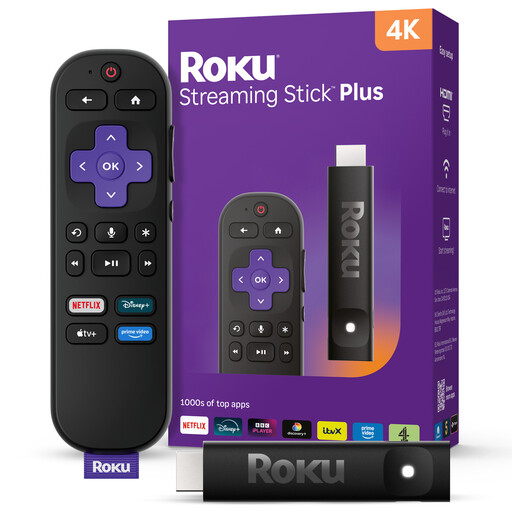 No image available
Consider this stick if you want a dedicated player for occasional viewing on an HDMI monitor. For private listening, confirm the exact headphone connection and any accessories required rather than assuming direct Bluetooth pairing: Roku excludes Streaming Stick 4K+ from direct Bluetooth Headphone Mode.
Check the monitor’s supported resolution and protected-video compatibility before relying on the stick’s 4K designation.
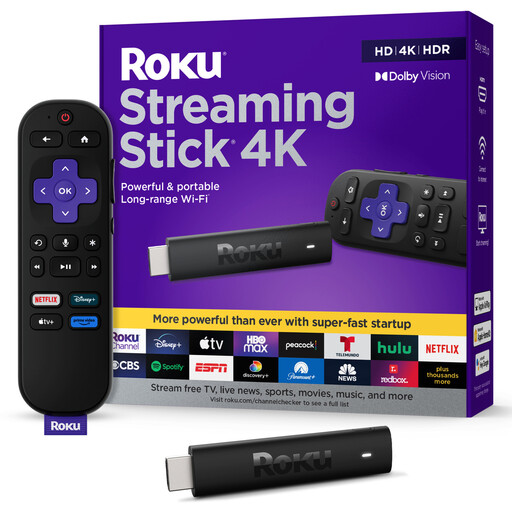 No image available
This is another dedicated streaming route for a monitor with a suitable HDMI input. If headphone listening matters, Roku’s mobile-app Headphone Mode requires the phone or tablet and Roku player to be on the same wireless network; Roku says Streaming Stick 4K does not support direct Bluetooth Headphone Mode.
Confirm the monitor’s resolution and protected-video compatibility. The stick’s 4K name alone does not establish what that monitor can display.
Check for a free HDMI input, the supported resolution, and whether any headphone or line-out socket carries sound received over HDMI. Consult the monitor documentation for content-protection compatibility and work out how you will switch inputs. Google’s setup instructions, for example, require an available HDMI input on the display.
Yes, if the exact model supports Bluetooth audio output. Google documents headphone and speaker pairing for Chromecast with Google TV and Google TV Streamer, with one audio device connected at a time. Direct Bluetooth Headphone Mode is model-dependent on Roku devices; Roku excludes Streaming Stick 4K and Streaming Stick 4K+.
Consider an extractor when an HDMI streamer can send video to the monitor but the monitor has no usable route to your audio equipment. Place a compatible extractor between the streamer and monitor, then connect its matching audio output to powered speakers or an amplifier. Check video pass-through, HDCP and audio-output specifications for the exact extractor.
Confirm that the speakers are powered, their input matches the extractor’s output and the streamer’s audio format matches the extractor instructions. For a 3.5 mm stereo connection, check whether those instructions call for PCM or stereo output rather than an automatic audio setting.
Roku’s mobile-app Headphone Mode offers that route when set up on a compatible Roku device. Install the Roku remote app, connect the phone or tablet and Roku player to the same wireless network, and follow the app’s Headphone Mode instructions. This is separate from pairing headphones directly with the streaming stick.