For a home-office desk where you regularly compare historical sources, notes and slides, consider a 27-inch QHD or 4K monitor; a compact Full HD screen may be enough if you usually work in one main document. Choose between them by the space you need on screen, then check whether the stand suits your desk. If you want one cable for a laptop, confirm that the monitor, laptop and cable support the required video and charging functions.
Who this setup suits
Source-heavy lesson planners
If you compare digitised documents, browser research, lesson notes and slides, start by deciding how much material you need visible at once. Screen size and resolution are useful checks, but text also needs to remain comfortable for you to read.
Long-session home-office teachers
If you plan lessons at a desk for extended periods, screen position matters as well as the display itself. The Health and Safety Executive advises that home workers should be able to achieve a comfortable, sustainable posture.
Laptop-first desk users
If you connect a laptop and want fewer desk cables, look at USB-C video and charging functions. One-cable use depends on the particular laptop, monitor port and cable being compatible.
What to check when choosing
For history-lesson planning at home, decide how many documents you normally need to see together before choosing a screen size. Then check how the display will sit on your desk and how your laptop will connect.
| Concern |
What to check |
Who this matters to |
| Document workspace |
Compare screen size and native resolution; consider whether text scaling will suit your viewing distance. |
If I keep historical sources, notes and slides open together, I need enough readable space to compare them without constant window switching. Around 29% of consumers put document workspace first. |
| Screen positioning |
Check the stand’s adjustment range, or confirm the monitor and any proposed arm have compatible mounts. |
For long planning sessions, I need to place the screen comfortably within my own desk and chair setup. Screen positioning is the primary concern for around 29% of consumers. |
| Laptop connection |
Match USB-C video support, power-delivery output and cable capability to the laptop’s requirements. |
When I set up a laptop at the desk, I would rather connect fewer cables, provided the connection can carry the display and supply suitable charging power. Around 21% of consumers prioritise that connection. |
| Compact desk fit |
Measure the available desk space and stand footprint; decide whether you usually need full-size documents side by side. |
On a smaller desk, I would choose a screen that fits my space rather than extra display or connection features I would rarely use. Desk fit comes first for around 21% of consumers. |
Buying pitfalls
-
Assuming higher resolution fixes an awkward screen position
A sharper display does not determine where it sits relative to your chair and desk. The Health and Safety Executive advises that home workers should be able to achieve a comfortable, sustainable posture.
Check the stand’s adjustment range against your setup, or confirm VESA compatibility if you plan to use an arm.
An arm or riser may be needed if the supplied stand cannot place the screen comfortably.
-
Assuming every USB-C port provides a one-cable setup
A USB-C connector alone does not establish that video and suitable laptop charging will work together. LG lists 90W power delivery for the 27U730A-B, while BenQ lists 65W for the PD2705Q; your laptop’s requirements still matter.
Check the laptop’s video-output and charging requirements against the monitor’s stated functions and the cable you intend to use.
A separate charger, dock or different cable may be needed if the intended connection cannot provide the required functions.
-
Choosing Full HD without considering side-by-side documents
The cited Full HD, QHD and 4K monitors have different native resolutions. If several source documents and slides are usually open together, that difference matters more to your choice than the resolution label alone.
Consider how many windows you need readable at once before deciding whether a compact Full HD display or a QHD or 4K option fits your workflow.
Brands to consider
Dell
Dell’s cited 27-inch models illustrate two different display choices: the S2725DS is QHD, while the S2725QC is 4K with USB-C.
- Dell UK lists height adjustment for the S2725DS, which is worth checking if you will use the supplied stand.
- The S2725DS and S2725QC have different specifications; check the exact model rather than assuming a feature applies to both.
BenQ
BenQ’s cited models cover a compact 23.8-inch Full HD display and a 27-inch QHD model with USB-C connectivity.
- BenQ lists stand adjustment for the GW2490T and a 140 mm height-adjustment range, VESA mounting and 65W USB-C power delivery for the PD2705Q.
- The PD2705Q’s colour-management features need not drive the choice if your work is lesson planning rather than colour-critical creative work.
LG
LG’s cited 27U730A-B is a 27-inch 4K IPS option for a desk used with a laptop.
- LG UK lists USB-C display, data transfer and 90W device charging for this model.
- Check your laptop’s USB-C video and charging requirements before relying on those functions through one connection.
Joybuy monitor options
These 4K and QHD options are relevant to reading sources and preparing lesson materials at a home-office desk. Choose by the screen space, positioning and laptop connections you need; USB-C functions differ between models.
 Image unavailable
BenQ MA270UP 27-inch Nano Glossy 4K USB-C monitor
Consider this for a 27-inch 4K display when comparing lesson materials and adjusting screen height at your desk.
The title specifies an IPS panel, USB-C and a height-adjustable stand. Check that its Mac-focused functions and USB-C video and charging arrangement suit your computer.
View on Joybuy
 Image unavailable
MSI MD272UPSW 27-inch 4K Smart Monitor
Consider the 27-inch 4K display for keeping research and lesson materials on screen; decide separately whether its Google TV features matter to you.
The title lists an IPS panel and USB-C with 65W power delivery. Confirm that MD272UPSW matches the model code on the listing and that your laptop supports the intended video and charging connection.
View on Joybuy
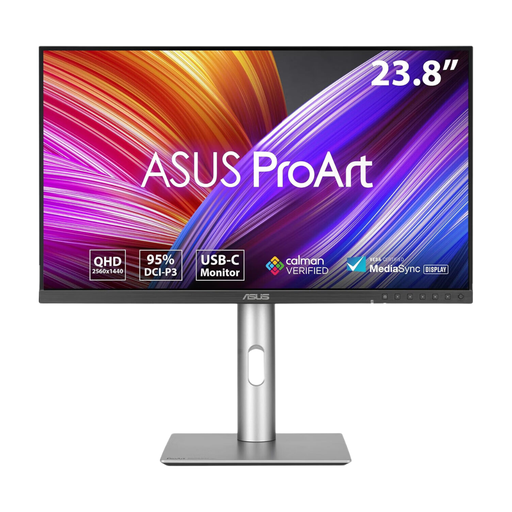 Image unavailable
ASUS ProArt PA24ACRV QHD IPS monitor
This QHD option is worth considering when desk space is limited but reading and comparing lesson documents remains important.
Check its dimensions and stand positioning against your desk. If you intend to connect and charge a laptop through USB-C, confirm the laptop’s requirements and the connection details before buying.
View on Joybuy
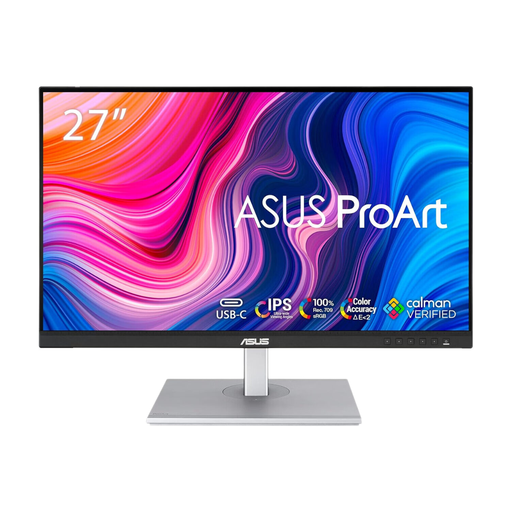 Image unavailable
ASUS ProArt PA278CFRV QHD 100Hz IPS monitor
Consider this QHD model if your main priority is a desktop display for lesson notes and research, rather than a 4K specification.
Check the stand against your desk setup. If a one-cable laptop connection matters, confirm whether this exact variant has USB-C and what its port supports.
View on Joybuy
 Image unavailable
LG 27UP650K 27-inch 4K IPS monitor
Consider this 27-inch 4K display if reading source material and preparing slides are your main screen-space needs.
The title lists a 60Hz panel, built-in speakers, HDMI and DisplayPort. If you need a single-cable laptop setup, check the exact connection options before choosing it.
View on Joybuy
Common questions
Do I legally need a separate monitor to plan lessons at home?
A separate monitor is not automatically required under the Health and Safety Executive’s home-working display-screen guidance. For employees who use display-screen equipment daily for continuous periods of an hour or more, the individual workstation and a comfortable, sustainable posture are the relevant considerations.
Will a USB-C monitor display my laptop screen and charge it through one cable?
Only if the laptop, monitor port and cable support the required functions. LG lists USB-C display, data and 90W charging for the 27U730A-B, and BenQ lists USB-C functions with 65W power delivery for the PD2705Q; check your own laptop’s video output and charging requirements against the monitor you choose.
Should I prioritise a height-adjustable stand?
Prioritise screen-positioning options if your desk and chair do not otherwise let you place the display comfortably. The Health and Safety Executive advises a comfortable, sustainable posture for home workers; a suitable stand or compatible monitor arm gives you ways to adjust the individual setup.
What should I check about warranty and after-sales support?
Check the seller’s terms and the manufacturer’s support information for the exact model and variant before purchase. Keep the purchase details so you can identify the product and seller if you later need support.


