What matters when choosing?
Establish a working video connection before deciding whether a fixed stand or a screen you can put away better fits your desk.
| Concern |
What to check |
Who this matters to |
| Video and charging compatibility |
Check the laptop’s exact video-output specification against the monitor input and cable. If you want USB-C charging, compare the monitor’s power output with the laptop’s requirements. |
If I want one cable at my desk, I need to know it will carry a picture and provide suitable power rather than relying on the USB-C connector’s shape. Around 37% of consumers put connection compatibility first. |
| Positioning for regular use |
Check the stand’s adjustment range and base depth; if planning to use an arm, confirm mounting compatibility. |
For long work or study sessions, I want to position the screen without letting the laptop dictate its height. Screen adjustment is the primary concern for around 36% of consumers. |
| Desk fit and portability |
Measure the available width and depth, then consider the screen’s footprint and how it will be powered if moved. |
When I share a desk or clear the table after work, a screen I can move matters more than a permanent setup. Roughly 27% of consumers prioritise that flexibility. |
Fixed monitors for a laptop workspace
These fixed monitors are options for adding screen space at a regular desk. Choose between them by checking your laptop’s video output, the space available for the screen and the connections and stand features stated for the exact model; a portable screen remains a separate option if you need to put the workspace away.
 No image available
BenQ MA270UP 27-inch 4K USB-C monitor
Consider this for a regular desk if you want a 27-inch screen and a height-adjustable stand. Its name specifies a 4K UHD Nano Glossy IPS panel and USB-C; confirm the laptop’s video mode and charging requirements before planning a single-cable setup.
View on Joybuy
 No image available
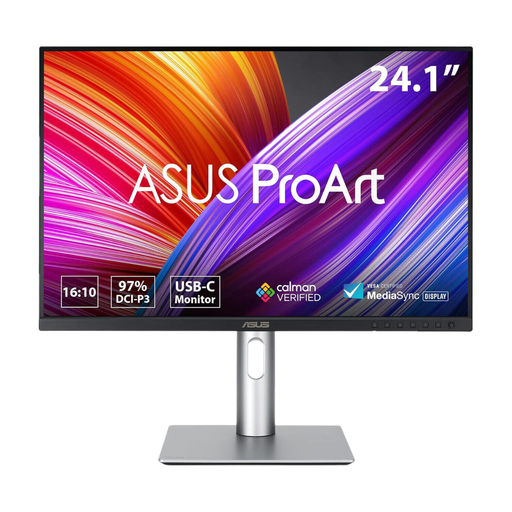
ASUS ProArt PA248CRV IPS WUXGA monitor
This is a fixed-screen option for a regular laptop workspace. Its name identifies an IPS WUXGA display; check the exact connection and stand specifications against your laptop and desk before choosing it.
View on Joybuy
 No image available
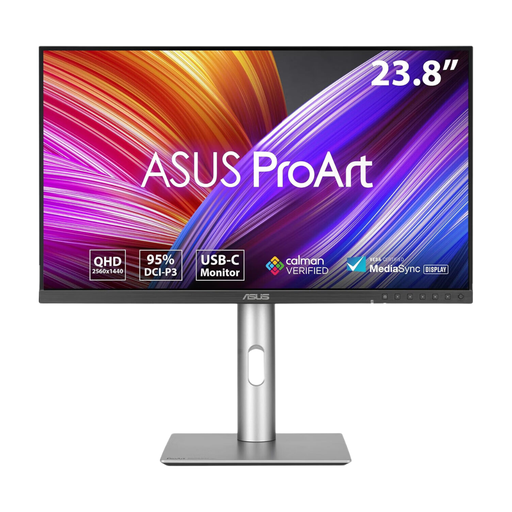
ASUS ProArt PA24ACRV IPS QHD monitor
Consider this fixed monitor if a separate QHD screen suits your desk setup. Its name specifies an IPS QHD panel; verify the intended laptop connection and any stand adjustments you need for regular use.
View on Joybuy
 No image available
LG 27UP650K 27-inch 4K IPS monitor
This fixed 27-inch screen is an option when your laptop has a compatible HDMI or DisplayPort video route. Its name specifies a 4K IPS panel, HDMI and DisplayPort; confirm the connection you will use, including any adapter or dock, before ordering.
View on Joybuy
 No image available
ASUS ProArt PA278CV IPS WQHD monitor
This fixed WQHD screen may suit a regular workspace where its size and connections fit the desk and laptop. Its name specifies an IPS WQHD panel; check the exact video inputs and USB-C power-delivery rating before relying on monitor charging.
View on Joybuy
Common questions
Will any USB-C monitor work with my USB-C laptop?
No: the connector alone does not establish video support. Check the exact laptop port for DisplayPort Alt Mode, Thunderbolt or USB4 video output, then match it to the monitor’s input; some USB display solutions instead require DisplayLink software.
Can a USB-C monitor replace my laptop charger?
It can only do so if the laptop accepts USB-C charging and the monitor’s output suits the laptop’s requirements. For example, BenQ UK and LG UK specify up to 65W for particular models, but that figure does not establish suitability for every laptop or workload.
When should I choose a portable screen instead of a fixed monitor?
Choose a portable screen when you need to move or store the second display regularly, provided its power and video connections work with your laptop. For a permanent desk, compare fixed monitors’ screen size and adjustment options; Which? identifies smaller screens as relevant to limited spaces and larger displays as suited to home offices.
Where should I position a monitor for regular work?
Aim to position it so the top of the screen is around eye level and the display is roughly an arm’s length away, in line with Health and Safety Executive guidance. Check the stand’s range and your desk depth before choosing a monitor, rather than assuming any screen can reach that position.


