What to prioritise
Decide whether your usual code and documentation layout needs the denser 4K option or whether QHD gives you enough room; then check laptop connections and how the screen will sit at your desk. BenQ UK specifies 3840 × 2160 and 163 PPI for the 27-inch PD2705U, compared with 2560 × 1440 and 109 PPI for the 27-inch GW2790QT. Those figures describe the panels, not how comfortable either will feel at your chosen scaling and viewing distance.
| Concern |
What to check |
Who this matters to |
| Text workspace |
Compare 27-inch 4K and QHD at the scaling you normally use; check whether your editor and reference panes remain readable. |
If I keep code, an API reference and a preview open together, I need enough usable space without making the text awkward to read. Around 31% of consumers may put text workspace first. |
| One-cable connection |
Check laptop USB-C video support and charging requirements against the exact monitor’s power-delivery rating. |
When my laptop is the centre of the desk, I want to connect the display and charging without juggling separate leads. For around 25% of consumers, that connection may be the primary concern. |
| Screen positioning |
Check stand adjustments, desk depth and any mounting requirements alongside your chair and keyboard position. |
At a desk where the screen sits too high, low or close, I need room to change its position. Adaptable placement may come first for around 25% of consumers. |
| Visual-asset review |
If you review colour-sensitive screenshots or UI assets, check colour claims for the exact model and your workflow. |
If I also check the appearance of diagrams and UI assets, text space alone will not settle my choice. Around 19% of consumers may make visual-asset review their main priority. |
Monitor choices on Joybuy
These monitors offer 27-inch 4K or QHD options for a documentation-writing desk. Some product titles specify USB-C; others are worth considering for screen resolution while you check how they would connect to and charge your laptop.
 No image available
BenQ MA270UP 27-inch Nano Glossy IPS 4K monitor
Consider this model if you want a 27-inch 4K screen with a height-adjustable stand for a documentation desk.
The product name specifies USB-C and a Nano Glossy IPS display. Check whether your laptop supports video through the intended connection and whether the monitor’s charging output meets its needs. Its Mac-oriented features should not be assumed to work with other computers.
Joybuy
 No image available
MSI MD272UPSW 27-inch 4K UHD Smart Monitor
This is another 27-inch 4K option for arranging code and documentation on one screen.
The product name specifies an IPS panel, Google TV and USB-C with 65 W power delivery. Check laptop video compatibility and charging requirements before planning a one-cable setup; confirm the available peripheral connections if you need a monitor hub.
Joybuy
 No image available
ASUS ProArt PA278CV IPS WQHD monitor
Consider the QHD route if your usual API-writing layout does not call for a 4K panel.
The product name identifies the PA278CV as an IPS WQHD model. Before relying on USB-C for a laptop-centred desk, check the exact video connection and charging output for this model against your laptop.
Joybuy
 No image available
LG UHD Monitor 27UP650K 27-inch 4K IPS
This model is worth considering if a 27-inch 4K workspace matters more to you than a planned one-cable laptop connection.
Its product name specifies 60 Hz, HDMI and DisplayPort. Check the exact port configuration before buying, particularly if you need more than one HDMI connection, and plan how you will charge your laptop separately if required.
Joybuy
 No image available
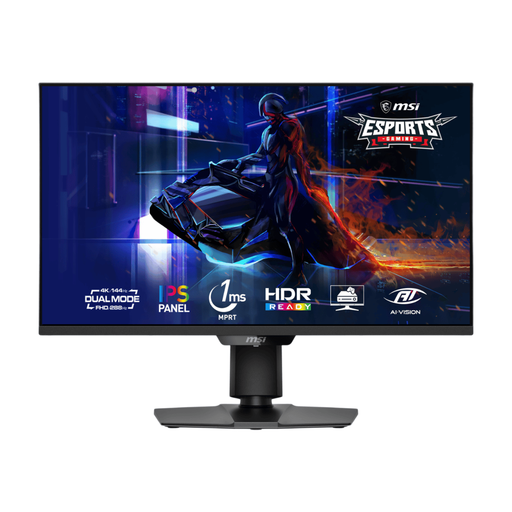
MSI MAG 275UPD E14 27-inch 4K UHD gaming monitor
The 27-inch 4K mode is relevant if you want a high-resolution screen for documentation as well as the gaming modes named for this model.
The product name specifies UHD at 144 Hz and an FHD 288 Hz dual mode; these are different resolution modes, not interchangeable 4K settings. Check that your computer can use a suitable display connection, and make a separate plan for laptop charging if needed.
Joybuy
Common questions
Do I need 4K to write API documentation?
No: 27-inch QHD is an option if your code, browser and documentation fit comfortably at your preferred scaling. BenQ UK specifies 163 PPI for its 27-inch 4K PD2705U and 109 PPI for its 27-inch QHD GW2790QT, making 4K worth considering when a denser layout is your priority.
Will any USB-C monitor display video and charge my laptop?
No; check the laptop’s USB-C video capability and charging requirements against the exact monitor. BenQ UK specifies 65 W power delivery for the PD2705U and GW2790QT, while ASUS United Kingdom specifies 96 W for the PA279CRV. Neither rating alone tells you whether the connection meets your laptop’s needs.
Does an adjustable monitor make a home workstation comfortable?
An adjustable stand gives you more ways to position the screen, but the rest of the workstation still matters. The Health and Safety Executive advises home workers to achieve a comfortable, sustainable posture, so consider the monitor together with your desk, chair, keyboard and working routine.
Should a low-blue-light or flicker-free label decide my choice?
No; treat those labels as model features rather than a substitute for positioning the workstation. BenQ lists such features for the PD2705U and GW2790QT, while the Health and Safety Executive’s home-working guidance emphasises a comfortable, sustainable posture.


