Document-heavy move planners
If you compare floorplans, quotes, inventories and browser tabs, screen space and readable detail are likely to matter more than entertainment features.


Choose a monitor you can position comfortably at standing height, then decide how much room you need for plans, documents and browser windows. A 31.5-inch 4K setup suits planners who want several detailed windows visible and have space for the screen and its stand; a 27-inch option is a more contained choice. Treat USB-C charging and KVM switching as deciding features only if they fit your laptop and any second-computer workflow.
If you compare floorplans, quotes, inventories and browser tabs, screen space and readable detail are likely to matter more than entertainment features.
If you plan for long stretches at a sit-stand desk, consider where the screen will sit at both desk heights. The Health and Safety Executive advises placing it directly in front of you, with the top around eye level and the display about an arm’s length away.
If your laptop is your main computer, check its video and charging requirements before relying on a USB-C connection. Switching regularly between two computers can also make a compatible KVM setup relevant.
For move planning at a standing desk, settle the screen’s position and the space needed for your working windows before deciding whether extra connection or colour features matter to you.
| Concern | What to check | Who this matters to |
|---|---|---|
| Room for planning windows | Compare screen size and native resolution, then check that the display fits at a comfortable viewing distance. | If I keep plans and quotes open alongside a property listing, I want enough room to read them without constant window switching; around 34% of consumers put workspace first. |
| Positioning while standing | Check the stand’s adjustment range and, if using a clamp or separate arm, its fit with your desk. | When I raise the desk, I need the screen to stay directly in front of me at a workable height; roughly 33% of consumers make positioning their primary concern. |
| Laptop and peripheral connections | Confirm compatible USB-C video output, the laptop’s charging requirement and any connections needed for KVM switching. | I would rather connect my laptop without repeatedly changing chargers or peripherals; about 25% of consumers prioritise a simpler device setup. |
| Colour-sensitive work | Consider colour modes and calibration features only if you also work with images or design materials where they matter. | If I review colour-sensitive images as well as move paperwork, those features could shape my choice; around 8% of consumers put this specialist need first. |
Screen size alone will not give you a suitable standing-desk position. The Health and Safety Executive advises keeping the display directly in front of you, with its top around eye level and the screen about an arm’s length away.
Measure the usable desk surface and check the final screen position at standing height, especially if you are considering a clamp-mounted arm.
If the supplied stand or clamp cannot reach that position on your desk, you may need a compatible separate arm or a different setup.
USB-C functions and power-delivery ratings depend on the exact devices. LG lists up to 60W for the 32UN880K-B, while BenQ lists 90W for the PD2706UA; neither figure establishes what your laptop can receive or whether it outputs video through the required connection.
Check your laptop’s video-output and charging requirements against the monitor’s stated port functions before relying on one cable.
An incompatible connection or insufficient charging output could leave you using a separate charger, dock or compatible cable.
BenQ lists colour-management features for the PD2706UA, but they need not be the deciding factor when your main tasks are spreadsheets, checklists and property searches.
Choose those features for a colour-sensitive image or design workflow; otherwise, focus on screen fit, adjustment and the connections you will use.
The Health and Safety Executive describes workstation assessment as an employer duty for workers covered by display-screen-equipment rules. You still need to position the components of your actual desk setup.
If the rules apply to your work, use the relevant workplace assessment. After installation, adjust the monitor, keyboard, mouse and desk together.
LG’s 32UN880K-B is a reference point if the monitor’s mounting and adjustment system is central to your standing-desk choice.
Dell’s UltraSharp range offers professional-oriented monitors to consider when choosing a screen for documents and multiple applications.
BenQ’s PD2706UA illustrates a 27-inch 4K route for a desk where connection and two-computer switching matter alongside screen adjustment.
These monitors offer different ways to set up a screen for planning at a standing desk, from larger 4K displays to a WQHD option. Check each model’s physical fit and connections against your own desk and computer.
 No image available
Consider this larger screen if you want space for detailed plans and documents, provided it fits your desk at a suitable viewing distance.
The product name specifies 4K resolution, a curved OLED panel and USB-C at 65W. Check your laptop’s video and charging compatibility before planning a one-cable connection.
 No image available
This is a larger-screen option to consider if you plan to work across several documents and use a compatible Mac.
Its product name specifies 4K UHD, USB-C and a height-adjustable stand. Check the stand’s dimensions against your desk and confirm your laptop’s connection and charging requirements.
 No image available
Consider this model if you need a large planning display and also have a use for its creator-oriented features.
The product name specifies an IPS Mini LED panel and 4K HDR. Confirm the supplied model’s exact ports and your laptop’s compatibility before relying on a particular connection.
 No image available
This is an option for general planning if you prefer a more contained screen setup to the larger displays shown here.
The product name specifies an IPS panel and WQHD resolution. Check how many windows you need visible at once, along with the stand’s fit and your laptop’s connection and charging requirements.
 No image available
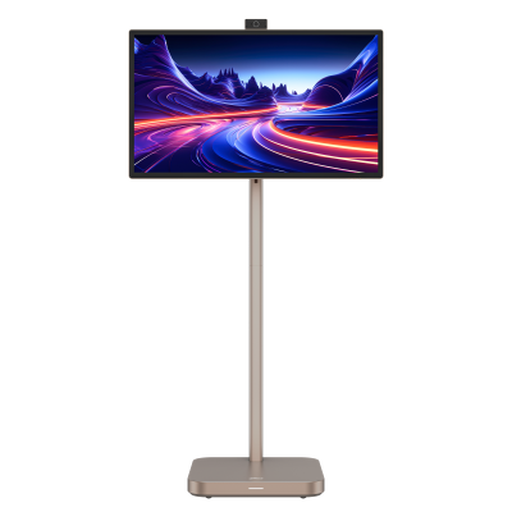
Consider this large display for viewing plans and documents, but check its footprint and handling needs before placing it at a standing desk or moving it.
The product name specifies 4K UHD, an IPS panel and a built-in battery. Confirm the exact Type-C functions if you intend to connect a laptop through that port.
Place the monitor directly in front of you, with the top around eye level and the screen about an arm’s length away, following Health and Safety Executive workstation guidance. Adjust the screen, keyboard and desk together at the height you actually use.
Yes, if both devices support the required USB-C video and power functions and the monitor’s output meets your laptop’s charging needs. LG specifies up to 60W power delivery for the 32UN880K-B and BenQ specifies 90W for the PD2706UA; check your laptop’s requirements before relying on either connection.
A KVM switch is useful if you regularly alternate between two compatible connected computers and want to use one keyboard and mouse with both. BenQ specifies KVM switching for the PD2706UA; if you use only one laptop, focus on the screen and connection features you need instead.
They can apply to work done at home, but planning a personal move does not by itself establish that the employment rules apply. The Health and Safety Executive says the Display Screen Equipment Regulations apply to workers who use display-screen equipment daily for continuous periods of an hour or more; the duties it describes are employer duties. Its positioning guidance remains useful when arranging a personal desk setup.